Transcription of Let’s connect you. - Telkom
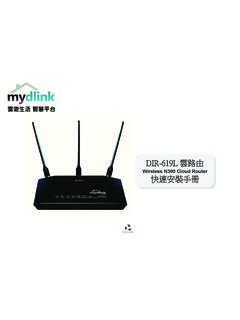
1 Let s connect Telkom Easy Guide to set up your Netgear n300 DSL , unpack your new DSL filter1 DSL splitter2 telephone cables1 LAN cable1 power supply cordYour Netgear n300 Router2 external antennae12345671234567 Let s get the 12vDC power supply into your router and into a power socketPlug the short end of the DSL splitter into the telephone the dark grey cable and plug the one end into red socket marked DSL on the DSL splitter and the other end into the power supply port marked INTake the light grey cable and plug the one end into the power supply port marked OUT and the other end into the back of the telephone now plugs into the green socket marked Phone of the DSL the yellow LAN cable into the yellow port on the back of the router, and the other end into the LAN port on your your router on by pressing the power button at the back of the to power light will first come on red and then eventually turn DSL light must stay green.
2 If this is flashing it means that no connection is synced with LAN 1 light must be green if the LAN cable is plugged internet light will also be green if the account is Wi-Fi light will be green if Wi-Fi is of these lights can flash as data is transferred.!Setting up your your internet browser and go to and click Enter. Type in admin for both the username and the router is not online, and has not been configured, click Setup, then click Setup Wizard. Click the Internet Connection Mode dropdown, select Use ADSL connection first and if fail use mobile broadband connection and click South Africa from the Country dropdown, then select No I want to configure the router myself. Click Next. On the basic settings screen, enter in the username and password that were SMS d to you and click router will save your settings and reboot. It will also try and connect to the internet so keep an eye on the green LED your settings have been saved, the basic settings screen will re-appear.
3 In the left hand navigation menu, click on Wireless Settings to configure the the Wi-Fi Configuration page, under Wireless Network change Wi-Fi name in Name of SSID field to NETGEAR_1 Meg. Under the Security Options ensure WPA2-PSK (AES) is down to the bottom of the page and type the password of your choice in the Password field. Click the left hand navigation menu, under Maintenance click on Set Password. Change the current password of the Router to your preferred password and click Apply. The router may ask you to log in again using the new is important to log out properly by clicking Logout, and not just shutting down your browser window. Activate your internet account by opening your web browser and go to the fields with your telephone number and order number and click on can now connect your internet-enabled devices through the same name and password you created when you set up your DSL connection?
4 Don t your dongle into the back of the upyour your internet browser and go to and click Enter. Type in admin for both the username and password. Click Login to will need to have the username and password that was SMS d to you handy. A wizard will launch that will take you through the steps Click Broadband Settings from the left hand navigation menu and click the Internet Connection Mode dropdown, select that the internet connection always Use ADSL connection first and if fail use mobile broadband connection and click Apply. Wait for the settings to be updated. Your Router will your settings have been saved and your Router has restarted, click 3G Internet Setup from the left hand 8ta from the Internet Provider dropdown. If your SIM card requires a pin, enter the Pin Code and click 3G failover is now set up, and you can re you still need help call us on 10210.