Transcription of Let’s get started - Netgear
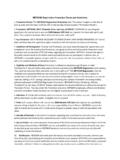
1 Use the Nighthawk Mobile Router What's in the Box? Hotspot Router to Charge Other Devices Nighthawk LTE Mobile Hotspot Router with Give your smartphone or other device a boost pre-installed SIM card Nighthawk LTE Mobile by connecting to the mobile router's USB port. Bottom cover Battery boost begins automatically once the devices are connected. Battery Quick start guide USB Type-C cable AC adapter Let's get started LED Status For More Information Slow blue blink Ready for use. Manage Your Account Fast blue blink Transferring data. On the web: ATT. Slow amber blink Not ready status. Compatible device and online account required. Data and messaging rates may apply for download and app usage. Need More Help? On the web: Or go to http://attwifimanager/, click the three Netgear and Nighthawk are trademarks of Netgear , dot icon in the upper right corner.
2 Inc. LTE is a trademark of ETSI. 4G LTE not available everywhere. Contains Lithium ion battery - recycle or displose of properly. 2017 AT&T Intellectual Property. Give Us a Call All rights reserved. AT&T, the AT&T logo and all other AT&T marks contained herein are trademarks of AT&T. 611 from any AT&T wireless phone, or Intellectual Property. All other marks are the property when prompted, enter your device's of their respective owners. 10-digit number. (To get the number, go to htto://attwifimanager and click Dashboard.). Printed in USA Part #201-21798-02. Number of connected devices Power Check SIM and Insert the Battery Power on Your Device LCD screen Network Type LED Indicator 1. Power off. Turn on Press and hold the Back cover Power button for three Micro SD slot seconds.
3 Data Battery meter usage Turn off Press and hold the Power button for five SIM card seconds. SIM card slot Reset Wake Press and quickly release Battery connectors the Power button. Switch screens Press and quickly release the Power button. Power TS-9 TS-9. Port 1 Port 2 2. Check that the SIM card is firmly in place. USB (type A) USB (type C) Ethernet 3. Insert the battery. 4. If you purchased an optional micro SD card WiFi WiFi (sold separately), insert the card into the micro name ATT-WIFI-3576. SD slot. Password Password 93F5K6s7. 5. Close the device with cover (included). NOTE: Open the cover by sliding the cover in the direction of the arrows on the cover until it clicks free. Connect Your Devices Manage the Device on the Web Upload and Share Files 1. Make sure that WiFi is enabled on the Change settings, view the device info, messages, Upload media files to a micro SD card or USB.
4 Computer or mobile device and search for WiFi and change features. drive connected to the mobile router (both sold networks. separately). 1. Visit http://attwifimanager/ or Windows Click Internet Access To upload media files using a computer: (bottom right of your 2. Follow on-screen instructions. screen). 1. Go to http://attwifimanager or 3. Change the default admin password for and log in with admin Mac Go to the WiFi menu and increased security. password. select Network. 4. Log in using your admin password (default is 2. Select Settings > Setup > Router Setup. Mobile Go to Settings and tap the attadmin), and click Sign In. 3. Select the Charge Only option from User USB. devices WiFi icon. Manage settings using the Netgear mobile app. port for under Tethering. 2. Press and release Power button to view WiFi 4.
5 Click the MyMedia tab. name and password. 1. Connect to the Internet. 2. Download the Netgear mobile app from 5. Drag and drop the files onto the page. 3. Select the WiFi name on the device that matches the name displayed on the mobile router screen. 4. Enter the WiFi password as shown on the Nighthawk mobile router screen. NOTE: The password is case-sensitive.