Transcription of LetraTag User Guide
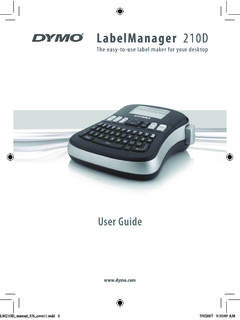
1 2 LetraTag user GuideFigure 1 DYMO LetraTag Label MakerSpace BarBackspaceSettingsCancelMemory SaveOK Memory RecallCAPs ClearInsertLabel ExitPrint LCD DisplayCutterFormat Navigation Num Lock Power3 About Your New Label MakerWith your new DYMO LetraTag label maker, you can create a wide variety of high-quality, self-adhesive labels. You can choose to print your labels in many different sizes and styles. The label maker uses DYMO LetraTag (LT) 12 mm label cassettes. LT cassettes are available in multiple colors of plastic tape and in white iron-on for information on obtaining labels and accessories for your label RegistrationPlease complete the warranty registration card and return it to the appropriate Customer Support address within seven days. Visit for details or to register StartedFollow the instructions in this section to print your first the PowerThe label maker is powered by standard batteries. To save power, the label maker will automatically turn off after two minutes of the BatteriesThe label maker uses four high-capacity AA alkaline insert the batteries1.
2 Remove the battery compartment cover. See Figure Insert the batteries following the polarity markings (+ and ).3. Replace the the batteries if the label maker will not be used for a long period of the Label CassetteYour label maker comes with one label cassette. Visit for information about purchasing additional label insert the label cassette1. Press and release the label Figure 2 !Figure 3 cassette cover to open the label compartment. See Figure Insert the cassette with the label positioned between the print head and pinch roller. See Figure Press firmly until cassette clicks into place. 4. Close the label cassette cover and press to turn on the a LanguageThe first time you turn on the power, you are asked to select your desired language. By default, the language is set to English. The language option you choose determines the character set and date format that are available. To select a language1. Press.
3 2. Use the up or down arrow key to select Language and press .3. Use the up or down arrow key to select the language you want and press .Figure 4 6 Setting the Date and TimeYou need to set the current date and time so that the date is correct if you choose to automatically insert a date on your default date and time format depends upon the language you select for the label maker. US English uses the date format MMM DD, YY and the 12-hour time format; all other languages use the date format DD MMM YY and the 24-hour time set the date and time1. Press .2. Use the up or down arrow key to select Set Date and press . The default date is Use the left or right arrow key to move the cursor over each setting (month, day, and year) and use the up or down arrow keys to increase or decrease the When finished, press .The default time is Use the left or right arrow key to move the cursor over each setting (hours and minutes) and use the up or down arrow keys to increase or decrease the value and press.
4 7 Printing Your First LabelYou are now ready to print your first print a label1. Enter text to create a simple Press PRINT. 3. Press the cutter button to cut the ! You printed your first label. Continue reading to learn more about the options available for creating to Know the Label MakerBecome familiar with the location of the feature and function keys on your label maker. Refer to Figure 1 on the inside front cover. The following sections describe each feature in The button turns the power on and off. After two minutes of no activity, the power is switched off automatically. The last label created is remembered and displayed when the power is turned back on. The previously selected style settings are also can also press to cancel printing and return to edit DisplayYou can enter up to 100 characters and spaces on a label; however, the display will only show a small portion of the characters. And, with DYMO s exclusive graphical display, any formatting you add is visible instantly.
5 For example, the italics and rounded border added to the text in Figure 5 are clearly indicators appear along the top of the display to let you know when a feature is selected. CAPS ModeThe key toggles capitalization on or off. When CAPS mode is turned on, the CAPS mode indicator is shown on the display and all letters that you enter will be capitalized. The default setting is CAPS mode on. When CAPS mode is off, all letters appear in lower size# linesCAPsNum LockFigure 5 9 Num LockThe key provides access to the numbers located on some of the alphabetic keys. When Num Lock mode is turned on, the Num Lock indicator is shown on the display and the numbers 1 through 0 appear when you press the corresponding letter keys. Num Lock is turned off by key removes the character to the left of the cursor. ClearThe key clears all label text and KeysYou can review and edit your label using the left and right arrow keys on the Navigation can navigate through menu selections using the up and down arrow keys, and then press to make a The key allows you to exit from a menu without making a selection or to cancel an key displays the font size, style, and borders submenus.
6 These formatting features are described later in this user key allows you to insert symbols, a second line, or the date on your The key displays the Preview, Set Date, Language, and Set Print Contrast submenus. These features are described later in this user Your LabelYou can choose from a number of formatting options to enhance the appearance of your the Font SizeFive font sizes are available for your labels: Extra Small, Small, Medium, Large, and Extra Large. When you select a size, that size applies to all characters on a label. To set the font size1. Press the Use the up or down arrow keys to select Size and press . 3. Use the up or down arrow keys to select the desired font size and then press .Adding Font StylesYou can choose from six different font styles:When you select a style, that style applies to all characters. Styles can be used with alphanumeric characters and some symbols. To set the font style1. Press.
7 2. Use the up or down arrow key to select Style and press . 3. Use the up or down arrow key to select a font style and press .NormalBoldItalicOutlineShadowVer tical12 Creating Two-Line LabelsYou can print a maximum of two lines on labels. To create a two-line label1. Type the text for the first line and press .2. Use the arrow keys to select Second Line and press . A multi-line symbol is inserted at the end of the first line, but will not print on the Type the text for the second the Date You can insert the date on your label. The date format is MMM DD, YY (US) or DD MMM YY (Europe) depending upon the version of your label i n s e r t t h e d ate1. Press .2. Select Date and press .13 Adding Box and Underline StylesYou can highlight your text by choosing a box or underline style. A label can be underlined or enclosed in a box, but not both add an underline or box style1. Press.
8 2. Select Borders, and press .3. Select underline or a box style and press .On two-line labels, both lines are underlined. In box style mode, all the lines are enclosed in one box style. UnderlineEdged Square TrainPointed Sweet HeartsRounded FlowersCrocodile14 Using Symbols and Special CharactersSymbols and other special characters can be added to your SymbolsThe label maker supports the extended symbol set shown in RowPosition in Row15To insert a symbol1. Press , select Symbols, and press . The first row of symbols shown in the table appears in the Use the arrow keys to move to the desired symbol. The left and right arrows move horizontally along a row of symbols. The up and down arrow keys scroll vertically through the rows of symbols.
9 3. When you locate the symbol, press to add the symbol to your International CharactersThe label maker supports the extended Latin character set using RACE technology. Similar to using a mobile phone keypad, when you hold down a letter key for longer than one second, you will scroll through variations on that letter. To insert the character, release the key when the desired character example, if French is selected as the language and you hold down the letter a, you will see and so on through all the variations available. The character variations and the order in which the variations appear depend on the language you have selected to 16 Printing OptionsYou can preview your label and adjust the printing Your LabelYou can preview the text or format of your label prior to printing. A two-line label is previewed as a single-line label with a line break character between the two preview your label1. Press.
10 2. Select Preview and press .The text of the label scrolls across the the Print ContrastYou can adjust the print contrast to fine tune the print quality of your set the contrast1. Press .2. Select Set Contrast and press .3. Use the arrow keys to select a contrast setting and press .17 Using Label Maker MemoryThe label maker has a powerful memory feature that allows you to store the text of up to nine labels you use Label TextYou can store up to nine specific labels you use store the current label text1. Press . The first of the memory fields is displayed. 2. Use the arrow keys to move through the fields. You can store new text in any of the memory Select a memory location and press .Your label text is saved and you are returned to the Stored Labels You can easily recall labels stored in memory to use at a later recall labels1. Press . The first memory location is displayed similar to storing a label or Use the arrow keys to select a label to recall and press.