Transcription of License Mobility through Microsoft Software Assurance ...
1 License Mobility through Microsoft Software Assurance Customer verification Guide License Mobility through Microsoft Software Assurance verification Guide for Customers License Mobility through Microsoft Software Assurance Customer verification Guide Customer verification Guide License Mobility through Microsoft Software Assurance .. 1 Required steps for License Mobility .. 1 Assess your licenses .. 1 Choose a deployment method .. 1 Verify your licenses with Microsoft .. 1 Complete the License verification form .. 2 Where to find the License verification 2 Completing the verification Form .. 3 Required information .. 3 Where to find the required 4 Completing the verification Form .. 4 Submitting the verification Form .. 6 Help with the VLSC .. 6 Use the VLSC to manage your agreement .. 7 Microsoft Volume Licensing License Mobility through Microsoft Software Assurance Customer verification Guide 1 License Mobility through Microsoft Software Assurance With License Mobility through Microsoft Software Assurance , you can deploy certain server application licenses purchased under your Volume Licensing agreement to Microsoft Azure or in an Authorized Mobility Partner s data center.
2 This guide will take you through the process of verifying your licenses are eligible for License Mobility with Microsoft . Required steps for License Mobility Assess your licenses If you are a Microsoft Volume Licensing customer with eligible1 application server licenses that are covered by active Software Assurance , you can elect to use License Mobility through Software Assurance . Work with your licensing procurement team, your Microsoft representative, or your preferred Volume Licensing reseller to understand your License position. You will want to confirm: The application server licenses you want to deploy with a License Mobility through Software Assurance Partner or Microsoft Azure are eligible as identified in the current Product Terms. The application server licenses you want to deploy with an Authorized Mobility Partner or Microsoft Azure have active Software Assurance coverage. Choose a deployment method To use License Mobility through Software Assurance , you need to deploy on Microsoft Azure or with an Authorized Mobility Partner.
3 Any current Authorized Mobility Partner can accept your assigned licenses and deploy them as appropriate to your chosen hosted deployment solution. The Authorized Mobility Partners list includes all authorized partners and is kept current with monthly updates. It can be found at #tab=2. Contact your chosen Authorized Mobility Partner before completing the License verification form. You will need to specify Microsoft Azure or provide the Authorized Mobility Partner name, website address, and email address on the verification form. Your Authorized Mobility Partner will provide this information. Verify your licenses with Microsoft Within 10 days of deployment, complete the License verification form and provide it to your Microsoft representative or preferred reseller partner representative, so he or she can submit your form to Microsoft . 1 Eligible products are identified in the Microsoft Product Terms document under the Appendix Software Assurance Benefits.
4 Microsoft Dynamics ERP (enterprise resource planning) products are not licensed through Volume Licensing and are not licensed online, but there are Mobility rules that allow for similar use when deploying in shared environments. Did you know? You can deploy your licenses before you submit your License verification form, but you must submit the form within 10 days of deployment. Microsoft Volume Licensing License Mobility through Microsoft Software Assurance Customer verification Guide 2 Complete the License verification form There are three times you should complete and submit a License verification form: 1. When you deploy eligible licenses with an Authorized Mobility Partner. A new form is required each time you deploy additional licenses. 2. When you renew your Software Assurance . 3. When you renew your Volume Licensing Agreement. The form can include multiple enrollments or License numbers under a single agreement, provided that they are supported by the same channel partner.
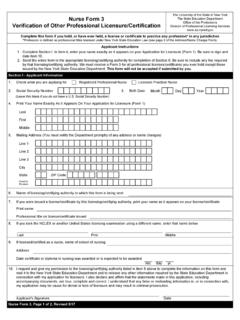
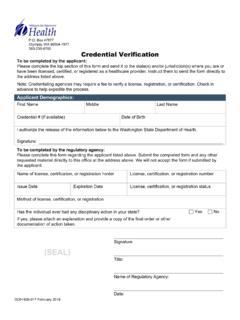
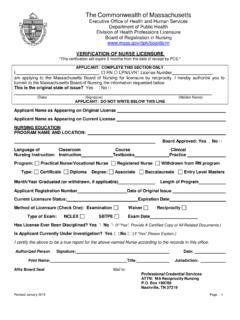
5 However, you should complete a License verification form for each agreement under which you are using License Mobility (for example, an Enterprise Agreement and a Select Plus agreement*). *Effective July 1, 2016, in markets where the MPSA is available, Microsoft will stop accepting new orders and Software Assurance renewals through existing commercial Select Plus agreements at your next agreement anniversary date. This retirement does not apply to government and academic Select Plus agreements. More information is at Where to find the License verification Form Go to the Microsoft Product Licensing Search page at You will see the following: 1. At the Document Type window, scroll down to License verification . 2. Choose your preferred language. 3. Choose your region (choosing WW (World Wide) will not bring up the form). 4. Under Sector, choose a sector or Common Document. 5. The Search Results box below the categories will show the document LicenseMobilityVerif document with the region, language, and publication date.
6 If there are multiple versions of the document, choose the one that corresponds to your region. Below are the first two pages of the License verification form. Microsoft Volume Licensing License Mobility through Microsoft Software Assurance Customer verification Guide 3 Completing the verification Form Click the link (shown in step 5 above) to open the verification Form. Required information To complete the form, you need to know: Your organization s legal name (as shown on your Microsoft Volume Licensing agreement) Your Agreement Type (for example, Enterprise Agreement, Select Plus,* Campus and School Agreement, Open Value, or OVS for Education Solutions) Your Agreement Number, Authorization Number (for Open License ), or Public Customer Number (for Select License ) Your agreement s Enrollment Number or License Number for Open License (not applicable for Select License ) The enrollment s Software Assurance expiration date(s)
7 The number of eligible licenses you have on the enrollment Your Authorized Mobility partner name, website address, and email contact o Use the contact information provided to you by your Authorized Mobility Partner o Microsoft Azure can be selected as the hosting partner The number of eligible licenses your will be deploying with License Mobility Microsoft Volume Licensing License Mobility through Microsoft Software Assurance Customer verification Guide 4 *Effective July 1, 2016, in markets where the MPSA is available, Microsoft will stop accepting new orders and Software Assurance renewals through existing commercial Select Plus agreements at your next agreement anniversary date. This retirement does not apply to government and academic Select Plus agreements. More information is at Where to find the required information The Microsoft Volume Licensing Service Center The Volume Licensing Service Center (VLSC) includes agreement information to help you complete the License verification form.
8 The VLSC is where Microsoft Volume Licensing customers can view their licensing information. A Windows Live ID and a valid business email address are required for registration if you are a new user. The VLSC is at For information on how to sign up for and sign in to the VLSC, download the VLSC User Guide at or view several training videos at The Microsoft Product Terms Application server products eligible for License Mobility through Software Assurance are identified in the Microsoft Product Terms document found at #PT. Completing the verification Form Provide your organization s License information Most of the required information for the License verification form specific to your Microsoft Volume Licensing agreement can be found in the VLSC, with the exception of the Authorized Mobility Partner information and your channel partner information (the Large Account Reseller or other partner that sold you the Microsoft licenses).
9 The first screen to view is the Relationship Summary. 1. On the Relationship Summary screen, click the Enrollment number to show the Enrollment Details. If you have more than one Enrollment, choose the one with the licenses you are moving to an Authorized Mobility Partner with License Mobility . You can include each enrollment or License number under which you have licenses deployed with License Mobility as long as they are under the same master agreement and supported by the same channel partner. The Enrollment Details page shows you most of the information required for the License verification form. 1. Legal Entity Name (as shown on your agreement and listed in the VLSC) 2. Agreement Number 3. Enrollment Number 4. Program Type 5. Software Assurance expiration date (usually the same as Enrollment end date) Microsoft Volume Licensing License Mobility through Microsoft Software Assurance Customer verification Guide 5 The License Summary page will show you the active Software Assurance licenses.
10 Indicate the products you will deploy Once you have completed the required contact and agreement information, you can specify which licenses you are deploying with License Mobility . In Exhibit A of the License verification form, you will indicate which licenses will be deployed. In this example, Exchange Server Enterprise Edition will be deployed. 6. Eligible Software Assurance quantity 1. Find the product(s) to be deployed from the list. 2. Check Selected for verification at the appropriate product edition. 3. Input the quantity to deploy. Do this for every product you will be deploying with License Mobility under this enrollment. Microsoft Volume Licensing License Mobility through Microsoft Software Assurance Customer verification Guide 6 Finally, your authorized representative must sign and date the completed form. Submitting the verification Form Once you have completed the License verification form, make a copy for your records and send it to your channel partner (or Microsoft Account Manager).