Transcription of Logging In - uh.edu
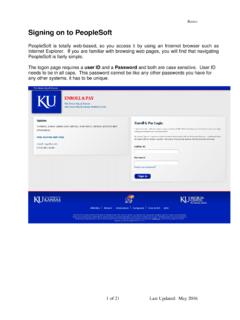
1 Changes in myUH Self Service The University of Houston system s Student information system (SIS) newest version ( ) has a new look and feel. You will navigate through the database slightly differently and you will get used to terminology like Homepages, Tiles, Navigation Bar, Navigation Collections, etc. Logging In Log into your Campus Solutions PeopleSoft account by navigating to AccessUH ( ). You will then select the myUH Self Service icon. Fluid and Classic User Interface The Fluid User Interface was designed to be used on mobile devices, but can also be used on a laptop and desktop. The Fluid User Interface is more than a mobile platform; it is responsive and recognizes the device form factor being used and adapts the layout to optimize the user s experience. Classic User Interface Fluid User Interface Mobile Device View Common Elements Used with PeopleSoft Fluid User Interface A standard banner appears at the top of every Fluid page.
2 The banner includes the page title and these standard buttons: (Home) Select to return to the main PeopleSoft Homepage (Notifications) Select to view actions and alerts in a notifications window. *This functionality is currently disabled. (Actions List) Select to see a list of available actions for the current window. The Sign Out command is always available under this menu; as well as Personalize Homepage, My Preferences, and Help My Preferences Takes you to the My Preferences interface, where you can modify settings that control a variety options in the interface based on your preferences. The My Preferences tile (that can be added to a user s homepage) allows access to the Campus Preferences page where users can define default values that assist user navigation, reduce repetitive data entry, and streamline the completion of transactions. Users can set preference values for: Institution: Default value for users associated with more than one institution.
3 Career: Default value for users with more than one career. Term: Depending on the values of the Institution and Career, the default value for use in Student Records. Aid Year: Default value for use in Financial Aid. Homepages and Tiles A Fluid homepage organizes navigation in an easy, familiar way for the user to access key parts of the myUH system . Homepages A Fluid homepage organizes navigation in an easy, familiar way for the user to access key parts of the PeopleSoft system . Tiles Tiles on homepages are navigation points to functions you have access to in your myUH account. For example, selecting the Personal information tile on the Student Homepage opens a landing page that provides users with a number of informational and transactional links. Although the Fluid User Interface is being represented by tiles, you should still be able to access your information in the same groups, with a few exceptions. Shows the same information as the Classic Interface Student Communication Center now appears as a Tile Student Announcements now appears as a Tile Personal information combines Campus Personal information with Password Reset, and Setup Security Questions into one menu Academic Records has combined Academic Records , Enrollment and View Transfer Credit Report into one menu Student Financials combines Student and UH in 4 Fixed Rate Tuition Plan into one menu Advising combines Advising, UH in 4 Graduation Plan and Apply for Graduation into one menu This tile will only appear for athletic students