Transcription of Logitech® G633 Artemis Spectrum
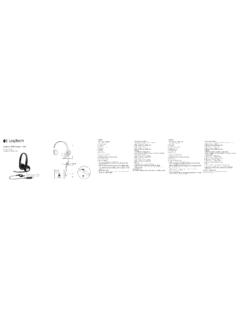
1 logitech g633 Artemis SpectrumRGB Surround Gaming HeadsetUser Manual2 ContentsEnglish ..3 .. 14 ..26 .. EnglishLogitech g633 Artemis SpectrumWhat s in the box1. g633 Headset2. Custom tags (L/R)3. PC cable (USB to Micro-USB, 3m)4. cable ( )122344 EnglishLogitech g633 Artemis Spectrum18791011121345326 Features1. Adjustable padded sports mesh headband2. Removable backlit custom tags 3. Boom mic mute indicator LED4. Retractable boom microphone Automatically mutes in up position5. Lighting zones (2)6. Washable soft sports mesh earpads7. mode switch8. Pro-G Audio Drivers9. Programmable buttons (3)10. Microphone Mute11. Volume Wheel12. (mobile) connection13. USB connection5 EnglishLogitech g633 Artemis SpectrumHeadset button layout1.
2 PC (mobile) mode switch2. G3 (programmable): Default equalizer (EQ) cycle Will cycle through EQ settings in logitech Gaming software, including: Flat, MOBA, and FPS presets3. G2 (programmable): Default Dolby surround sound on/off4. G1 (programmable): Lighting cycle Will cycle through lighting settings in logitech Gaming Software, including: breathing, solid cyan, custom, and off5. Microphone mute6. Volume wheelG1, G2, and G3 are programmable using the logitech Gaming Software (in PC mode only): : Buttons and volume wheel only operate in PC mode while connected to a PC with logitech Gaming EnglishLogitech g633 Artemis SpectrumInline 3 .5mm audio controls1. Mic select switch (headset boom/inline, mobile mode only) Headset boom unavailable for mobile device while in PC mode2.
3 Volume wheel3. Mobile device play/pause/answer call4. Inline microphone5. Mobile mic mute switch235417 EnglishLogitech g633 Artemis SpectrumSetup for PC (PC mode)1. Download and install logitech Gaming Software: Set mode switch to Connect the g633 to PC via USB audio sources While in PC mode and connected via USB, the g633 can also use the cable to connect to another audio source (ex. smartphone). Both audio sources can be played simultaneously. Inline controls and inline microphone can be used to answer calls, adjust volume, etc independently for the mobile device. 4. Answer phone calls while playing gamesUSB12348 EnglishLogitech g633 Artemis SpectrumSetup for PC (3 .5mm mode)The g633 can also connect to audio devices solely via Set mode switch to Connect to PC using the cable3.
4 Inline controls can be used to adjust select Select microphone position for inline microphone Select headset position to use headset boom microphoneFeatures that require USB power, including surround sound, on-headset buttons, volume wheel operation, and customization of lighting and button functions are not available without USB connection. Boom mic is not available for device while powered with PCs may require a 4-pole to mic/stereo splitter adapter (not included) to use microphone features in this EnglishLogitech g633 Artemis SpectrumSetup for mobile1. Set the mode switch to Connect the headset to the mobile device via the inline controls can be used to adjust select Select microphone position for inline microphone Select headset position to use headset boom microphoneFeatures that require USB power, including surround sound, on-headset buttons, volume wheel operation, and customization of lighting and button functions are not available without USB connection.
5 Boom mic is not available for device while powered with EnglishLogitech g633 Artemis SpectrumSetup for console: Xbox One or PS4 1. Set switch to Connect the headset to the console controller using the cable. Xbox One may require Xbox One headset adapter (sold separately).PlayStation setup (settings)1. Connect headset to console2. Open Settings3. Select Sound and Screen 4. Select Audio Output Settings 5. Set Output to Headphones to All Audio Headset will not operate via USB cable on Xbox and boom microphones are both available in analog ( ) operation EnglishLogitech g633 Artemis SpectrumAlternate setup for Sony PlayStation 4 USB powered operation1. Set the mode switch to PC Connect the headset to the console using the USB : although set in PC mode, buttons do not operate when connected to the PlayStation 4.
6 Programming of lighting and buttons is not possible on the PlayStation surround sound is not available while connected to PlayStation. Volume wheel does not work on setup (settings)1. Plug in headset via USB or cables2. Open Settings3. Select Sound and Screen 4. Select Audio Output Settings 5. Set Output to Headphones to All Audio USB1212 EnglishLogitech g633 Artemis SpectrumRGB lighting zone customization Zone 1: G logo Zone 2: Lighting stripEach lighting zone can be programmed with the logitech Gaming Software (PC mode only). customizationThe left and right custom tags can be removed and replaced with custom Gaming SoftwareG-key buttons, lighting, equalizer, and surround sound profile programming is possible through the logitech Gaming G-keys2.
7 Lighting3. Equalizer4. Surround12123413 EnglishLogitech g633 Artemis SpectrumEarpad cleaning1. Removal2. Washinga. Once removed, the earpads can be hand washed in warm Press with soft towel to dry, do not Allow to air dry before Replacement14 logitech g633 Artemis Spectrum RGB 1. g633 2. (L/R)3. PC (USB USB 3 ) 4. ( ) 1223415 logitech g633 Artemis Spectrum RGB 18791011121345326 1. 2. 3. LED 4. 5. (2)6. 7. 8. Pro-G 9. (3)10. 11. 12. ( ) 13. USB 16 logitech g633 Artemis Spectrum RGB 1. PC ( ) 2.
8 G3 ( ) (EQ) EQ MOBA FPS 3. G2 ( ) / 4. G1 ( ) 5. 6. G1 G2 G3 ( PC ) PC PC 12345617 logitech g633 Artemis Spectrum RGB 1. ( / ) PC 2. 3. / / 4. 5. 2354118 logitech g633 Artemis Spectrum RGB PC (PC ) 1. PC 3. USB g633 PC PC USB g633 ( ) 4. USB123419 logitech g633 Artemis Spectrum RGB PC ( ) g633 1.
9 2. PC3. USB USB ( ) USB PC 4 / ( ) logitech g633 Artemis Spectrum RGB 1. 2. 3. USB USB ( ) USB logitech g633 Artemis Spectrum RGB Xbox One PS4 1. 2. Xbox One Xbox One ( ) PlayStation ( ) 1. 2.
10 3. 4. 5. Xbox One USB ( ) logitech g633 Artemis Spectrum RGB Sony PlayStation 4 USB 1. PC 2. USB PlayStation 4 PC PlayStation PlayStation PlayStation PlayStation ( ) 1. USB 2. 3. 4. 5. USB1223 logitech g633 Artemis Spectrum RGB RGB 1: G 2: ( PC ) G 1. G 2. 3. 4. 12123424 logitech g633 Artemis Spectrum RGB 1.