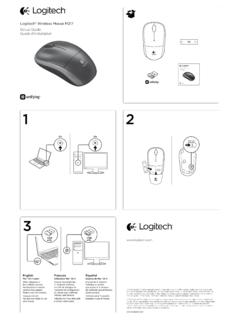
Transcription of Logitech® Wireless Mouse M325 1 On On
1 Getting started withPremi re utilisationLogitech Wireless Mouse m325 OnOn123 EnglishHelp with setup: Mouse is not working1. Is the Mouse powered on?2. Is the Unifying receiver securely plugged into a computer USB port? Try changing USB ports. 3. If the Unifying receiver is plugged into a USB hub, try plugging it directly into a USB port on your Check the orientation of the batteries inside the Mouse . To check battery power, turn the Mouse OFF and then ON. If the battery indicator light glows red or does not glow at all, replace the Try using the Mouse on a different surface. Remove metallic objects between the Mouse and the Unifying Try moving the Unifying receiver to a USB port closer to the Mouse . If you are using a tower PC, go to for a USB Try reconnecting the Mouse and Unifying receiver using the logitech Unifying software (refer to the Unifying section of this guide).
2 Espa olAyuda con la instalaci n: El Mouse no funciona1. Has encendido el Mouse ?2. Est el nano receptor conectado correctamente a un puerto USB? Prueba otros puertos USB. 3. Si el nano receptor est conectado a un concentrador USB, con ctalo directamente a un puerto USB de la Comprueba la orientaci n de la bater a dentro del Mouse . Para comprobar la carga de las pilas, apague y encienda el rat n. Si el indicador de estado de las pilas se ilumina de color rojo, o no se ilumina, cambie las Prueba el Mouse en otra superficie. Retira cualquier objeto met lico situado entre el Mouse y el nano Lleva el nano receptor a un puerto USB m s cercano al Mouse . Si utilizas una torre de PC, en encontrar s un extensor Vuelva a conectar el rat n y el receptor Unifying mediante el software logitech Unifying (consulte la secci n Unifying de esta gu a).
3 Fran aisAide la configuration: La souris ne fonctionne pas1. La souris est-elle sous tension?2. Le Nano-r cepteur est-il branch sur un port USB? R essayez en changeant de port USB. 3. Si le nano-r cepteur est branch dans un hub USB, branchez-le directement sur l V rifiez l orientation de la pile dans la souris. V rifiez le niveau de charge des piles en mettant la souris hors tension, puis sous tension. Si le t moin de niveau des piles s allume en rouge ou reste teint, remplacez les Essayez une autre surface. D placez tout objet m tallique se trouvant entre la souris et le nano-r Branchez le Nano-r cepteur sur un port USB plus proche de la souris. Si vous utilisez un PC tour, acc dez au site pour vous procurer une extension Essayez de reconnecter la souris et le r cepteur Unifying l aide du logiciel logitech Unifying (reportez-vous la section Unifying de ce guide).
4 Portugu sAjuda para a configura o: O Mouse n o funciona1. O Mouse est ligado?2. O receptor Nano est conectado corretamente a uma porta USB? Experimente uma outra porta USB. 3. Se o receptor Nano estiver conectado a um concentrador USB, tente conect -lo diretamente a uma porta USB no Verifique a orienta o das pilhas dentro do Mouse . Verifique a carga das pilhas desligando o rato e ligando-o novamente. Se o indicador de pilhas acender a luz vermelha ou n o acender luz nenhuma, substitua as Experimente uma superf cie diferente. Remova objetos met licos entre o Mouse e o receptor Experimente mover o receptor Nano para uma porta USB mais pr xima do Mouse . Se estiver usando um PC de torre, v para para obter um extensor de Tente voltar a ligar o rato e o receptor Unifying com o software logitech Unifying (consulte a sec o Unifying deste manual).
5 Getting started withPremi re utilisationLogitech Wireless Mouse M325AA461235 EnglishFeatures1. Scroll wheel2. Middle button. The function of this button depends on your operating system and the application being used. For example, if you are browsing the Internet in Windows and click on a link using the Middle button, typically the link opens in a new Internet back/forward. Tilt the scroll wheel right to move forward one page. Tilt the scroll wheel left to move back one page.*4. On/Off slider switch5. Battery door release6. Unifying receiver storage. When the Mouse is not in use, you can store the Unifying receiver inside the Mouse .* On a Mac the Internet back/forward feature is not supported. You can assign Dashboard, Expos , or Spaces to the tilt wheel features within System olComponentes1.
6 Bot n rueda2. Bot n central. La funci n de este bot n var a seg n el sistema operativo y la aplicaci n que se use. Por ejemplo, si est s navegando por Internet en Windows y haces clic en un v nculo mediante el bot n central, normalmente el v nculo se abre en una ficha Avance/retroceso en Internet. Inclina el bot n rueda hacia la derecha para avanzar una p gina. Inclina el bot n rueda hacia la izquierda para retroceder una p gina.*4. Conmutador de encendido/apagado5. Bot n de compartimento de bater as6. Almacenamiento de receptor Unifying. Puedes guardar el receptor Unifying en el Mouse cuando no utilices este ltimo.* En los equipos Mac no se admite la funci n de avance/retroceso en Internet. Es posible asignar Dashboard, Expos o Spaces a las funciones de bot n rueda inclinable en Preferencias del aisFonctionnalit s1.
7 Roulette de d filement2. Bouton central. La fonction de ce bouton d pend de votre syst me d exploitation et de l application utilis e. Par exemple, si vous naviguez sur Internet sous Windows et cliquez sur un lien l aide du bouton central, ce lien ouvre g n ralement un nouvel Navigation Internet. Inclinez la roulette de d filement vers la droite pour passer la page suivante. Inclinez la roulette de d filement vers la gauche pour revenir la page pr c dente.*4. Commutateur Marche/Arr t5. Bouton d ouverture du compartiment des piles6. Compartiment de stockage du r cepteur Unifying. Lorsque vous n utilisez pas la souris, vous pouvez laisser le r cepteur Unifying dans la souris.* La fonction de navigation Internet n est pas prise en charge sur Mac.
8 Vous pouvez attribuer les fonctions Dashboard, Expos ou Spaces la roulette de d filement dans les pr f rences syst sRecursos1. Roda de rolagem2. Bot o do meio. A fun o deste bot o depende do sistema operacional e do aplicativo em uso. Por exemplo, se estiver navegando pela Internet no Windows e clicar em um link usando o bot o do meio, normalmente o link abrir uma nova Voltar/avan ar na Internet. Incline a roda de rolagem para a direita para avan ar uma p gina. Incline a roda de rolagem para a esquerda para retroceder uma p gina.*4. Controle deslizante para ligar/desligar5. Livramento da porta do compartimento de pilhas6. Armazenamento do receptor Unifying. Quando o Mouse n o est em uso, o receptor Unifying pode ser guardado dentro do Mouse .
9 * Em um Mac , n o h suporte para o recurso de voltar/avan ar da Internet. Voc pode atribuir Dashboard, Expos ou Spaces aos recursos da roda de inclina o dentro de Prefer ncias do the Unifying receiver into a computer USB port. Your Mouse is now ready for use. Mac OS X Users: When plugging in the Unifying receiver, the Keyboard Assistant window may appear. Please close this olConecta el receptor Unifying a un puerto USB de la computadora. El Mouse est listo para usar. Usuarios de Mac OS X: al conectar el receptor Unifying, es posible que aparezca la ventana del asistente para el teclado. Debes aisBranchez le r cepteur Unifying sur un port USB de l ordinateur. Votre souris est pr te l emploi. Utilisateurs Mac OS X: lorsque vous branchez le r cepteur Unifying, la fen tre de l assistant de configuration du clavier peut s afficher.
10 Fermez cette fen sTente conectar o receptor Unifying a uma porta USB do computador. Seu Mouse agora est pronto para ser usado. Usu rios do Mac OS X: ao conectar o receptor Unifying, poder ser exibida a rjanela Assistente de instala o do teclado. Feche essa 2013 logitech . All rights reserved. logitech , the logitech logo, and other logitech marks are owned by logitech and may be registered. Microsoft, Windows Vista, Windows, and the Windows logo are trademarks of the Microsoft group of companies. Mac and the Mac logo are trademarks of Apple Inc., registered in the and other countries. All other trademarks are the property of their respective owners. logitech assumes no responsibility for any errors that may appear in this manual. Information contained herein is subject to change without notice.