Transcription of Microsoft Authenticator App setup on an iPhone (computer ...
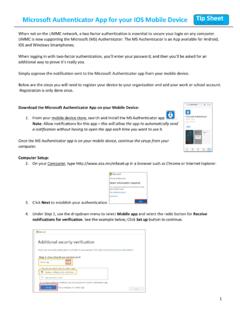
1 Microsoft Authenticator App setup on an iPhone (computer required) 2. Select Next 3. Follow the on screen instructions and install the Mi-crosoft Authenticator Application on your iPhone (Refer to step 4). 4. How to install Microsoft Authenticator on your iPhone : Download and open Microsoft Authenticator on your mobile device in the App store: 1. On your computer visit this site to begin your password reset setup AND LOGIN WITH YOUR USERNAME BUT ADD TO THE END OF IT. and password and select Next Microsoft Authenticator App setup on an iPhone 5. Select Allow 7. Select Skip 6. Select Skip Microsoft Authenticator App setup on an iPhone 10. Now come back to your computer and select Next 8. Select Add work account 9. Select OK 11. Select Next again Microsoft Authenticator App setup on an iPhone 14.
2 Select Approve on your iPhone 12. Your iPhone should look like the picture below, use this square to scan the QR code now showing on your computer. 13. Scan the QR code on your computer screen with your iPhone and select Next (Do not scan the QR code in these instructions) Microsoft Authenticator App setup on an iPhone 15. Back on your computer select Next when it shows the notification is approved button 16. Create a name for your app password of your own choosing and select Next You have now setup your Microsoft Authentica-tor app on your iPhone and can use this to reset your password, connect to Remote Desktop, and connect to VPN. For help and advice contact Technology Solutions Mon Fri: 8:00 AM 6:00 PM (excluding public holidays)