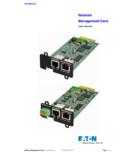
Transcription of Network Management Card Minislot - Software …
1 Installation manualNetwork Management card Minislot34003905EN/AG The Network Management card is recommended for central UPSs protecting entire networks or for UPS units backing up critical the card installed, the UPS has its own IP address and uses the local computer capabilities to:z Supply web pages (http or https (SSL)) with information on status conditions and measurements/settings/alarms,z Integrate an SNMP-based NMS such as HP OpenView, IBM Tivoli Netview and Computer Associates Unicenter,z Communicate with the protection Software installed on the protected servers ( Network Shutdown Module or Netwatch),z Send e-mail and SMS messages,z Control the ON/OFF function of the UPS and the outlets,z Monitor the Environment Sensor (optional, cat.)
2 No. 66846). z One Network Management card ,z One serial cable for configuration (34003918),z One installation manual (34003905). If the technical level of the UPS is lower than that indicated in the compatibility list, contact EATON. ETHERNET port Service port (Settings/Sensor) INTRODUCTIONUNPACKING AND CHECKS CHECK ON UPS VERSION Important. Before installing the card , check that the UPS technical level (NT) is at least equal to that indicated in the compatibility list (For latest information, check the website according to your product : for EATON products, for Powerware products) .OVERVIEW INDICATIONSLEDC olourStatusDescriptionACTG reenz OFFz ONz Flashingz card not connected to networkz card connected to Network , but no activityz Port is sending/receiving100 MOrangez OFFz ONz Port operating at 10 Mbits/sz Port operating at 100 Mbits/sLEDC olourStatusDescriptionUPS Data Greenz OFFz ONz Flashingz card startingz Communicating with UPSz Normal operationCommunication with UPS is operationalRS232 Orangez OFFz ONz Flashingz Configuration menu activatedz Normal operationConfiguration menu not activatedz Communication with Environment Sensor (option)00:20:85:FD:1C:07 ETHERNET 10/100BT portService port (Settings/Sensor)Orange LED.
3 RS232 activityGreen LED: communicationwith the UPSO range LED: 10/100 MGreen LED: connection +activityMAC address34003905EN/AG The Network Management card can be hot-plugged on all UPSs compatible with the card . It is not necessary to shutdown the UPS, disconnect the load or restart the Remove the plastic cover of the Note the MAC address of the card before inserting it. z Insert and secure the card with the Connect the ETHERNET Check the ETHERNET port Wait until the UPS Data LED flashes regularly (approx. two minutes), indicating that card start-up has terminated : You can set the parameters via Service port even if the Network is not connected.
4 At connection, the card will restart keeping the settings. Once the card has started, proceed as indicated Connect the serial cable to card s service port and PC s COM portz Use a terminal emulator such as HyperTerminalTM with these settings "Echo typed characters locally" option: disabledz Type main configuration menu is displayed:The card is configured by default with this service enabled. No manual configuration is IP parameters are automatically collected by the the main configuration menu: (see above)z Press the 2 key ( Network configuration).z Press the 1 key(Read Network settings).The settings supplied by the server are displayed: z Note the IP Press the 0 key (Exit).
5 Z Press the 0 key (Exit).You can also use Intelligent Power Manager Software utility to view the card IP adressThe tool is available at It must be installed on a Network connected configuration is required. To set the Network configuration, use terminal emulation (see above)From the main configuration menu:z Press the 2 key ( Network configuration).z Press the 2 key (Modify Network settings).z Follow the instructions and enter the IP parameters:Wait until "Done" is displayed, indicating that the IP parameters have been Press the 0 key (Exit).z Press the 1 key (Reset).z Press the 2 key (Restart). The card restarts with the new IP settings (after approx.)
6 One minute). To check whether the Network Management card is operational after installation and IP settings, proceed as Run a browserz Enter in the address bar: http://IP address/ ( )z The home page is displayed z Set the time by clicking the Time Continue configuration via the sections in the Settings IP SETTINGSBits per secondData bitsStop bitsParityFlow control960081nonenoneEATONNETWORK Management CARD1 : Reset2 : Network configuration3 : Set Login Password to Default4 : Return to Default Configuration0 : ExitYour Network is equipped with a BOOTP/DHCP server (default) Network configuration :MAC address : 00:20:85:FD:1C:07 Mode : DHCPIP address.
7 Mask : : Network is not equipped with a BOOTP/DHCP server1 : Read Network settings2 : Modify Network settings3 : Set ethernet speed0 : ExitFor each of the following questions, you can press "Return" to selectthe value shown in braces, or you can enter a new valueShould this target obtain IP settings from the Network ?[N] NStatic IP address [ ]? mask IP address [ ]? address IP address [ ]? TO SUPERVISION 34003905EN/AGThis manual provides all the information required to install and configure the Network Management more information on the supervision, control and configuration functions offered by the Network Management card , see the user manual available at or in the Products/Power Management section at The Environment sensor is a Network Management card option.
8 It is available from EATON (cat. no 66846).The sensor remotely monitors the UPS environment by regularly measuring the temperature and humidity, and checking the states of two external contacts. It can also send alarms (e-mail, SNMP trap) tripped by pre-set is made via the Service port (Settings/Sensor) on the Network Management card . The sensor is detected automatically. Configuration and supervision use a menu that may be accessed directly from the home page. For more information, see the user manual of the Network Management card . When correctly installed and used in accordance with manufacturer instructions, the card complies with the following standards:z ITE (Information Technology Equipment) safety: IEC/EN 60950-1 2002z EMC: EN 61000-6-2 (2002), EN 61000-6-3 (2002), IEC/EN 62040-2 (2002).
9 In compliance with European directives:z Low voltage: 73/23/EEC and 93/68 EMC: 89/336/EEC and 93/68 Communication Commission (FCC) statementThis equipment has been tested and found to comply with the limits for a Class B digital device, pursuant to part 15 of the FCC rules. These limits are designed to provide reasonable protection against harmful interference when the equipment is operated in a commercial environment. The information presented in this manual is also available in other languages at for EATON products, for Powerware products. USER MANUALSENSOR CONNECTION (option) TECHNICAL CHARACTERISTICSP hysical characteristicsDimensions (W x D x H)132 x 66 x 42 mmWeight70 gRoHS 100% compatibleStorageStorage temperature range-10 C to 70 CAmbient conditionsOperating temperature range0 C to 40 CRelative humidity90% RH max.
10 Without condensationCard performanceSupply voltage5V 5%Supply current (all LEDs ON and Environment Sensor connected)300 mA supervision5 browsers max. (http),3 browsers max. (https)LanguagesEnglish, French, German, Italian, Spanish, Chinese Simplified, Chinese Traditional, Japanese, Russian, KoreanAlarmsE-mail, SNMP TRAP, Web pageLog400 measurements or eventsServer protectionUp to 100 servers protectedNetworkFast ETHERNET, 10/100 Mbits, auto-negotiationHTTP , SNMP V1, NTP, TFTP, SMTP, BOOTP/DHCPI dentificationUser name and passwordSecuritySSL , TLS Internet Explorer or higherNMSI ntelligent Power Manager (IPM) Management Pac 2 MIBMIB II - Standard IETF UPS MIB (RFC 1628) - EATON Pulsar (ex MGE) MIB - EATON Powerware (PowerMib)Settings (default values)IP networkBOOTP/DHCP enabledIP address.