Transcription of OCPS ClassLink Student LaunchPad from Personal Desktop or ...
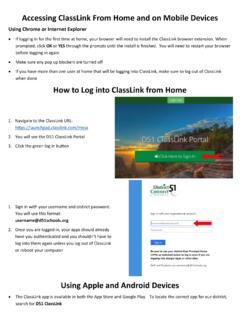
1 OCPS ClassLink Student LaunchPad from Personal Desktop or Laptop To view a video demonstration of steps, click here . 1. Open your preferred internet browser. Note : ClassLink LaunchPad is compatible with: Chrome Firefox Edge Safari 2. Install browser extension . Note : To work on your home computer, you must have installed the ClassLink browser extension. This only needs to be done once. Instructions to install the ClassLink browser extensions can be found below, based on your Personal browser. Chrome Firefox (open link in Firefox) Edge Safari The ClassLink browser extension does not do anything when you click on it, but it needs to be installed to save passwords on the ClassLink dashboard. The ClassLink extension stores passwords only for the school-issued apps that are OCPS ClassLink Student LaunchPad from Personal Desktop or Laptop listed on the ClassLink screen.
2 It does not store other Personal passwords, such as a parent's email password, Netflix, Amazon, or banking passwords. 3. Enter the OCPS ClassLink LaunchPad URL in the address bar. Note : There are (3) possible web addresses. 4. Enter your Username and Password and click the blue Sign In button. Note : Do not use the Auto Login'' button when off-campus. The username is your OCPS Student Identification Number. If you do not know the OCPS Student Identification Number, please contact your child s school. If an elementary Student does not remember their password, they should contact their teacher. The password for middle OCPS ClassLink Student LaunchPad from Personal Desktop or Laptop and high school is selected by the Student and is the same as the password they use to login to their laptop.
3 If a middle or high school Student needs to reset their password, they should visit . 5. Select the app you wish to access from the My Apps screen. Note : The My Backpack app will show the Student class schedule and beneath it the app for each class/course. The search bar at the top of the screen can be used to enter the name of the My BackPack App OCPS ClassLink Student LaunchPad from Personal Desktop or Laptop 6. Sign out of ClassLink LaunchPad . Note : It is very important that you sign out of ClassLink LaunchPad after each use when using a shared device. This will prevent the next Student from accidentally accessing another Student s ClassLink LaunchPad . Each Student may have different apps on their ClassLink LaunchPad based on the courses they are enrolled in and other specific Student needs.
4