Transcription of OneNote Quick Reference - Microsoft Office Training
1 2021 CustomGuide, Inc. Click the topic links for free lessons! Contact Us: Microsoft OneNote Quick Reference Guide The OneNote Program Screen Open an Existing Notebook: Click the File tab, click Open, select a save location, and click the notebook. Create a New Notebook: Click the File tab, click New, and select a save location. Type a name in the Notebook Name field and click Create. Close a Notebook: Click the File tab, click the Settings button next to the notebook you want to close, and select Close. Add a Section: Click the Create New Section button to the right of existing sections, type a section name, and click outside the tab.
2 Move a Section: Click a section tab and drag it to a new location. Delete a Section: Right-click a section tab and select Delete . Add a Section Group: Right-click in the blank space next to the existing sections, select New Section Group, and type a new name for the group. Add Sections to a Section Group: Click a section tab and drag it over the section group. Add a Page: Click the Add Page button above existing page tabs and type a page name. Move a Page: Click a page tab and drag it to a new location. Create a Subpage: Select one or more page tabs, right-click the selected page tab(s), and select Make Subpage.
3 Delete a Page: Right-click a page or page tab and select Delete . Change a Notebook s Name: Click the File tab, click the Settings button, and select Properties . Click in the Display name field, type a name, and click OK. Change a Notebook s Color: Click the File tab, click the Settings button, and select Properties . Click the Color list arrow, select a new color, and click OK. Restore Deleted Items: Click the History tab and click the Notebook Recycle Bin button. Click the current notebook s list arrow and click the Pin Notebook Pane to Side button. Expand the notebook s sections. Click and drag deleted pages or sections to an open notebook.
4 General Create an item .. Alt + N Open a section .. Ctrl + O Create new page .. Ctrl + N Create new subpage .. Ctrl + Shift + Alt + N Print Ctrl + P Undo .. Ctrl + Z Redo .. Ctrl + Y Help .. F1 Full page view .. F11 Task pane .. Ctrl + F1 Create an Outlook task .. Ctrl + Shift + 5 Insert a link .. Ctrl + K Email page .. Ctrl + Shift + E Select page .. Ctrl + Shift + A Sync shared notebooks .. F9 Navigating Next section .. Ctrl + Tab Previous section .. Ctrl + Shift + Tab Open new window .. Ctrl + M Open Side Note window .. Ctrl + Shift + M Editing Cut .. Ctrl + X Copy .. Ctrl + C Paste.
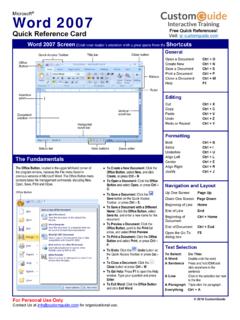
5 Ctrl + V Bold .. Ctrl + B Italic .. Ctrl + I Underline .. Ctrl + U Highlight .. Ctrl + Shift + H Font Task pane .. Ctrl + D Check spelling .. F7 Tags To Do .. Ctrl + 1 Important .. Ctrl + 2 Question .. Ctrl + 3 Remember for later .. Ctrl + 4 Definition .. Ctrl + 5 Remove all note tags .. Ctrl + 0 Keyboard Shortcuts New Section Tab Pin/Unpin Notebook Pane Full Page View Hel Search Notes Ribbon Quick Access Toolbar View Quick Notes Getting Started New Page Notebook Page Tab Section Tabs Author Close Button Free Cheat SheetsVisit 2021 CustomGuide, Inc. Click the topic links for free lessons!
6 Contact Us: Type Notes: Select the page where you want to add notes, click anywhere on the page, and type your notes. Move Notes: Click the top bar of a note box and drag it to a new location. Resize Notes: Click and drag the edge of a note. Delete Notes: Select a note and click Delete . Write Notes: Click the Draw tab and click the Color & Thickness button. Select a thickness, select a color, and click OK. Write your notes or sketch an image. Delete Writing: Click the Draw tab and select the Type or Lasso Select tool. Click an item to remove and press the Delete key. Convert Writing to Text: Click the Type or Lasso Select tool, select the writing you want to convert, and click Ink to Text.
7 Add a Tag: Click in the paragraph you want to tag, click the Tag button on the Home tab, and select a tag. Create a Quick Note: Click the Show hidden icons icon on the Windows System tray, select New Quick note , type a note, and click the Close button. Open a Quick Note: Click the current notebook s name, click Quick Notes , and select a page tab. Capture a Screen Clipping: Click the Insert tab, click Screen Clipping , and click and drag over a region of the screen. Link to Content within OneNote : Right-click in the text you want to link to and select Copy Link to Paragraph . Navigate to and click where you want to place the link and click Paste on the Home tab.
8 Link to External Content: Select the text you want to link, click the Insert tab, and click the Link button. Enter the content s address in the Address field and click OK. Insert an Image: Click the Insert tab, click Pictures or Online Pictures , locate an image to insert, and click Open. Add a Table: Click the Insert tab, click the Table button, and select the number of rows and columns. Format Notebooks Apply a Style: Select the text, click the Styles button and select a style. Change the Font: Select the text, click the Font list arrow, and select a new font. Change the Font Size: Select the text, click the Font Size list arrow, and select a font size.
9 Change the Font Color: Select the text, click the Font Color list arrow, and select a new color. Apply Bold, Italic, or an Underline: Select the text and click Bold , Italic , or Underline from the Home menu. Copy Formatting with the Format Painter: Select the formatted text you want to copy. Click the Format Painter button on the Home tab. Then, select the text you want to apply the copied formatting to. Create a List: Select the text you want to make into a list and click the Numbering or Bullets button. Add a Date or Time Stamp: Click where you want the stamp, click the Insert tab, and click the Date or Time button.
10 Spell Check: Click the Review tab and click the Spelling button. For each possible error, click Ignore, Add, or Change. Then, click OK. Templates Use an Existing Template: Click the Insert tab and click the Page Templates button. Click a template category, select a template, and click the Templates pane s Close button. Save a Custom Template: Create a notebook page with the desired text and formatting. Click the Insert tab and click the Page Templates button. Click Save current page as a template, type a template name, and click Save. Use a Custom Template: Click the My Templates expansion arrow, select the custom template, and click the Templates pane s Close button.