Transcription of Outlook 2010 Basic Quick Reference - SharePoint …
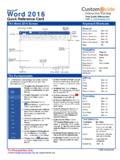
1 Microsoft Outlook 2010 Quick Reference Card The Outlook 2010 Screen Navigation Pane zas Contains mail-related folders like your Inbox, Sent Items, and Search Folders. Use the Favorites section at the top of the pane for easy access to frequently-used folders. Enables you to view and schedule appointments, event, and meetings. View shared calendars and compare calendars by viewing them side-by-side. Store and keep track of addresses, phone numbers, and e-mail addresses. Organize to-do lists, track task progress, and delegate tasks. Notes: Use like electronic Post-It Notes to write down information. Folder List: Displays a list of all your Outlook folders. Shortcuts: Add shortcuts to folders and locations in Outlook for Quick access.
2 Keyboard Shortcuts Save Ctrl + S Preview and Print Ctrl + P Undo Ctrl + Z Cut Ctrl + X Copy Ctrl + C Paste Ctrl + V Check Spelling F7 Check for Mail F9 Save, Close, Alt + S and Send Reply Ctrl + R Reply to All Alt + L Address Book Ctrl + Shift + B Help F1 Switch Between Alt + Tab Applications New Item Ctrl + N Search Ctrl + E The FundamentalsMail: basics The File tab menu and Backstage view contain commands forworking with a program s files, such as Save As, SaveAttachments, Close, New, and Print. To Create a New the New E-mail button in theNew group of the Home tab on theRibbon. Or, press Ctrl + the e-mail address(es) in the To:box, or click the To button to use theAddress the Cc: or Bcc: buttons andenter the e-mail address(es) for whomyou want to send copies of the subject of the message inthe Subject the text of your message in thetext the Send button.
3 To Reply to a Message: Select/open themessage, click the Reply button, typeyour reply, and click the Send button. To Forward a Message: Select/open themessage, click the Forward button, enterthe e-mail address(es) in the To field,enter comments in the Body area, andclick the Send button. To Delete a Message: Select themessage and press the Delete key. To Open a Message: Click a messageto view it in the Reading Pane or double-click the message to open it. To Check for New Messages: Clickthe Send/Receive All Folders button or press F9. To Preview and Print a Message:Click the File tab and select Print, orpress Ctrl + P. Message Indicators: Message has not been read. Message has been read. File is attached to the message.
4 Message has high or low importance. To Minimize the Ribbon: Click theMinimize Ribbon button on theRibbon. Or, press Ctrl + F1. Or, right-click a tab and select MinimizeRibbon from the contextual menu. To Change Account Settings: Clickthe File tab and select Info. Click theAccount Settings button. To Change Program Settings: Clickthe File tab and select Options. To Get Help: Press F1 to open theHelp window. Type your question and press Pane File tab Quick Access Toolbar Title barPeople Pane RibbonTo Do BarClose buttonNavigation Pane Status Bar Messages Zoom Free Quick References!Visit: 2016 CustomGuide For Personal Use Only Contact Us at for organizational : Advanced Tasks To Attach a File to a Message: Click the Attach Item button in the Include group of the Message tab in the Message window.
5 To Preview an Attachment: Click the attachment in the message preview in the Reading Pane. To Open an Attachment: Double-click the attachment in the Reading Pane. The file opens in its default program. To Flag a Message as a To-Do Item: Right-click the message, select Follow Up from the contextual menu, and select a flag. Or, click the flag icon on the message. Or, select the message, click the Follow Up button on the Standard toolbar and select a flag. To Categorize a Message by Color: Click the Quick Click icon on the message. Or, right-click the message, select Categorize from the contextual menu, and select a color category. Or, select the message, click the Categorize button in the Tags group of the Home tab on the Ribbon, and select a flag.
6 To Recall a Message: Open the Sent Items folder. Double-click the message, click the Actions button in the Move group of the Message tab on the Ribbon, and select Recall This Message. Choose to delete the message or replace the message with a new one in the dialog box and click OK. You can only recall a message if you are using MS Exchange Server and the recipient has not opened it. To Resend a Message: Open the Sent Items folder. Double-click the message, click the Actions button in the Move group of the Message tab on the Ribbon, and select Resend This Message. Edit the message and recipients as necessary and click Send. To Create a Contact Group: Click the New Items button in the New group on the Ribbon and select More Items Contact Group.
7 Click the Add Members button in the Members group on the Ribbon, select a name in the list, click the Members button, and repeat for each name to be added. Click OK, then click Save & Close in the Actions group of the Contact Group tab. To Create a Signature: In the message window, click the Signature button in the Include group of the Message tab on the Ribbon, select Signatures, and create the new signature. To Change a Message s Options: In the message window, click the Options tab on the Ribbon and click the More Options dialog box Launcher. Here you can specify: if the message is important or sensitive; if you want to add voting buttons to the message; where replies should be sent to; if you want a read receipt; and if you want to encrypt the message or delay its delivery.
8 To Move a Message to a Different Folder: Select the item, click the Move button in the Move group of the Home tab of the Ribbon, and select the destination folder. Or, click and drag the item to a different folder in the Navigation Pane. To Turn On the Out of Office Assistant: Click the File tab, select Info and click the Automatic Replies button. To Save a Message as a Draft: Click the Save button on the Quick Access Toolbar in the message window. The message appears in the Drafts folder. To Create a New Rule: Click the Rules button in the Move group of the Home tab on the Ribbon and select Create Rule. To Manage Rules: Click the Rules button in the Move group of the Home tab on the Ribbon and select Manage Rules and Alerts.
9 Calendar To Open the Calendar: Click the Calendar button in the Navigation Pane. To Change Views: Click a view option in the Arrange group on the Home tab, or click the View tab and select an option there. To View a Specific Date: Click the date in the Date Navigator, or click and drag to view a set of consecutive dates. To Schedule an Appointment: Click the New Appointment button in the New group on the Home tab or press Ctrl + N. To Schedule a Recurring Appointment: Click the New Items button in the New group on the Ribbon, and select More Items Recurring Appointment. To Schedule a Meeting: Click the New Meeting button in the New group on the Ribbon. Add recipients and meeting details and click Send.
10 To Schedule an All Day Event: Click the New Items button in the New group on the Ribbon and select All Day Event. To Reschedule an Item: Click and drag the item to a new date and/or time on the Calendar. Or, double-click the item to open it, make your changes, and click the Save & Close button in the Actions group on the Ribbon. To Edit an Item: Click the item to view the Calendar Tools contextual tab. Or, double-click the item, make your changes, and click the Save & Close button in the Actions group on the Ribbon. To Delete an Item: Select the item and press Delete. Or, select the item and click the Delete button in the Actions group of the Appointment tab on the Ribbon. To Search the Calendar: Click in the Search box in the upper right corner, or press Ctrl + E.