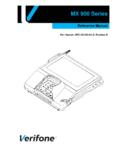
Transcription of PM23c | PM43 | PM43c
1 Mid-Range PrinterUser ManualPM23c | pm43 | PM43ciiPM23c, pm43 , and PM43c Mid-Range Printer user ManualIntermec by Honeywell6001 36th Everett, WA 98203 information contained herein is provided solely for the purpose of allowing customers to operate and service Intermec-manufactured equipment and is not to be released, reproduced, or used for any other purpose without written permission of Intermec by Honeywell. Information and specifications contained in this document are subject to change without prior notice and do not represent a commitment on the part of Intermec by Honeywell. 2012 2014 by Intermec by Honeywell. All rights word Intermec, the Intermec logo, Fingerprint, Ready-to-Work, and SmartSystems are either trademarks or registered trademarks of Intermec by patent information, refer to is a registered certification mark of the Wi-Fi Alliance. Microsoft, Windows, and the Windows logo are registered trademarks of Microsoft Corporation in the United States and/or other countries.
2 Bluetooth is a trademark of Bluetooth SIG, Inc., , pm43 , and PM43c Mid-Range Printer user ManualiiiDocument Change RecordThis page records changes to this document. The document was originally released as Revision NumberDateDescription of Change00412/2014 Updated to support MR7 updated information on installing to support the release of the PM23c , pm43 , and PM43c Mid-Range Printer user ManualContentsPM23c, pm43 , and PM43c Mid-Range Printer user ManualvContentsBefore You Begin.. xiSafety Information .. xiSafety Precautions .. xiProduct Identification.. xiiiGlobal Services and Support .. xiiiWarranty Information.. xiiiWeb Support .. xiiiSend Feedback.. xiiiTelephone Support .. xiiiWho Should Read This Manual .. xiiiRelated Documents .. xiv1 About the Printer .. 1 About the PM23c , pm43 , and PM43c Printer .. 2 Printer Features .. 2 About the Front Panel .. 5 About the Ready-to-Work Indicator .. 5 About the Print Button .. 6 About the Icon Front Panel.
3 7 About the Full Touch Display Front Panel .. 9 About the Ready Screen .. 10 About the Main Menu .. 12 How to Navigate in the Main Menu .. 13 About the Onscreen Keypads .. 13 About the Printer Wizards .. 15 About Printer Command Languages .. 16 About Fingerprint ..17 About Direct Protocol .. 17 About IPL .. 17 About ZSim .. 18 About DSim .. 18 About Smart Printing .. 18 How to Set the Printer Command Language.. 18 Set the Command Language from the Printer Web Page .. 19 Set the Command Language from the Main Menu .. 19 Printer Options and Accessories .. 20 ContentsviPM23c, pm43 , and PM43c Mid-Range Printer user Manual2 Set Up the Printer .. 23 About Media .. 24 About Linerless Media.. 24 About Tear-Off Printing .. 24 Load Media for Tear-Off Printing .. 25 About the Label Dispenser .. 27 Load Media for the Label Dispenser .. 27 Load Media from an External Supply .. 31 About Cut-Off Printing .. 32 Load Media for Cut-Off Printing .. 33 About Ribbon .. 35 Load Ribbon.
4 36 Connect the Printer to Power .. 38 About Test Labels .. 39 Print a Test Label with the Icon Printer .. 39 Print a Test Label with the Full Touch Printer .. 39 Calibrate the Screen .. 40 Create and Print Labels .. 40 How to Print on RFID Media .. 41 About RFID Tag Position .. 41 Run the RFID Calibration Wizard .. 42 Calculate RFID Tag Position .. 433 Connect the Printer .. 45 About Printer Drivers .. 46 Install Printer Drivers .. 46 How to Connect the Printer to Your PC .. 47 Connect the Printer Using a Serial Cable .. 48 Connect the Printer Using a USB Cable .. 48 About the Parallel Port .. 48 Connect the Printer Using an IEEE 1284 Cable .. 49 ContentsPM23c, pm43 , and PM43c Mid-Range Printer user ManualviiHow to Connect the Printer to Your Network.. 49 Connect the Printer to an Ethernet Network .. 49 About Wireless Communications.. 51 Configure Wireless Communications from the Web Page.. 51 Configure Wireless Communications from the Main Menu.. 52 Install Authentication Certificates.
5 53 About Bluetooth Communications .. 54 Connect to a Bluetooth Device .. 54 Configure Bluetooth Communications from the Web Page .. 54 Configure Bluetooth Communications from the Main Menu .. 55 About the USB Host Port .. 56 Connect a USB Device .. 574 Configure the Printer .. 59 How to Configure the Printer .. 60 About the Printer Configuration Menus .. 60 Configure the Printer from the Main Menu .. 68 Restrict Access to the Main Menu .. 69 Configure the Printer from the Web Page .. 70 Configure the Printer with PrintSet 5 .. 71 How to Configure the Printer with Programming Commands .. 72 How to Configure the Printer with SmartSystems .. 72 Configure the Printer with Touchless Configuration .. 72 About Uploading Fonts, Images, Applications, Formats, and Web Pages .. 73 Upload Fonts, Images, Applications, Formats, and Web Forms from the Web Page .. 73 Upload Fonts, Images, Applications, Formats, and Web Forms from a USB Storage Device .. 75 Change Background Image for the Ready Screen.
6 76 About Printer Profiles .. 77 Save a Printer Profile from the Web Page .. 77 Load a Printer Profile from the Web Page .. 78 Save a Printer Profile from the Main Menu .. 79 Load a Printer Profile from the Main Menu .. 80 How to Load a Printer Profile with Programming Commands .. 80 Install a Configuration File from a USB Storage Device .. 81 Export a Configuration File to a USB Storage Device.. 82 Customize the Printer Web Page.. 82 ContentsviiiPM23c, pm43 , and PM43c Mid-Range Printer user Manual5 Troubleshoot the Printer .. 83 Call Product Support.. 84 About Printer System Information ..85 View Printer Statistics ..86 Check the Printer Odometer .. 87 Set Maintenance Alerts .. 88 About Alerts .. 89 Configure Error Alert Notification .. 89 Maintenance and Error Alerts .. 90 Troubleshoot Printer Problems and Find Solutions .. 92 How to Restore Printer Defaults.. 96 Restore Defaults from the Printer Web Page .. 96 Restore Defaults from the Main Menu .. 97 Restore Defaults with a Hardware-Based Reset.
7 98 How to Upgrade the Printer Firmware .. 98 Download the Printer Firmware Update .. 99 Upgrade Firmware from the Printer Web Page .. 99 Upgrade Firmware from a USB Storage Device ..1006 Maintain the Printer ..101 How to Clean the Printer ..102 Clean the Printhead ..102 Clean the Media Guides ..103 Clean the Exterior of the Printer..104 Clean the Cutter ..104 Replace the Printhead ..104 Replace the Platen Roller ..106 How to Adjust the Printer..107 Prevent Ribbon Wrinkling ..107 Adjust the Printhead Balance ..108 Adjust the Printhead Pressure ..109 Adjust the Label Gap and Black Mark Sensor ..111 ContentsPM23c, pm43 , and PM43c Mid-Range Printer user ManualixA Specifications.. 113 Printer Specifications ..114 Interface Specifications ..124RS-232 Serial Interface ..125 USB Device Interface ..126 USB Host Interface..126 Ethernet Interface..127B Default Settings .. 129 Default Configuration ..130 Serial Port Settings ..130 Ethernet Settings ..131 Wireless General Settings.
8 132 Wireless Network Settings ..133 Wireless Security Settings ..134 Bluetooth Settings ..136 Media Settings ..137 Print Quality Settings ..140 General System Settings ..140 Display and Audio Settings ..141 System I/O Settings ..142 System Network Services ..143 System Maintenance Alert Settings ..144C Print Labels with INPrint .. 145 About the INPrint Page ..146 Print INPrint Labels ..146 Predefined INPrint Label Formats ..148 ContentsxPM23c, pm43 , and PM43c Mid-Range Printer user ManualBefore You BeginPM23c, pm43 , and PM43c Mid-Range Printer user ManualxiBefore You Begin This section provides you with safety information, technical support information, and sources for additional product InformationYour safety is extremely important. Read and follow all warnings and cautions in this document before handling and operating Intermec equipment. You can be seriously injured, and equipment and data can be damaged if you do not follow the safety warnings and section explains how to identify and understand warnings, cautions, and notes that are in this document.
9 Safety PrecautionsWarning: A warning alerts you of an operating procedure, practice, condition, or statement that must be strictly observed to avoid death or serious injury to the persons working on the : A caution alerts you to an operating procedure, practice, condition, or statement that must be strictly observed to prevent equipment damage or destruction, or corruption or loss of : Notes either provide extra information about a topic or contain special instructions for handling a particular condition or set of : You may use this printer on an IT power You BeginxiiPM23c, pm43 , and PM43c Mid-Range Printer user ManualWarning: Moving parts are exposed when the cover is open. Make sure the cover is closed before you operate the : Do not open the electronics cover. Dangerous voltage!Warning: Do not remove the bottom plate. Dangerous voltage!Warning: Do not put your fingers inside the print mechanism when the power is : Double pole/neutral : Do not spray the printer with water.
10 If you are using a hose to clean the premises in an industrial environment, remove the printer or protect it carefully from spray and : Make sure you place the printer on an even surface that can safely support its weight and : You must implement both hardware and software safety precautions to prevent the possibility of undefined system : You must ensure that dangerous conditions cannot occur under any circumstances, even for a brief period of : Observe all safety and accident prevention regulations applicable to your specific region and : Before you use a cleaning card, carefully read the warning text on the You BeginPM23c, pm43 , and PM43c Mid-Range Printer user ManualxiiiProduct IdentificationThe machine labels are attached to the underside of the printer and contain information on type, model, serial number, and AC voltage. This document provides warnings regarding personal safety during operation of the Services and SupportWarranty InformationTo understand the warranty for your Intermec product, visit the Intermec website at and click Support > Returns and Repairs > SupportVisit the Intermec web site at to download our current manuals (in PDF).