Transcription of PM42 Industrial Label Printer User Manual
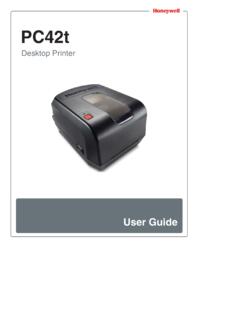
1 pm42 Industrial Label PrinterUser ManualiiPM42 Industrial Label Printer user ManualDisclaimerHoneywell International Inc. ( HII ) reserves the right to make changes in specifications and other information contained in this document without prior notice, and the reader should in all cases consult HII to determine whether any such changes have been made. The information in this publication does not represent a commitment on the part of shall not be liable for technical or editorial errors or omissions contained herein; nor for incidental or consequential damages resulting from the furnishing, performance, or use of this material. HII disclaims all responsibility for the selection and use of software and/or hardware to achieve intended document contains proprietary information that is protected by copyright. All rights are reserved. No part of this document may be photocopied, reproduced, or translated into another language without the prior written consent of , Windows, and the Windows logo are either registered trademarks or registered trademarks of Microsoft Corporation in the United States and/or other , Zebra Programming Language (ZPL), and ZPL II are trademarks of ZIH patent information, see 2015 2016 Honeywell International Inc.
2 All rights Industrial Label Printer user ManualiiiDocument Change RecordThis page records changes to this document. The document was originally released as Revision LetterDateDescription of ChangeB03/2016 Updated the document title, updated the illustration of the back of the Printer , and corrected the physical Industrial Label Printer user ManualContentsPM42 Industrial Label Printer user ManualvContentsCustomer Support .. ixProduct Service and Repair .. ixLimited Warranty .. ixSend Feedback .. ix1 About the Printer .. 1 About the pm42 Printer .. 2 Printer Features.. 2 About the Front Panel .. 4 About the Ready-to-Work Indicator .. 4 About the Print Button .. 5 About the Navigation Buttons .. 5 About the Ready Screen .. 6 About the Main Menu .. 7 About the Onscreen Keypads.. 8 About the Printer Wizards .. 9 About Printer Command Languages .. 10 About Fingerprint .. 10 About Direct Protocol .. 10 About IPL .. 11 About ZSim.. 11 About DSim .. 11 About Smart Printing.
3 11 How to Set the Printer Command Language .. 11 Set the Command Language from the Main Menu .. 12 Set the Command Language from the Printer Web Page .. 12 Printer Options and Accessories.. 132 Set Up the Printer .. 15 About Media .. 16 About Tear-Off Printing.. 16 Load Media for Tear-Off Printing .. 16 Load Media from an External Supply .. 18 About Ribbon.. 19 Load Ribbon .. 20 ContentsviPM42 Industrial Label Printer user ManualConnect the Printer to Power .. 22 Print a Test Label .. 22 How to Create and Print Labels .. 223 Connect the Printer .. 23 About Printer Drivers .. 24 Install Printer Drivers .. 24 How to Connect the Printer to Your PC .. 24 Connect the Printer with a Serial Cable .. 25 Connect the Printer with a USB Cable .. 25 Connect the Printer with an IEEE 1284 Cable .. 25 Connect the Printer to an Ethernet Network .. 26 About the USB Ports .. 26 Connect a USB Storage Device .. 274 Configure the Printer .. 29 About the Printer Configuration Menus .. 30 How to Configure the Printer .
4 35 Configure the Printer from the Main Menu .. 35 Restrict Access to the Main Menu .. 35 Configure the Printer from the Web Page .. 36 Configure the Printer with PrintSet 5 .. 37 How to Configure the Printer with Programming Commands.. 37 How to Configure the Printer with SmartSystems .. 38 About Printer Profiles .. 38 Save a Printer Profile from the Web Page .. 38 Load a Printer Profile from the Web Page .. 39 Save a Printer Profile from the Main Menu .. 39 Load a Printer Profile from the Main Menu.. 39 How to Load a Printer Profile with Programming Commands .. 40 How to Upload Files to the Printer .. 40 Upload Files from the Web Page .. 41 How to Set Up a USB Storage Device to Upload Files to the Printer .. 42 Upload Files from a USB Storage Device .. 43 ContentsPM42 Industrial Label Printer user ManualviiExport a Configuration File to a USB Storage Device.. 44 Import a Configuration File from a USB Storage Device.. 44 Change the Background Image for the Ready Screen.
5 45 Create Menu Shortcuts .. 45 Customize the Printer Web Page .. 465 Troubleshoot the Printer .. 47 Contact Support .. 48 About Printer System Information .. 48 About Printer Statistics .. 49 View Printer Statistics.. 49 Check Printhead Usage .. 50 About Alerts.. 50 Set Error, Warning, and Information Alerts .. 50 About Maintenance Alerts .. 51 Set Maintenance Alerts from the Main Menu .. 51 Set Maintenance Alerts from the Web Page .. 51 How to Configure Error Alert Notifications .. 52 Configure Error Alert Notifications from the Main Menu .. 52 Configure Error Alert Notifications from the Web Page.. 52 Maintenance and Error Alerts .. 53 Problems and Possible Solutions .. 55 How to Restore Default Settings .. 58 Restore Default Settings from the Main Menu .. 58 Restore Default Settings from the Printer Web Page .. 58 Restore Default Settings with a Hardware-Based Reset .. 59 How to Upgrade the Printer Firmware.. 59 Download the Printer Firmware Update .. 60 Upgrade Firmware from the Printer Web Page.
6 60 Upgrade Firmware from a USB Storage Device.. 606 Maintain the Printer .. 63 How to Clean the Printer .. 64 Clean the Printhead .. 64 Clean the Media Guides.. 65 How to Clean the Exterior of the Printer .. 65 ContentsviiiPM42 Industrial Label Printer user ManualReplace the Printhead.. 66 Replace the Platen Roller .. 67 How to Adjust the Printer .. 68 Adjust Ribbon Tension .. 69 Adjust the Printhead Balance .. 70 Adjust the Printhead Pressure .. 71 Adjust the Label Gap and Black Mark Sensor .. 72A Specifications.. 73 Printer Specifications .. 74 Interface Specifications .. 80RS-232 Serial Interface .. 80 USB Device Interface .. 81 USB Host Interface.. 81 Ethernet Interface.. 82B Default Settings.. 83 Default Configuration.. 84 Serial Port Settings.. 84 Ethernet Settings .. 85 Media Settings .. 85 Print Quality Settings .. 88 General System Settings .. 89 Display Settings .. 90 Manage I/O Settings.. 90 Manage Services Settings .. 91C Print Labels with INPrint.. 93 About the INPrint Page.
7 94 Print INPrint Labels .. 94 Predefined INPrint Label Formats .. 95 Customer SupportPM42 Industrial Label Printer user ManualixCustomer SupportIf you need assistance installing or troubleshooting your product, contact us by using one of these methods:Knowledge Base: Knowledge Base provides thousands of immediate solutions. If the Knowledge Base does not help you solve your problem, log into the Technical Support Portal to submit your problem or ask your Support Portal: into the Technical Support Portal to search our Knowledge Base, submit your problem or question, request a call back, or provide feedback. When filling out one of the forms, provide as much detail as possible. You can even include : our latest contact information, please check our Service and RepairHoneywell International Inc. provides service for all of its products through service centers throughout the world. To find your service center, go to and select Support > Contact Support > Service and Repair.
8 Contact your service center to obtain a Return Material Authorization number (RMA #) before you return the obtain warranty or non-warranty service, return your product to Honeywell (postage paid) with a copy of the dated purchase WarrantyFor warranty information, go to and click Resources > FeedbackYour feedback is crucial to the continual improvement of our documentation. To provide feedback about this Manual , please contact the Technical Communications department directly at SupportxPM42 Industrial Label Printer user ManualWarning: Moving parts are exposed when the cover is open. Make sure the cover is closed before you operate the : The printhead/motor may be hot. Allow the printhead/motor to : Do not put your fingers inside the print mechanism when the power is : The tear bar contains sharp edges. Keep fingers and other body parts away from the tear : Read and review the warnings in this Manual carefully before connecting the : Observe all safety and accident prevention regulations applicable to your specific region and : Do not spray the Printer with water.
9 If you are using a host to clean the premises in an Industrial environment, remove the Printer or protect it carefully from spray and : You must implement both hardware and software safety precautions to prevent the possibility of undefined system : You must make sure that dangerous conditions cannot occur under any circumstances, even for a brief period of : Carefully read the warning text on the envelope before using a cleaning : To reduce the risk of electric shock or fire, keep the cover closed and turn off the Printer when not in use. No user -serviceable parts the PrinterThis chapter introduces the pm42 Printer and describes Printer features and basic Printer 1 About the Printer2PM42 Industrial Label Printer user ManualAbout the pm42 PrinterThe pm42 Printer is a rugged Label Printer that include integrated Ethernet, RS-232, and USB interfaces. The Printer includes these features: Print speeds of up to 10 ips (406 dpi printhead) and 12 ips (203 and 300 dpi printhead) USB host port to connect storage devices, scanners, or keyboards USB device port to connect to a desktop PC Support for these Printer programming languages.
10 Fingerprint, Intermec Printer Language (IPL), Direct Protocol, DSim, ZSim, and Smart FeaturesUse these illustrations to familiarize yourself with the Printer Front ViewUser interfaceMedia coverPrint buttonChapter 1 About the PrinterPM42 Industrial Label Printer user Manual3PM42 Internal ViewPM42 Back ViewPrinthead leverGap sensor adjustment wheelRibbon takeupRibbon supply Media hanger Dancer guideEdge guide On/off switchEthernet portRS-232 serial portUSB device portUSB host portAC PowerChapter 1 About the Printer4PM42 Industrial Label Printer user ManualAbout the Front PanelThe front panel includes the Ready-to-Work indicator, the Print button, navigation buttons, and a Front PanelAbout the Ready-to-Work IndicatorThe Ready-to-Work indicator turns on when the Printer is ready to buttonReady-to-Work Indicator StatusStatusDescriptionOnPrinter is ready for a print is not ready for a print is turned off, not communicating, or not ready to print. For example, the Printer may still be starting up, or a firmware upgrade is 1 About the PrinterPM42 Industrial Label Printer user Manual5 About the Print ButtonUse the Print button to start and stop print jobs and feed the Navigation ButtonsUse the navigation buttons to move through the Button BehaviorPrinter StatePrint Button BehaviorStarting Press the Print button to enter Calibration mode.