Transcription of Private Company Registration - CIPC
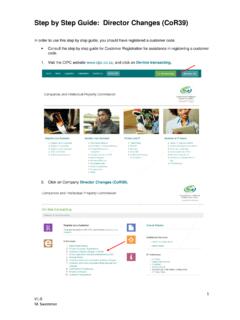
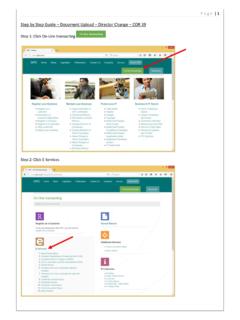
1 1 M. Swemmer Step by Step Guide: New Company Registration In order to use this step by step guide, you should have registered a customer code and have adequate credit in your customer code. Consult the step by step guide for Customer Registration for assistance in registering a customer code. Consult the Contact Us on the home page for the CIPC banking details. 1. Visit the CIPC website , and click on On-line transacting. 2. Click on 2. Private Company Registrations. 2 M. Swemmer 3. Click on Customer Login or Register a new Company .
2 4. Complete the required fields and click on Login. a. Customer Code b. Customer Password (case sensitive) c. Security code (case sensitive) d. Click on CIPC Terms & Conditions to read it, and in the circle next to it to accept the terms and conditions Note: Select Forgot Password if you require your customer password to be resend to you. If you have never used the E-Services and experience challenges to reset your password, send an e-mail to requesting your password to be reset. Include the following in your email: Customer code Full name and Surname ID number Certified copy of your ID document Letter (signed by customer) requested resetting of password Updated e-mail address 3 M.
3 Swemmer 5. The landing page of E-services will be displayed. Click on Register a New Company . 4 M. Swemmer 6. Enter the ID/number or passport number of the Director of the Company and click on the + sign. 7. The ID Number, Name and Surname and if the Director is Disqualified or not will be displayed. Click on Remove if you want to remove the Director. Click on the + sign if you want to add another director. Once all the directors ID Numbers are captured, click on Continue to add all Directors and Incorporators details.
4 8. A screen will display, requesting you to capture the details of the directors. Click on Edit and complete the details of the directors, and click on Save. Please note that directors cannot share email addresses and cell phone numbers. 5 M. Swemmer 9. The Company Registration : Directors & Incorporators screen will display. Complete the required fields and click on Save. a. Director Type b. Surname c. Name(s) d. Country of Origin e. ID/Passport Number f. Director Status g. Appointment Date h. Date of Birth i. Cell phone Number j.
5 Email Address k. Physical Address l. Postal Address 6 M. Swemmer Note: If you are registering the Company on behalf of another person (your client), it is not necessary for your details to reflect as the incorporator. You may indicate your client as the incorporator. 10. On the next screen, click on Continue to complete the Company s details. 11. Complete the required fields relating to the Company and click on Save. a. Financial Year End b. Authorised Shares c. Email Address d. Website Address e. Company Physical Address f.
6 Company Postal Address 7 M. Swemmer 12. The next screen provide options regarding Name reservation, namely: a. Apply for a name as part of this process; b. Use a name that has already been approved; c. Register a Company using an enterprise number as the name. Option 1: Applying for a name as part of the process. Click on this option if you want to apply for a name as part of the process. Company will only be added to the Company Registration queue after the proposed name has been approved. If all proposed names fail, then the Company will still be registered using the Company 's enterprise number as the Company name.
7 You will have to apply for another name and when it's approved you will have to follow a Company name change process. Option 2: Name already approved: If you have already applied for a name then your Company will be added to the Company Registration queue immediately, on condition that there is enough credit in your customer account. Option 3: Register using the enterprise number as Company name: Your Company will be added to the Company Registration queue immediately, on condition that there is enough credit in your customer account.
8 8 M. Swemmer The three different options regarding name reservation will be indicated below: Option 1: Applying for a name as part of the process. 1. Applying for a name as part of the process. Enter at least one or a maximum of four proposed names for the enterprise, in order of preference. Click on Submit Proposed Name. 2. A screen will display, indicating if the exact name test was successful or not. If the test for one of the proposed names was not successful, you will be requested to indicate another proposed name.
9 Click on Back and propose another name. Click on Lodge Name Reservation. 9 M. Swemmer 3. The next screen will indicate that the proposed name(s) has been lodged, and provide you with a Reservation (tracking) number. Click on Continue. Once the name has been successfully reserved, confirmation of such reservation will be e-mailed. For guidance on the service delivery standards for name reservations consult About / Our Service Turnaround Times. Option 2: Name already approved: 1. Click on Use a name that has already been approved.
10 10 M. Swemmer 2. Type in the reservation number received for the name reservation and click on Continue. Option 3: Register using the enterprise number as Company name: 1. Click on Register Company using enterprise number as the name. 11 M. Swemmer 13. All director and Company details will be displayed. Verify the correctness, and click on Modify if you need to edit either the Company details or the director details. Click on Lodge Company . 14. The following screen will be displayed if your Company Registration has been filed.