Transcription of Quick Reference Book - Red Gap
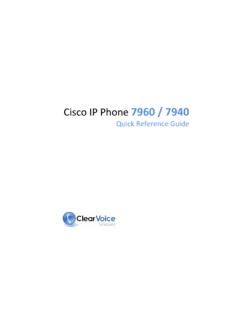
1 Business Feature SetT6000 Release Protocol 2007 Red Gap Communications, rights 20070309 Quick Reference BookCisco 7940 & 7960 Series IP PhonesPage 2 SpeakerVolumeSettingsDirectoriesSoft KeysAngleAdjustmentLineAppearanceButtons IndicatorLightMuteHeadsetVoice MailMessagesServicesHelpScrollUseful InformationCustomer Service / Technical Support(214) phone NumbersRemote VoicemailYour phone number + extension + *Remote Call Forwarding(214) 580-2032 Remote phone Feature(214) 580-2040 Meet-Me Conferencing(214) 580-2030 (Join)(888) 550-2030 (Join)(214) 580-2031 (Schedule)Internal Service Extensions522 Meet-Me Conference (Join)523 Meet-Me Conference (Schedule)544 Speed Dial Configuration555 Voicemail (Login)577 Voicemail (Make a Message)585 phone Number Announcement586 IP Address Announcement588 Direct Extension Assignment589 Unassign TelephoneContentsAdjusting the PhoneDisplay Contrast.
2 4 Handset Volume ..4 Speakerphone Volume ..4 Ring Volume ..4 Ring Type ..4 Making CallsDialing ..4 Making a Call ..4 Last Number Redial ..5 Call Return ..5 Abbreviated Dialing ..5 Speed Dial ..5 Group Speed Dial ..5 Authorization Code ..5 Billing Codes ..5 Conferencing ..5 Intercom ..6 Broadcast Paging ..6 Releasing Caller ID Block ..6 Receiving CallsRing Sounds ..7 Answering a Call ..7 Group Pickup ..7 Directed Call Pickup ..7 Call Waiting ..7 Call Waiting with ID Manager ..7 Anonymous Call Rejection ..8 Call Block - Selective Call Rejection ..8 Priority Call ..8 Privacy Guard ..8 Call Forward - All Calls ..8 Call Forward - Selective ..9 Call Forward - Busy ..9 Call Forward - No Answer ..9 Call Forward - Out of Service ..9Do Not Disturb ..9 Virtual Ring ..9 Voice ..10 Holding, Transferring& Ending CallsMute ..10 Hold ..10 Call Park ..10 Transfer.
3 11 One-Touch Transfer ..11 Ending a Call ..11 Other FeaturesDirect Extension Assignment ..11 Night Mode ..11 Star Code Summary ..12 Page 4 Adjusting the PhoneDisplay ContrastPress the Settings buttonPress 1 to select ContrastAdjust the contrast using the Up and Down soft keysPress the Ok soft key to savePress the Exit soft keyHandset VolumeRemove the handset from the cradlePress the Volume Up/Down buttonsPress the Save soft keyReplace the handsetSpeakerphone VolumePress the Speaker buttonPress the Volume Up/Down buttonsPress the Save soft keyPress the Speaker button to turn off the speakerphoneRing VolumeWith the handset in the cradle and speakerphone off, press the Volume Up/Down buttons. The setting will automatically be TypePress the Settings buttonPress 2 to select Ring TypePress the Scroll Up/Down buttons to highlight the desired ring typePress the Select soft keyPress the Ok soft key to savePress the Exit soft CallsDialingOutside Access DigitThis is the prefix digit required when dialing an outside phone number, used to distinguish between an inside extension or star code and an outside phone number.
4 You will hear a higher-pitch dial tone before the key press, and a lower-pitch dial tone after the key ExtensionsDial the 3, 4, 5 or 6-digit extension (based on your company's phone configuration)Local CallsDial the Outside Access Digit + the numberLong Distance CallsDial the Outside Access Digit + 1 + the numberInternational CallsDial the Outside Access Digit + 011 + the country code + the city code + the numberInternational calling must be enabled by your Service Inward Dialing (DID)A DID phone number allows outside callers to directly dial an internal extension, bypassing an operator or auto-attendant. This term is used throughout this document where a CallUsing the HandsetLift the handset and dial the desired numberor Dial the desired number then lift the handsetUsing the SpeakerphonePress the Speaker button and dial the desired numberor Dial the desired number and press the Speaker buttonor Dial the desired number and press the Dial soft keyor Dial the desired number and press a line buttonUsing the headsetPress the Headset button and dial the desired numberor Dial the desired number and press the Headset button Page 5 Last Number RedialTo redial the last number calledPress the Redial soft keyor Dial *07 Call ReturnTo return a call to the last callerLift the handset and dial *69 Follow the voice prompts to verify the number and return the callIf your phone has Toll Restrictions.
5 You will not be able to return restricted DialingThis feature lets you create up to 100 personal 2-digit speed dial codes (00-99) that you can dial from your use an Abbreviated Dial CodeLift the handset and dial *3 Enter the desired 2-digit speed dial codeTo program an Abbreviated Dial CodeLift the handset and dial 75*Follow the voice promptsWhen entering an external phone number, be sure to include the Outside Access modify an Abbreviated Dial Code, simply reprogram the same Abbreviated Dial delete an Abbreviated Dial Code, reprogram the same Abbreviated Dial Code but press # to enter an empty phone number when DialThis feature lets you assign favorite phone numbers to Speed Dial buttons for one-touch line appearance button must configured as a Speed Dial button by your Service Provider in order to use this feature. Speed Dial Buttons can then be programmed from the keypad or from the web use a Speed Dial buttonLift the handset and press the desired Speed Dial buttonor Press the desired Speed Dial button to use the speakerphoneTo program a Speed Dial buttonLift the handset and dial 74*Follow the voice prompts entering an external phone number, be sure to include the Outside Access modify a Speed Dial button, simply reprogram the same delete a Speed Dial button.
6 Reprogram the same button but press # to enter an empty phone number when Speed DialThis feature lets you have up to 1000 extra common extensions that each behave as a speed feature must be configured by your Service dial a Group Speed Dial extensionLift the handset and dial the Group Speed Dial extension you wish to callAuthorization CodeThis feature allows you to override any call restrictions on the phone when you place a make a call with an Authorization CodeLift the handsetDial your Outside Access DigitPress the # signEnter your authorization code (when you enter the correct code, you will hear a dial tone)Dial the desired phone numberBilling CodesThis feature lets you track calls by associating a billing code with each call while you are on a enter a Billing Code for a call using Star CodesDuring a call, press *02 Enter the billing code + #To enter a Billing Code for a call using Soft KeysDuring a call, press the Billing soft key (you may need to press the more soft key one or more times to see it)Enter the billing code for the call using the numeric keypad (the other party will not hear the tones when you press keys)Press the Billing soft key againIf you enter multiple billing codes during a call, only the last billing code will be lets you join multiple parties together on a single call.
7 Page 6 The maximum number of parties is determined by your Service add a party to an existing callPress the Confrn soft key to place the existing call on Hold and provide a dial tone (you may need to press the more soft key one or more times to see it)Dial the extension or number that you would like to add. Be sure to include the Outside Access Digit for an external the party answers, press the Confrn soft key again to join the parties together. If you reach the voicemail or the party doesn t want to join the conference, press the EndCall soft key followed by the Resume soft key to return to the original call without adding the new these steps to add new you initiate a conference call and then hang up, the other parties may be able to continue the call after you disconnect. Contact your Service Provider to determine your information about Meet-Me Conferencing, see the Meet-Me conferencing Quick Reference feature lets you make an announcement through another person s phone , allowing them to respond instantly in hands-free mode using their speakerphone.
8 To initiate an Intercom callPress the Intcom soft key (you may need to press the more soft key one or more times to see it)Dial the extension you wish to intercomIf the other party has Do Not Disturb enabled or they are on the phone , you will get a busy signal when you try to an Intercom callWhen someone initiates an Intercom call to your phone and your phone is idle, your phone will beep and your speakerphone will be enabled. Your phone will beep every 60 seconds as a reminder that an intercom call is PagingThis feature lets you broadcast an announcement to all members of your paging feature must be enabled by your Service Provider. To make a Broadcast PageLift the handsetDial the broadcast paging numberAfter the tone, make your announcementHang upTo receive a Broadcast PageYour phone will play a warning tone to alert you of an incoming announcement, then the announcement will be played through your phone must be idle to receive a Broadcast Caller ID BlockIf your phone is configured to block sending Caller ID information, you can send your Caller ID information for a single phone call by temporarily releasing Permanent Caller ID temporarily release Caller ID Block for a single callLift the handset and dial *82 Dial the desired number to make your callWhen you end the call, Permanent Caller ID Block will again be Page 7 Receiving CallsRing SoundsThe cisco 7940/ 7960 IP phone has distinctive rings for incoming calls.
9 One Ring - Internal callsTwo Rings - External calls and reminder for calls on holdDistinctive Ring - Your service provider may be able to configure up to three DID numbers on your phone , each of which can have a different ring tonePriority Ring - Identifies priority callers with a different ring pattern. See Priority a CallUsing the HandsetPress the Answer soft key then lift the handset (answers any ringing line appearance)or Lift the handset (answers your extension only)Using the SpeakerphonePress the Answer soft key (answers any ringing line appearance)or Press the Speaker button (answers your extension only)or Press the associated line button (answers the associated line appearance)Using the headsetPress the Headset buttonGroup PickupThis feature allows you to answer another phone from your own phone , if the other phone is within your Call Pickup feature, the pickup group and the soft key on your phone must be configured by your service Pickup a Call on another phone using Soft KeysPress the Group soft key (you may need to press the more soft key one or more times to see it)
10 To Pickup a Call on another phone using Star CodesLift the handset and dial *06If multiple inbound calls are ringing, the call that has been ringing the longest will be answered. Directed Call PickupThis feature lets you answer a specific phone within your Directed Call Pickup feature, the pickup group and the soft key on your phone must be configured by your service Pickup a Call using Soft KeysPress the DC Pickup soft key (you may need to press the more soft key one or more times to see it)Enter the extension you wish to answer. The extension must be in one of your Directed Call Pickup Pickup a Call using Star CodesLift the handset and dial *12At the dial tone, dial the extension you want to answer. The extension must be within one of your Directed Call Pickup WaitingThis feature lets you automatically put the current call on hold while you answer a second incoming call that arrives on any answer a second call while on a callPress the Answer soft keyor Press the line button for the second incoming callThe original call will be placed on hold and you will be connected to the second return to the Original Call Press the Scroll Up/Down buttons to select the original callPress the Resume soft keyTo temporarily disable Call Waiting for the duration of an outgoing callLift the handset and dial *70 Dial the desired number to make your callWhen you end the call.