Transcription of Quick Start Guide (fx-991EX/fx570EX) CASIO
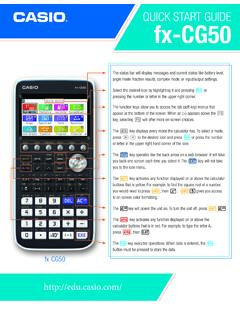
1 Quick Start GUIDEfx-991 fx-991EX ClassWiz features a high-resolution display, making it easier to view formulas and remarkable screen can display between 2-6 times as many characters as other scientific calculators, yet still runs on solar power. Use the W key to turn the calculator on, and press qC(OFF) to power the unit icon-based menu, accessible via the p key, allows easy navigation of features using the arrow keys and the number keys or the Q o key can be used like Backspace in a word processor to delete the character(s) left of the symbols printed on the keys use Natural Textbook Display notation, similar to that found in textbooks. This makes input of expressions fast and n key toggles your calculation results between Standard (exact) and Decimal Quick Start Guide2 IconMenu NameDescription CALCULATEP erform general computations using Natural Textbook Display notation, including absolute value, logs of any base, summation, derivatives, and computations with complex numbers, including a + bi form, polar ( ) form, and conversions between the two.
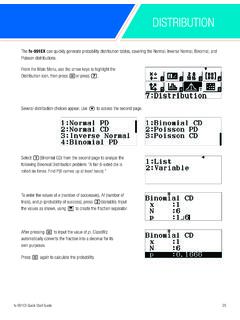
2 BASE-NPerform binary, octal, and hexadecimal computations, and convert among those number bases and base-10. MATRIXP erform operations on matrices up to 4x4, including matrix arithmetic, determinants, transpositions, and identity operations on 2- and 3-dimensional vectors, including vector arithmetic, dot products, angles, and unit 13 different one-variable statistics, and apply linear, quadratic, logarithmic, exponential, and geometric (power) regressions. DISTRIBUTIONI nvestigate Normal, Inverse Normal, Binomial, and Poisson probability and cumulative spreadsheets with up to 5 columns and 45 rows. Spreadsheet supports Fill, Cut/Copy/Paste, recursive formulas, Mean, and Sum tables of values to compare up to 2 functions simultaneously. EQUATION/ FUNCTIONS olve simultaneous (systems of) equations with up to 4 unknowns, and polynomials of up to degree polynomial inequalities of up to degree 4, with the solution set expressed as a compound proportions of the form A : B = X : D and A : B = C : following explains the meaning of each icon on the fx-991EX icon menufx-991EX Quick Start Guide3 Below are some examples of the Natural Textbook Display input/output notation, as found by selecting the Calculate icon from the Main Menu of the the Main Menu, use the arrow keys to highlight the Calculate icon, then press = or press and mixed numbers can be entered using a and qaA, respectively.
3 To enter the calculation to the left, press a7$8$+qaA2$3$ change the solution to a decimal format, press qnN to convert the result into a mixed-number inputting radical expressions, the radical bar automatically extends as additional characters are typed. Press s24=.The output will be displayed in simplest radical form, but can be converted into a decimal approximation by pressing Quick Start Guide4 ClassWiz is capable of recognizing and combining like radicals. Press s24$+s150=.It can also calculate unlike radicals. Press s24$-s98=.Higher-order radicals can be beautifully expressed using Natural Textbook Display q^F5$64=.Natural Textbook Display templates can be stacked inside one another to allow input of complicated expressions such as this quotient of rational exponentials. Press a3^a1$2$$$3^-2=.In a trigonometry setting, arithmetic can be performed in terms of . Press a3qKC$4$+ 2qKC=.Other useful Natural Textbook Display templates that help overcome typical calculator input frustrations include: logarithms of any base, ia1$2$$16=(Note: the calculator does not generate a Syntax Error when the - key is used to create a negative sign.)
4 Both - and z are acceptable for use.)CALCULATEfx-991EX Quick Start (sigma) notation, qxIxd+1$-3$7=..derivatives of a function at a specific point (value),qyY4xd-5x$ ..and definite $x$$2$5=.Settings for the Calculate mode can be accessed by pressing qp(SET UP). Press R one or more times to reveal additional Setup x2 + Ax + Bx = 0 for x when A = 5 and B = 6. Enter the equation by pressing, xd+Qz(A)x+Qx(B) Qr(=) fx-991EX can elegantly solve an equation for any unknown using Newton s method with the SOLVE command. To use SOLVE, first input the equation to be solved, then press qr(SOLVE).CALCULATEfx-991EX Quick Start Guide6 Input an initial guess for x followed by the values of A and B. Pressqr(SOLVE) back up to x= and SOLVE the equation by pressing accomplish the same task and solve for A or B, enter a value for x and a value for one of the other unknowns. For example, to solve for A when x = 1 and B = 4, press qr(SOLVE) back up to A= and SOLVE the equation by pressing p.
5 The solution also displays L R = 0. This means that Newton s method of approximation is directly on -5. If L R is not 0, simply recalculate to get a better Quick Start Guide7 ENGINEERING CALCULATIONST here are many menus in the fx-991EX that can handle engineering calculations. The fx-991EX has the power to handle vectors, matrices, complex numbers and numerically calculates summation and even definite the Main Menu, use the arrow keys to highlight the Calculate icon and press p or press 1. There are many different types of unit conversions that can be accomplished on this menu. To view the options, press q8(CONV). Use the down arrow key (R) to see all the possibilities. Each one of the choices has a wide range of conversion options for many different types of unit conversion. Use the arrow keys to locate the Length conversion and press 1. To convert 500 inches (in) into centimeters (cm), press C to return to the initial Calculate 500q8(CONV)1(Length) 1(in : cm) Quick Start Guide8To find the difference between one US Gallon and one UK Gallon, first, convert to a common unit, like a liter (L).
6 Press 1q8(CONV)3(Volume) 1(gal(US) : L) US gallon is approximately L. Now, convert the solution to gallons UK. Press q8(CONV)3(Volume)4 (L : gal(UK)) looks like a US gallon is US gallon = UK same calculation can be accomplished using a string of 1q8(CONV)3(Volume)1(gal(US) : L)q8(CONV)3(Volume)4(L: gal(UK)) with a large number like X gap between digits at place value separation can be viewed by entering Set Up. Press qp(SET UP) and use the arrow keys to navigate to the third NOTATIONC onverting large numbers into scientific and engineering notations can be accomplished through a short series of Quick Start Guide9 Press 4(Digit Separator)1(On) to turn on the Digit Separator to show separation between place values. Press p to recalculate the result and display clear place value convert this solution into engineering notation, use the b key to change the solution into scientific notation. To move the decimal to the right, press turn on the engineering symbols in setup, press qw(SET UP).
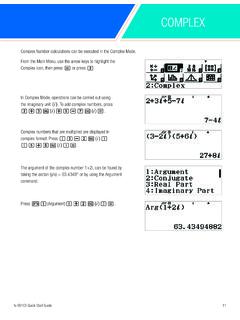
7 Select 4(Engineer Symbol)1(On) to turn on the Engineering with engineering symbols has never been move the decimal to the left, press Quick Start Guide10To calculate 500k (kilo) + 10M (Mega), press 500i3(Engineering Symbols) 6(k)+10i3(Engineering Symbols) 7(M) solution is displayed using the appropriate , use the b key to convert between Quick Start Guide11 Complex Number calculations can be executed in the Complex the Main Menu, use the arrow keys to highlight the Complex icon, then press p or press Complex Mode, operations can be carried out using the imaginary unit U. To add complex numbers, press 2+3bU+ numbers that are multiplied are displayed in complex format. Press (3-2bU)(5+6bU) argument of the complex number 1+2i, can be found by taking the arctan (y/x) = or by using the Argument i1(Argument)1+2bU) Quick Start Guide12 COMPLEX FORM AND POLAR FORMTo convert a complex number into polar form, press 2+5bUiR1(: r q) convert any polar form of a complex number, use the r theta command or type in the angle in polar C2qbZ330iR 2(: a+bi) , simply type in the angle in polar form by pressing calculations can also be accomplished in radian mode.
8 To change to radian mode, press qp(SET UP)2(Angle Unit)2(Radian).COMPLEXfx-991EX Quick Start Guide13 Operations with matrices and matrix related calculations are all located in the Matrix the Main Menu, use the arrow keys to highlight the Matrix icon and press p or press 4. To enter matrices, first, define the matrix. Press 1(MatA)2(Rows)2(Columns) 1p2pz3p4p. To enter a second matrix, press i. From the resulting popup window, press 1(Define Matrix)2(MatB).Select the number of rows, 2(Rows).Select the number of columns, 2(Columns).MATRIXfx-991EX Quick Start Guide14 Enter the matrix values by pressing perform matrix calculations, like addition, subtraction, and multiplication, follow these simple recall the name of a matrix, press add A + B, press 3(MatA)+i4(MatB) solution matrix is displayed in the window and can be viewed without scrolling. To calculate the determinant of the matrix, press iR2(Determinant) i3(MatA)) can be used to solve a system of equations.
9 Take the following equation with 3 unknowns: Enter the coefficient matrix as Matrix A and the solution matrix as Matrix enter Matrix calculation, press C. fx-991EX Quick Start Guide15 Redefine the matricies by pressing i1 (Define Matrix). Press 1(MatA) to define Matrix A and enter the 3 x 3 coefficient the number of rows, 3(Rows).Select the number of columns, 3(Columns).Enter the values of the coefficients, pressing p after each one to move to the next , enter the 3 x 1 solution matrix as Matrix i1(Define Matrix).Define Matrix B 2(MatB) as a 3 x 1, so select 3(Rows) and 1(Columns) from the next two Quick Start Guide16 Enter the values of the coefficients, pressing p after each one to move to the next C to return to the Matrix Calculation solution can be found by calculating A-1 x B. Press i3(MatA)uOi4(MatB) solution represents the following: This same system can also be solved using the Equation Quick Start Guide17 The fx-991EX is capable of handling vector calculations with vectors in 2 or 3 the Main Menu, use the arrow keys to highlight the Vector icon and press p or press vectors u and v be defined in the 3-dimensional plane by the following: u = 2i + 3j 2k and v = 3i - 4j + 5kDefine u as Vector A with dimension 1(VctA)3(Dimension).
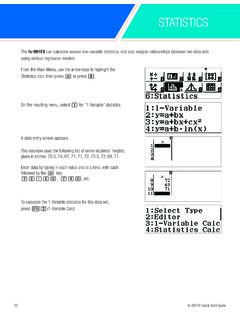
10 Enter the components of the vector and press p after each one to move to the next value. Define v as Vector B with dimension i1(Define Vector).Press 2(VctB)3(Dimension).VECTORfx-991EX Quick Start Guide18 Enter the components of the vector and press p after each one to move to the next execute basic vector operations, press C to enter Vector calculation. Recall the names of the vectors and execute the desired operation by pressing addition, subtractions, and multiplication are all subtraction, press 3(VctA)-i4(VctB) multiplication, press i3(VctA)Oi4(VctB) sums of the product of the components of a vector are known as the vector s dot product. So, . Press i3(VctA)iR2(Dot Product)i4(VctB) Quick Start Guide19 Even some very complex vector operations like the angle between vectors, which is defined as in which are easily accomplished on the calculate vector cross product (not vector multiplication), press iR3(Angle)i3(VctA)q)(,)i 4(VctB)) Quick Start Guide20 The fx-991EX can calculate several one-variable statistics, and also analyze relationships between two data sets using various regression the Main Menu, use the arrow keys to highlight the Statistics icon, then press p or press the resulting menu, select 1 for 1-Variable data entry screen example uses the following list of some students heights, given in inches: , 74, 67, 71, 71, 72, , 72, 69, data by typing in each value one at a time, with each followed by the p key.