Transcription of Quick Survey Web Part - The Sharepoint Web Part …
1 Quick Survey Web part AMREIN ENGINEERING AG March 2015 Description The Quick Survey Web part allows to quickly publish simple user polls/votings. It allows to define one question and multiple answers. The poll results are displayed as a graphical pie or bar chart. Each user can only vote once. As soon as a user has voted, the poll result chart is displayed. The Web part can be used with Windows Sharepoint Services V3 and MOSS 2007 Sharepoint 2010 Foundation and Server Sharepoint 2013 Foundation and Server The following parameters can be configured: Question and related Answers The Poll expiration date Pie chart or Bar chart result display Prerequisites Before you attempt to install the solutions you need to make sure that you have the following installed on your server(s): Microsoft Office Sharepoint Server 2007, WSS , Sharepoint 2010 or 2013 Installation Manual Installation 1.
2 Download and unpack the file. The ZIP archive contains the and the files. 2. drop the either into the SPS web application bin directory or into the GAC of your Sharepoint server (c:\windows\assembly). 3. add the following line to the "<SafeControls>" section of your file. Please make sure that the line is added as one single line (no line breaks): <SafeControl Assembly="AESurveyWebpart, Version= , Culture=neutral, PublicKeyToken=d9405ca020babc83" Namespace="AESurveyWebpart" TypeName="*" Safe="True" /> 4. from the top site go to "Site Actions/Site Settings/Modify All Site Settings/Galleries/Web Parts" 5. use the "Upload" menu option to upload the file. Automatic Installation 1. Unpack the and files from the Zip Archive and place the 2 files onto your Sharepoint Server.
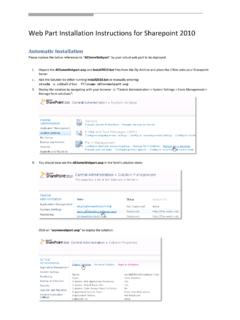
3 2. Add the Solution by either running or manually entering: stsadm -o addsolution -filename 3. Deploy the solution by navigating with your browser to Central Administration->Operations->Solution Management : 4. You should now see the in the farm s solution store: Click on to deploy the solution: 5. Proceed to activate the feature by navigating to the Site Actions/Site Settings page in your top-level site: Choose Site collection features to navigate to the Site Collection Features page: Activate the AE Survey Web part feature Adding the Web part to a Page Navigate to a page where you would like to place the web part and choose "Site Actions/Edit Page" 1. Add the web part to the appropriate zone. The web part is listed in the "Amrein Engineering" gallery section : Web part Configuration QuickPolls Sharepoint List: Create a new QuickPolls Sharepoint List in the Site Collection root.
4 This List will hold the Poll definition and Poll results. Please make sure that all users which should be able to vote have at least Contribute List permissions. The List should contain the following columns (field type in parentheses): Title (default List Title field) Question (Single line of text) Answers (Multiple lines of text, place each answer on a separate line) Response (Single line of text, automatically filled-in by the web part ) Expires (Date and Time) Web part Settings: Configure the following Web part properties in the Web part Editor Quick Poll Settings (at the top) and the "Miscellaneous" pane section as needed: o Select Poll: Select the name of the Poll that has been defined in the Sharepoint QuickPolls List. o Quick Polls List Name: enter the name of the QuickPolls List if you want to override the "QuickPolls" default List name or if you want to maintain multiple lists.
5 O Published: untick this box if you want to hide the web part during the poll configuration setup phase. The web part will then be only visible if the page is in "Edit Mode". o Show Results as Pie Chart: check this box if you want to display the poll results as a pie chart. Leave this box unchecked if you rather want to display the results as a space saving bar chart: o Hide Number of votes: hides the display of the number of submitted votes and displays the percentage only o Hide Result Chart: hides the result chart (in order to not reveal the current standings) o Allow multiple votes: allow the users to submit multiple votes o Show Current Standings: allows to show both the poll form and the current standings o Enable Logging: turn on the Logging feature which logs each vote to a CSV log file.
6 You can open the CSV Log File at the top of the web part 's tool pane: o Submit Button Text: Allows you to change/localize the default button text ("Submit") o Question CSS Style: enter the optional CSS style(s) for the Question text. Example: font:20px calibri;color:orange o Answers CSS Style: enter the optional CSS style(s) for the Answers text. Example: font:18px arial; color:green o Poll CSS Style: optionally enter the optional CSS style(s) for the poll container. Example: background-color:orange;padding:5px o Answers Layout: either select a vertical or horizontal layout to display the answers. o Result Text: allows to localize the text displayed for the "total number of votes" displayed after a vote has been submitted (Default: "Total Votes:") o Result Chartl Width: enter the desired width in pixels of the Poll Web part 's result chart.
7 O License Key: enter your Product License Key (as supplied after purchase of the " Quick Survey Web part " license key). Leave this field empty if you are using the free 30 day evaluation version or if you choose one of the License Activation described below. License Activation You have the following 3 options to enter your License Key: 1. Enter the License Key into the corresponding License Key field in the web part configuration pane (See description above). 2. WSP Solution Deployment: Add the file (as supplied by AMREIN ENGINEERING after having purchased a license) to the Solution at the following location: SP 2007: c:\Program Files\Common Files\Microsoft Shared\Web Server Extensions\12\template\features\AESurvey Webpart SP 2010: c:\Program Files\Common Files\Microsoft Shared\Web Server Extensions\14\template\features\AESurvey Webpart SP 2013: c:\Program Files\Common Files\Microsoft Shared\Web Server Extensions\15\template\features\AESurvey Webpart 3.
8 Manual Deployment: Add the License Key to your (typically found at c:\inetpub\wwwroot\wss\virtualdirectorie s\80) <appSettings> section as follows: <appSettings> <add key="AEQP" value="AEQP-x-xxxxx-xxxxx-xx-xx" /> </appSettings> Replace the x characters with your actual key values. Please note that this method requires you to manually add the key to each Sharepoint application.