Transcription of Respondus LockDown Browser - Qatar University
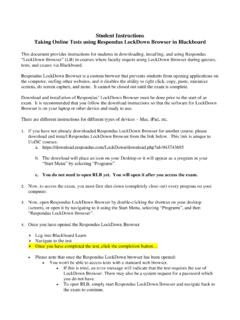
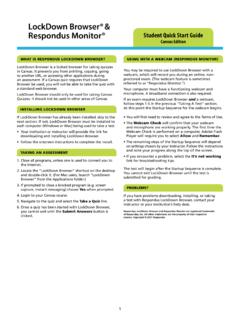
1 Jumana Samara Office of Faculty & Instructional Development Qatar University 1 Office of Faculty and Instructional Development Respondus LockDown Browser Respondus LockDown Browser (RLDB) is a customized Browser that increases the security of test delivery in Blackboard. When students use Respondus LockDown Browser to access an exam, they are unable to print, copy, go to another URL, or access other applications.
2 Once an assessment is started, students are locked into it until it s submitted for grading. Start to use Respondus LockDown Browser for your online exams A) Ensure that Respondus LockDown Browser is installed on the exam computers - Request the lab version of RLDB to be installed in the exam lab by contacting ITS helpdesk - or, if your students are going to use their own laptops for the exam, ask them to download Respondus LockDown Browser (RLDB) from: The Browser is available for free B) Activate Respondus LockDown Browser for your test After you complete creating and deploying your Blackboard test, You need to activate the Respondus LockDown Browser for this specific test before the test date.
3 Activating the (RLDB) will only allow the students to open the exam using Respondus LockDown Browser which will prevent them from opening any other window while taking the exam. To activate the Respondus LockDown Browser in your Blackboard course, you need to do the following steps: Jumana Samara Office of Faculty & Instructional Development Qatar University 2 1- Select Control Panel, Course Tools, Respondus LockDown Browser Tool availability If you did not find Respondus LockDown Browser under Course Tools , this means that the tool is not available.
4 You need to make it available by going to: Control Panel ------> Customization ------> Tool Availability Jumana Samara Office of Faculty & Instructional Development Qatar University 3 Look for the tool Respondus LockDown Browser and make sure that the first check box is enabled as below: Go back to step 1 2- In the Respondus LockDown Browser Dashboard.
5 Click on the arrow of the quiz/test that you want to use and then select Modify Settings 3- Select the option Require Respondus LockDown Browser for this exam 4- Set the password here instead of setting it in the test options Jumana Samara Office of Faculty & Instructional Development Qatar University 4 5- You will notice a green required text on the far right indicating that LockDown Browser is required for this test.
6 Pay attention to the note that indicates the exam settings that you should not modify. 6- Click Save and Close Tips Prepare the test and test options and then activate the RLDB for the quiz Set the password from RLDB Dashboard, not the test options. Don t go back and edit the password from the test options If you are going to ask students to input Arabic text in case of essay questions, you need to ask the students to make the language bar floating before they open the RLDB, so they can switch between English and Arabic Give an overview to your students (show the video, give instructions, etc.)
7 Do a practice test with the students before the official exam More Resources