Transcription of Setup Guide | Guide d’installation
1 MeetUpSetup Guide | Guide d installation2 English 3 Fran ais 10 Espa ol 17 Portugu s 24 English 3 WHAT S IN THE BOX1. MeetUp camera and speakerphone unit2. Remote control3. 5m USB cable4. Power adapter5. Wall mounting bracket6. Wall mounting hardware7. Documentationx4x41256734 Important Safety, Compliance and Warranty InformationInformations importantes concernant la s curit , la mise en conformit et la garantieEnglishRead Manual Before Product SUPPLY WARNING! The power supply is for indoor use only. Only use the power supply included with your product. Do not attempt to repair or use a damaged power supply.
2 Do not immerse the power supply in water or subject it to physical abuse. Inspect the power supply regularly for cable, plug, and casing WARNING!: Improperly replaced batteries may present a risk of leak or explosion and personal injury. Mistreated rechargeable batteries may present a risk of fire or chemical burn. Do not disassemble or expose to conducting materials, moisture, liquid, or heat above 54C ( 130F). Do not use or charge the battery if it appears to be leaking, discolored, deformed, or in any way abnormal. Do not leave your battery discharged or unused for extended periods. Do not short circuit. Your device may contain an internal, rechargeable battery that is not replaceable. Battery life varies with usage. Non-operational batteries should be discarded according to local laws.
3 If no laws or regulations govern, dispose of your device in a waste bin for electronics. Keep batteries away from BATTERIES WARNING! Coin-sized and button batteries may be easily swallowed, which may cause personal injury and death in children and senior citizens. Keep these batteries away from children! Do not allow children to play with or be in contact with these batteries or this product at any time. Add further security to the battery compartment as necessary. Never place batteries in your mouth for any reason as they may be swallowed accidentally. Always check medication before ingesting as adults have mistaken button batteries for pills or tablets. If a button battery is ingested, seek medical attention immediately. Contact the National Battery Ingestion Hotline at (3333-625 (202.))
4 It is available 24 hours a Usage Guidelines for Products Do not open or modify the product except for battery removal and replacement. Do not disassemble or attempt to service this product. This product is safe under normal and reasonably foreseeable operating conditions. If product is operating improperly, call Logitech support. Product must be returned to the manufacturer for any service or repair. This is not a Children s Product and is not intended for use by children under 14 years old. Warning: Not suitable for children under 36 months. Small parts. Choking hazard. Mount camera properly according to the provided instructions. Improper installation of this product may cause damage or Compliance. For Product Safety, EMC, RF and Energy information, go to Maintenance is not required for product statement This device complies with Part 15 of the FCC Rules.
5 Operation is subject to the following two conditions: 1) this device may not cause harmful interference, and 2) this device must accept any interference received, including interference that may cause undesired operation. Note: This equipment has been tested and found to comply with the limits for a Class A digital device, pursuant to part 15 of the FCC Rules. These limits are designed to provide reasonable protection against harmful interference when the equipment is operated in a commercial environment. This equipment generates, uses, and can radiate radio frequency energy and, if not installed and used in accordance with the instruction manual, may cause harmful interference to radio communications. Operation of this equipment in a residential area is likely to cause harmful interference in which case the user will be required to correct the interference at his own : Where shielded interface cables or accessories have been provided with the product or specified additional components or accessories elsewhere defined to be used with the installation of the product, they must be used in order to ensure compliance with FCC.
6 Changes or modifications to product not expressly approved by Logitech, Inc could void your right to use or operate yourby the Exposure Statement: This equipment complies with FCC and IC radiation exposure limits set forth for an uncontrolled environment. This equipment should be installed and operated with minimum distance 20cm between the radiator & your transmitter must not be co-located or operating in conjunction with any other antenna or : (i) the device for operation in the band 5250-5150 MHz is only for indoor use to reduce the potential for harmful interference to co-channel mobile satellite systems; (ii) high-power radars are allocated as primary users ( priority users) of the bands -52505350 MHz and 5850-5650 MHz and that these radars could cause interference and/or damage to LE-LAN statement: CAN ICES003- (A) / NMB003- Class (A)This device complies with Industry Canada licence-exempt RSS standard(s).
7 Operation is subject to the following two conditions: (1) this device may not cause interference, and (2) this device must accept any interference, including interference that may cause undesired operation of the (Radio Transmitter) products: RSS210- and )247- GHz transmitters or transceivers): This Category I radio communication device complies with RSS210- and RSS247- of Industry EnglishWHAT S WHATCAMERA SPEAKERPHONE 143521. Security slot2. Remote control pairing3. USB4. Power5. Optional expansion microphoneEnglish 5 REMOTE 1257689341. Microphone mute2. Call answer3. Call end4. Bluetooth pairing5. Volume up/down6. Zoom in/out7. Camera pan/tilt8. Camera home9. Camera preset* Please note that not all applications support call answer and end buttons 6 EnglishThanks for buying MeetUp.
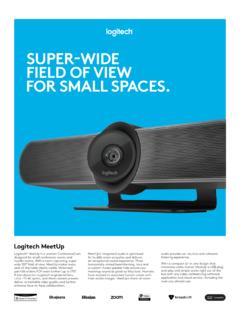
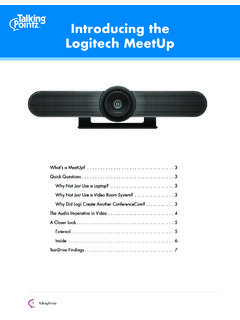
8 We think you ll find the extra wide field of view will help everyone feel included in the meeting, enhancing communication. PLACEMENTWe recommend placing the camera as close to eye level as possible Best results typically come from mounting below the monitor 1. Place on a table or shelf near the monitor 2. Connect the cables 3. Mount on the wall:a. Attach bracket to the wall Please use the appropriate type of screws for your wall type b. Attach the camera to the bracket 4. Mount to the TV: An optional TV mount bracket is available on Logitech com English 7 CONNECTIONC onnecting MeetUp is the same whether you plan on using a dedicated computer in the room, or your team members bring a laptop to the room to run the meeting 1. Plug MeetUp into power 2.
9 Connect the USB cable from MeetUp to the computer 3. Connect the TV to the computer Diagram of all connections:HDMIUSB8 EnglishMAKE MEETUP THE DEFAULT DEVICEE nsure that MeetUp is chosen as the camera, speaker and microphone in your video conferencing applications Please consult the application documentation for further instructions on how to do this NOTE REGARDING 4K VIDEOThe USB 2 0 cable included with MeetUp supports FullHD video (up to 1080p) If you plan on using 4k video, please use a USB 3 0 cable (not included) STARTING A VIDEO CALLA fter installing MeetUp and ensuring it is the default device in your video conferencing application, simply start the application in the normal manner and enjoy the benefits of improved audio and video PAIRING MEETUP TO A BLUETOOTH DEVICEYou can use MeetUp for audio calls when paired to a Bluetooth device To pair your Bluetooth device to MeetUp, follow these simple step:1.
10 Press and hold the Bluetooth button on the remote control until you see a flashing blue light near the camera lens 2. Place your mobile device in Bluetooth pairing mode and select Logitech MeetUp You are now ready to use MeetUp for audio calls Pressing the Bluetooth button on the remote after pairing will disconnect the Bluetooth device (it will still be paired but not connected ) Pressing it again will reconnect the last paired device in range English 9 PAIRING THE REMOTE CONTROL TO THE CAMERAYour camera and remote control are paired at the factory However, if you need to pair a remote to the camera (such as when replacing a lost remote) do the following:1. Press and hold button on the back of the camera until LED flashes blue 2. Press and hold the Bluetooth button on the remote for 10 seconds to place it in pairing mode 3.