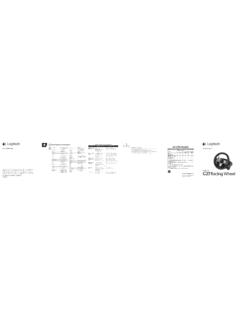
Transcription of Setup Guide Guide d’installation Logitech® G600 MMO …
1 Setup Guide Guide d' installation logitech G600 MMO gaming Mouse English .. 3 Espa ol .. 13. Fran ais .. 8 Portugu s .. 18..23. 2. 1 2 3 Know your product 1. Left mouse button 2. Right mouse button 3. G-Shift button*. 4 5 4. Wheel left 5. Wheel right 6 6. G8 (cycle modes). 7 7. G7 (shift-B). 8. Wheel click 9. G9-G20 (programmable keys with RGB backlighting). 10. Documentation *By default, performs G-Shift function in Modes 1 and 2. and DPI-shift in Mode 3. 8. 9. 10 Setup Guide Guide d' installation logitech G600 MMO gaming Mouse English 3. Set up your product Visit Product Central There's more information and support online for your product.
2 Take a moment to visit Product Central to learn more about your new gaming mouse. Browse online articles for Setup help, usage tips, or information about additional features. USB If your gaming mouse has optional software, learn about its benefits and how it can help you customize your product. Connect with other users in our Community 1. Turn on your computer. Forums to get advice, ask questions, 2. Connect the G600 gaming mouse and share solutions. to a USB port. At Product Central, you'll find a wide selection Note: To customize the G600 gaming mouse for each of content: game you play, download and install the logitech Tutorials gaming Software from Troubleshooting Support community Software downloads Online documentation Warranty information Spare parts (when available).
3 Go to 4 English Product features Default built-in modes Mode 1 = primary MMO. Built-in modes Lighting color = Color cycling Use the G8 button to cycle the 3 modes of the built-in profile: Primary MMO, Alternate MMO, Default DPI value = 1200. and Generic gaming . Modify and save new Left mouse button = Button 1. profiles and modes using the logitech gaming Right mouse button = Button 2. Software (LGS). For more information about G-Shift button = G-Shift function modes and profiles, go to support/g600. Wheel click = Button 3. Wheel left = Button 4. Programmable thumb keys with RGB. backlighting Wheel right = Button 5.
4 The 12 G-keys work with the most popular G7 = Shift-B G-shift values: MMO games. Using the LGS, reassign (WoW backpack (Hold down). keystrokes, create complex macros, and assign open command) Lighting color =. lighting colors and effects (shifting and pulsing) G8 = Cycle mode Color cycling to each mode. G9 = 1 G9 = Ctrl-1. G-shift function G10 = 2 G10 = Ctrl-2. Use the G-Shift button to double the number G11 = 3 G11 = Ctrl-3. of commands assigned to the G600's buttons. G12 = 4 G12 = Ctrl-4. In-play sensitivity switching G13 = 5 G13 = Ctrl-5. Out of the box, there are four tracking G14 = 6 G14 = Ctrl-6.
5 Sensitivity levels: 3200 dpi, 2000 dpi, 1200 dpi G15 = 7 G15 = Ctrl-7. (default), and 400 dpi. Choose up to four levels G16 = 8 G16 = Ctrl-8. (200 dpi to 8200 dpi) for each profile using G17 = 9 G17 = Ctrl-9. the LGS. G18 = 0 G18 = Ctrl-0. G19 = - G19 = Ctrl-- G20 = = G20 = Ctrl-=. English 5. Mode 2 = Alternate MMO. Lighting color = White Default DPI value = 1200. Left mouse button = Button 1. Right mouse button = Button 2. G-Shift button = G-Shift function Wheel click = Button 3. Wheel left = Button 4. Wheel right = Button 5. G7 = Shift-B G-shift values: (Hold down). (WoW backpack open command) Lighting color = White G8 = Cycle mode G9 = Ctrl-Numpad 1.
6 G9 = Numpad 1 G10 = Ctrl-Numpad 2. G10 = Numpad 2 G11 = Ctrl-Numpad 3. G11 = Numpad 3 G12 = Ctrl-Numpad 4. G12 = Numpad 4 G13 = Ctrl-Numpad 5. G13 = Numpad 5 G14 = Ctrl-Numpad 6. G14 = Numpad 6 G15 = Ctrl-Numpad 7. G15 = Numpad 7 G16 = Ctrl-Numpad 8. G16 = Numpad 8 G17 = Ctrl-Numpad 9. G17 = Numpad 9 G18 = Ctrl-Numpad 0. G18 = Numpad 0 G19 = Ctrl-Numpad - G19 = Numpad - G20 = Ctrl-Numpad +. G20 = Numpad +. 6 English Mode 3 = Generic gaming Troubleshooting Lighting color = Pulsing green gaming mouse does not work DPI values = 400 (Shift), 1200 (Default), Check the USB connection. 2000, 3200.
7 Do not use a USB hub. Left mouse button = Button 1. Try another USB port on your computer. Right mouse button = Button 2. Reboot your system. G-Shift button = DPI shift Wheel click = Button 3 Need help programming the mouse buttons and keys Wheel left = Button 4. Download and install the logitech Wheel right = Button 5. gaming Software. G7 = Cycle DPI. Launch the software. G8 = Cycle mode Select Help (question mark) for assistance. G9 = 1. To download the software, G10 = 2 go to G11 = 3. G12 = 4. G13 = 5 What do you think? G14 = 6 Please take a minute to tell us. Thank you for purchasing our product.
8 G15 = DPI up G16 = DPI Default G17 = Forward (button 5). G18 = DPI Down G19 = E. G20 = Backward (button 4). English 7. 1 2 3 Pr sentation du produit 1. Bouton gauche de la souris 2. Bouton droit de la souris 3. Bouton du s lecteur G*. 4 5 4. Inclinaison de la roulette vers la gauche 5. Inclinaison de la roulette vers la droite 6 6. G8 (d filement des modes). 7 7. G7 (Maj-B). 8. Clic de roulette 9. G9-G20 (touches programmables avec r tro clairage RVB). 10. Documentation *Par d faut, il permet d'actionner le s lecteur G. dans les modes 1 et 2 et le changement de r solution dans le mode 3.
9 8. 9. 10 Setup Guide Guide d' installation logitech G600 MMO gaming Mouse 8 Fran ais installation du produit Pages Produits Des informations et une assistance suppl mentaires sont disponibles en ligne pour votre produit. Prenez le temps de visiter les pages Produits pour en savoir plus sur votre nouvelle souris de jeu. Parcourez les articles en ligne pour obtenir de l'aide en mati re de configuration, USB des conseils d'utilisation ou des informations sur d'autres fonctions. Si votre souris de jeu dispose d'un logiciel en option, d couvrez 1. Mettez l'ordinateur sous tension. ses avantages et comment il peut vous aider personnaliser votre produit.
10 2. Connectez la souris de jeu G600. un port USB. Connectez-vous avec d'autres utilisateurs sur Remarque: pour personnaliser votre souris de jeu nos forums communautaires pour demander G600 pour chacun de vos jeux, t l chargez et des conseils, poser des questions et partager installez le l'assistant pour jeux vid o de logitech des solutions. sur Dans les pages Produits, vous trouverez un large ventail de contenu: Didacticiels D pannage Communaut d'entraide Logiciels t l charger Documentation en ligne Informations sur la garantie Pi ces de rechange (si disponibles). Rendez-vous sur support/g600.