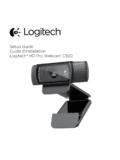
Transcription of Setup Guide Logitech® HD Pro Webcam C920
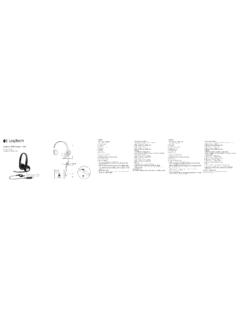
1 Setup GuideLogitech HD Pro Webcam C9202 logitech HD Pro Webcam c920 ContentsEnglish 3 Espa ol 13 Fran ais 23 Portugu s 43 English 3 logitech HD Pro Webcam c920 Features1. Carl Zeiss autofocus HD 1080p lens2. Microphone3. Activity light4. Flexible clip/base5. Tripod attachment6. Product documentationSetup GuideLogitech HD Pro Webcam C9205614324 English Getting started withThank you for buying your c920 !Use this Guide to set up your logitech Webcam and to begin making video calls. If you have questions before you start, please visit the websites listed below to learn more about logitech webcams and video up your webcam1 Place your webcamDesigned for the way you like to make a video call, place the Webcam c920 where you want it on a computer monitor, desktop, or placement on a monitorGrasp the Webcam as shown and open the flexible/clip base with your other hand.
2 Mount the Webcam , making sure the foot on the flexible/clip base is flush with the back of your English 5 logitech HD Pro Webcam C9202 Install the softwareTo get started, you will need to download and install the logitech Webcam Software. Make sure your computer has access to the internet. For Windows XP, Windows Vista or Window 7:Visit to download your Webcam software. Choose your operating system and then follow the on-screen prompts to download and install the your Webcam when Windows 7:Plug your Webcam into a USB port to automatically download your software. Follow the on-screen prompts to download and install your : After downloading, if the installation does not begin automatically, locate the LWS file in the Download folder on your computer. Double-click to begin the started with video callingYour Webcam comes with logitech Vid HDWith logitech Vid HD, video calling live over the Internet takes only a few, easy steps: Install logitech Vid HD Create an account Add a friend and make a video callLearn more: a 1080p calling experience, download and install Skype from English Getting started withSetting up logitech Vid HD1 Install logitech Vid HDTip: If you prefer another video-calling application, you will need to download and install third-party more: Create an accountFollow the on-screen instructions to create your logitech Vid HD account and to set up your Webcam for video calling.
3 To make video calls with any application, both you and the person you call must have: A Webcam A computer with speakers and a microphone (or a headset with a microphone; many logitech webcams have a built-in microphone) A broadband Internet connection ( , DSL, T1, or cable) The same video-calling application ( , logitech Vid HD) Video calling accounts English 7 logitech HD Pro Webcam C9203 Add a friend or make a practice callClick on the Practice Call tile to test your : The Practice Call tile is always available on your Contact List so you can test your settings. To add a friend, click on the Add a Friend tile and enter your friend s e-mail when prompted. After your friend has accepted your invitation, click on your friend s picture to make a account settings and starting applicationsLogitech automatically detects and adjusts the best settings for your Webcam . If you would like to re-take your profile picture or update any of your settings, click the Settings the icons on your desktop to launch your logitech Webcam Software2.
4 logitech Vid HDTip: The logitech Vid HD icon is only present if you chose to install logitech Vid HD. To learn about third-party video calling, please visit: English Getting started withNavigating the logitech Webcam Software45679831210111. Capture pictures and videos2. View captured images and share via e-mail, Facebook, or YouTube . Registration may be An area for easy access to your installed Webcam related applications4. Launch logitech Vid HD (if installed)5. Capture videos triggered by detected motion6. Create your own custom video mask (for webcams that support this feature)7. Control your video effects and Webcam while on a video call8. Download additional Webcam applications9. Change webcams (when you have more than one)10. Open logitech Webcam Software settings11. Open help dashboard (manuals and how-to videos) English 9 logitech HD Pro Webcam c920 Capturing video and snapping picturesQuick Capture allows you to take photos or record videos easily.
5 You have easy access to Webcam controls and settings as well as video effects to personalize your images and Preview window2. Capture mode: photo/video3. Capture button4. Webcam controls5. Video effects and fun filters6. Photo thumbnails7. Video thumbnails8. Click a thumbnail to enter the galleryViewing and sharing using the GalleryClicking on an image thumbnail in the gallery (1) opens the video or photo in the review window (2). Attach a video or picture file to an e-mail (3) Edit a photo or splice together video (4) Upload a picture or video to Facebook (5) Upload a video to Twitter (6) Upload a video to YouTube (7) You may also drag and drop a gallery image onto one of the function tiles (items 3 7) to launch an editing application or to attach or upload. Registration may required for applications. Additional software required for English Getting started withUsing motion detection Set up your Webcam to record video when it detects movement. Adjust captured video duration and detection sensitivity.
6 Captured video is automatically saved to your computer. View content in the Gallery or upload it using the One-touch Upload videos and picturesYour Webcam offers Video Effects , including avatars, face accessories (mustache, glasses, hats, etc.), fun filters, and video masks. Want to create your own video mask? Simply open the Video Mask Maker on the Main Menu and follow the on-screen that when you use video effects during video recording, your Webcam uses an MJPEG compression format. MJPEG-compressed files may take longer to upload than files. English 11 logitech HD Pro Webcam c920 Fine tuning your Webcam during a video call1. Launch the Webcam controller when on a video Hide your video image with a photo while your Webcam stays Use pan and tilt to find the best Zoom in or out to include/exclude your Use Follow my face so you re always in the Enjoy clear conversations without annoying background Correct for poor lighting environments using Choose between auto- or manual Adjust the advanced settings for your more applications for your webcamDownload and install additional applications for your Webcam , like video calling, photo and video editing, and other value-added English Getting started withGetting helpClick on the help icon to access a complete user manual, or watch how-to videos that show you how to get the most out of your logitech Webcam and : If you are not sure about a feature, click the help icon, and our manual will open to the right ol 13 logitech HD Pro Webcam c920 Caracter sticas1.
7 Objetivo Carl Zeiss con enfoque autom tico, alta definici n y 1080p2. Micr fono3. Diodo de actividad4. Clip/base vers til5. Acoplamiento de tr pode6. Documentaci n del productoSetup GuideLogitech HD Pro Webcam C92056143214 Espa ol Utilizaci nGracias por la compra de c920 . Usa esta gu a para configurar la c mara Web logitech y comenzar a realizar videoconferencias. Si tienes alguna pregunta antes de comenzar, visita los sitios Web que aparecen abajo para obtener m s informaci n sobre las c maras Web logitech y n de la c mara Web1 Coloca la c mara WebLa c mara Web c920 se ha dise ado pensando en las preferencias de todos los usuarios y, por tanto, puede colocarse donde uno quiera: en el monitor de la computadora, en el escritorio o en un tr la colocaci n en un monitorToma la c mara Web en una mano como se indica y abre el clip/base vers til con la otra mano. Monta la c mara Web. El pie del clip/base vers til debe quedar a ras con la parte posterior del ol 15 logitech HD Pro Webcam C9202 Instala el softwarePara empezar, tendr s que descargar e instalar logitech Webcam Software.
8 Aseg rate de que tu computadora tiene acceso a Internet. para Windows XP, Windows Vista o Window 7:Visita para descargar el software de c mara Web. Selecciona tu sistema operativo y sigue las instrucciones en pantalla para descargar e instalar el la c mara Web cuando se te Windows 7:Conecta la c mara Web a un puerto USB para descargar el software autom ticamente. Sigue las instrucciones en pantalla para descargar e instalar el : tras la descarga, si la instalaci n no comienza autom ticamente, localiza el fichero LWS en la carpeta de descargas de tu computadora. Haz doble click para iniciar la instalaci n a videoconferenciasLa c mara Web se entrega con logitech Vid HDCon logitech Vid HD, para realizar videoconferencias en directo por Internet s lo se requieren unos escasos y sencillos pasos: instalar logitech Vid HD Crear una cuenta A adir un amigo y realizar una videoconferenciaM s informaci n: quieres llamadas con resoluci n 1080p, descarga e instala Skype desde Espa ol Utilizaci nConfiguraci n de logitech Vid HD1 Instala logitech Vid HDSe recomienda la instalaci n de la c mara Web logitech y del software logitech Vid : si prefieres otra aplicaci n de video- conferencias, deber s descargar e instalar el software de otro s informaci n: Crea una cuentaSigue las instrucciones en pantalla para crear la cuenta logitech Vid HD y para configurar la c mara Web para videoconferencias.
9 para realizar videoconferencias con cualquier aplicaci n, tanto t como la persona a quien llames deber n tener: Una c mara Web Una computadora con altavoces y micr fono (o un aud fono con micr fono; muchas c maras Web logitech incluyen un micr fono integrado) Una conexi n de banda ancha a Internet (p. ej., DSL, T1 o cable) La misma aplicaci n de videoconferencias (p. ej., logitech Vid HD) Cuentas para videoconferenciasEspa ol 17 logitech HD Pro Webcam C9203 Agrega un amigo o realiza una llamada de pr cticaHaz click en la ficha Llamada de pr ctica para probar la configuraci : la ficha Llamada de pr ctica estar siempre disponible en la lista de contactos para que pruebes la configuraci n. para agregar un amigo, haz click en la ficha Agregar un amigo e introduce la direcci n de correo electr nico del amigo cuando se te pida. Cuando el amigo acepte la invitaci n, haz click en su imagen para realizar una a la configuraci n de la cuenta e inicio de aplicaciones logitech detecta y ajusta autom ticamente la mejor configuraci n para la c mara.
10 Si deseas volver a tomar la fotograf a de perfil o actualizar la configuraci n, haz click en el icono Configuraci doble click en los iconos del escritorio para iniciar las aplicaciones. 1. Software de c mara Web Logitech2. logitech Vid HDConsejo: el icono de logitech Vid HD s lo estar presente si decidiste instalar logitech Vid HD. para obtener informaci n sobre videoconferencias de otros fabricantes, visita: Espa ol Utilizaci nNavegaci n por el software de la c mara Web logitech 45679831210111. Captura im genes y videos2. Ve las im genes capturadas y comp rtelas por correo electr nico, Facebook o YouTube . Es posible que sea necesario Un rea de acceso r pido a las aplicaciones relacionadas con la c mara Web que hayas instalado4. Inicia logitech Vid HD (si se ha instalado)5. Captura videos generados por la detecci n de movimiento6. Crea tu propia m scara de video ( para c maras Web que admiten esta funci n)7. Controla los efectos de video y la c mara Web durante una videoconferencia8.