Transcription of Setup Guide - Logitech
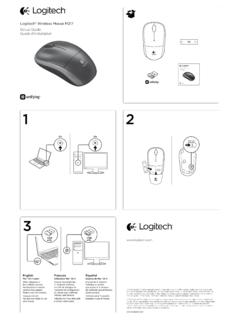
1 M720. Setup Guide M720 Triathlon Mouse LANGUAGES. English .. 3 esk verze .. 78. Deutsch .. 8 Sloven ina ..83. Fran ais .. 13 Укра нська ..88. Italiano .. 18 Eesti .. 93. Espa ol .. 23 Latviski .. 98. Portugu s .. 28 Lietuvi ..103. Nederlands .. 33 Български .. 108. Svenska ..38 Hrvatski ..113. Dansk ..43 Srpski .. 118. Norsk .. 48 Sloven ina .. 123. Suomi .. 53 Rom n .. 128..58 Tu rk e .. 133. По-русски .. 63 138 .. Po polsku .. 68 143 .. Magyar .. 73. M720 Triathlon Mouse PRODUCT FEATURES 1. 1 Easy-switch 2. 2 Forward button 3. 3 Back button 4. 4 Toggle & connect button 5 Hyper-fast scroll-wheel 6 Battery LED 5. 7 Thumb button 8 Dual Connectivity 9 Battery & Receiver storage 6. 7. 8. 9. M720 Triathlon Mouse GET STARTED. 1 Remove pull tab 2 Select channel 3 Long press to pair 4 Plug receiver or open Bluetooth settings 0:03 Sec.
2 Logitech Options . M720 Triathlon Mouse CONNECT WITH. Requirements: USB port Unifying Software Windows 7, 8, 10 or later Mac OS X or later Chrome OS. How to connect with Unifying: 1. Download Unifying Software: 2. Make sure your M720 is turned on and a Unifying receiver is plugged in. 3. Press and hold the toggle button below the display for 3 seconds (the LED on selected channel will start to blink fast). 4. Open the Unifying software and follow the on-screen Toggle Button instructions. Re-pair in Unifying! Note! You need Unifying Software to pair with a second receiver or to pair the mouse to another channel on the same receiver. All three Easy-Switch channels can be paired in either Bluetooth Smart or Unifying. One Unifying receiver included in the box. M720 Triathlon Mouse CONNECT WITH. Requirements: Your device has to support Bluetooth Smart Windows 8 or later Mac OS X or later Android or later How to pair a Bluetooth device: 1.
3 Make sure your M720 is turned on 2. Press and hold the toggle button below the display for 3 seconds (the LED on selected channel will start to blink fast). 3. Open Bluetooth settings or Bluetooth device manager on your device and pair with M720 Triathlon Mouse . Toggle Button M720 Triathlon Mouse Logitech OPTIONS Mac | Windows Unlock the full potential of your M720 by installing Logitech Options software. In addition to optimizing the mouse for your operating system, the software lets you customize buttons and actions to fit your needs. Logitech Options software also enable gestures for managing media, panning, zoom, and rotation, plus custom tasks. M720 Triathlon Mouse PRODUKTFUNKTIONEN 1. 1 Easy-Switch 2. 2 Vor-Taste 3. 3 Zur ck-Taste 4. 4 Umschalt- und Verbindungstaste 5 Hyperschnelles Scrollrad 6 Batterie-LED 5.
4 7 Daumentaste 8 Zwei Verbindungsoptionen 9 Batterie- und Empf ngerfach 6. 7. 8. 9. M720 Triathlon Mouse LOS GEHT'S. 1 Schutzstreifen 2 Kanal ausw hlen. 3 Taste lang gedr ckt halten 4 Empf nger einstecken oder entfernen. f r das Pairing. Bluetooth-Einstellungen ffnen. 0:03 Sek. Logitech Options . M720 Triathlon Mouse VERBINDEN MIT. Voraussetzungen: USB-Anschluss Unifying-Software Windows 7, 8, 10 oder h her Mac OS X oder h her Chrome OS. So stellen Sie die Verbindung mit Unifying her: 1. Unifying-Software herunterladen: 2. Sicherstellen, dass die M720 eingeschaltet und der Unifying-Empf nger eingesteckt ist. 3. Halten Sie eine der Modustasten unter dem Display 3 Sekunden lang gedr ckt. (Die LED f r den ausgew hlten Kanal beginnt schnell zu blinken.). 4. ffnen Sie die Unifying-Software und folgen Sie Modustaste den Anweisungen auf dem Bildschirm.
5 In Unifying erneut pairen! Hinweis: Die Unifying-Software ist f r das Pairen der Maus auf einen zweiten Empf nger oder das Pairen der Maus auf einen anderen Kanal des vorhandenen Empf ngers erforderlich. Alle drei Easy-Switch-Kan le k nnen entweder in Bluetooth Smart oder Unifying gepairt werden. Die Box enth lt einen Unifying-Empf nger. M720 Triathlon Mouse VERBINDEN MIT. Voraussetzungen: Das Ger t muss Bluetooth Smart unterst tzen. Windows 8 oder h her Mac OS X oder h her Android oder h her So geht das Pairing eines Bluetooth-Ger ts: 1. Sicherstellen, dass die M720 eingeschaltet ist. 2. Halten Sie die Modustaste unter dem Display 3 Sekunden lang gedr ckt. (Die LED f r den ausgew hlten Kanal beginnt schnell zu blinken.). 3. Bluetooth-Einstellungen oder Bluetooth-Ger temanager auf Ihrem Ger t ffnen und mit M720 Triathlon Maus.
6 Pairen. Modustaste M720 Triathlon Mouse Logitech OPTIONS Mac | Windows Setzen Sie das volle Potenzial Ihrer M720 frei . durch Installieren der Logitech Options. Die Software optimiert die Maus nicht nur f r Ihr Betriebssystem, sondern erm glicht auch die individuelle Anpassung von Tasten und Aktionen. Dank der Logitech Options-Software k nnen Sie Gesten zum Verwalten von Medien, zum Schwenken, Zoomen und Drehen sowie f r benutzerdefinierte Aktionen verwenden. M720 Triathlon Mouse CARACT RISTIQUES DU PRODUIT 1. 1 Easy-Switch 2. 2 Bouton Suivant 3. 3 Bouton Pr c dent 4. 4 Bouton d'activation/de d sactivation et de connexion 5 Roulette de d filement ultra rapide 6 T moin de niveau de charge des piles 5. 7 Bouton de pouce 8 Double connectivit . 9 Piles et espace de rangement du r cepteur 6. 7. 8. 9.
7 M720 Triathlon Mouse LANCEZ-VOUS D S AUJOURD'HUI. 1 Retirer 2 S lectionner la cha ne 3 Appuyer longuement 4 Connecter le r cepteur ou ouvrir la languette pour proc der au couplage les param tres Bluetooth 0:03 sec. Logitech Options . M720 Triathlon Mouse CONNEXION AVEC. Conditions: Port USB. Logiciel Unifying Windows 7, 8, 10 ou versions ult rieures Mac OS X ou version ult rieure Chrome OS. Proc dure de connexion avec Unifying: 1. T l chargez le logiciel Unifying: 2. Assurez-vous que votre souris M720 est sous tension et qu'un r cepteur Unifying est connect . 3. Appuyez sur l'un des commutateurs en-dessous de l' cran et maintenez-le enfonc pendant 3 secondes (le t moin lumineux du canal s lectionn commence alors clignoter rapidement). Commutateur 4. Ouvrez le logiciel Unifying, puis suivez les instructions affich es l' cran.
8 Couplez nouveau le dispositif dans Unifying! Remarque: Le logiciel Unifying est n cessaire pour coupler la souris un second r cepteur ou un autre canal sur le r cepteur existant. Les trois canaux easy-switch peuvent tre coupl s dans Bluetooth Smart ou Unifying. Un r cepteur Unifying fourni. M720 Triathlon Mouse CONNEXION AVEC. Conditions: Votre dispositif doit tre compatible Bluetooth Smart Windows 8 ou version ult rieure Mac OS X ou version ult rieure Android ou version ult rieure Proc dure de couplage d'un dispositif Bluetooth: 1. V rifiez que votre M720 est sous tension. 2. Appuyez sur le commutateur en-dessous de l' cran et maintenez-le enfonc pendant 3 secondes (le t moin lumineux du canal s lectionn commence alors clignoter rapidement). 3. Ouvrez les param tres Bluetooth ou le gestionnaire de p riph riques Bluetooth de votre dispositif et lancez le couplage avec "M720 Triathlon Mouse".
9 Commutateur M720 Triathlon Mouse Logitech OPTIONS Mac | Windows Lib rez le plein potentiel de votre M720 en installant le logiciel Logitech Options. Outre l'optimisation de la souris pour votre syst me d'exploitation, le logiciel vous permet de personnaliser les boutons et actions en fonction de vos besoins. Le logiciel Logitech Options active galement les mouvements de gestion des m dias, du panoramique, du zoom et de la rotation, ainsi que des t ches personnalis es. M720 Triathlon Mouse CARATTERISTICHE 1. 1 Easy-Switch 2. 2 Pulsante Avanti 3. 3 Pulsante Indietro 4. 4 Pulsante di selezione schermo e connessione 5 Scroller ultraveloce 6 LED batteria 5. 7 Pulsante pollice 8 Doppia connettivit . 9 Alloggiamento ricevitore e batteria 6. 7. 8. 9. M720 Triathlon Mouse PER INIZIARE. 1 Rimuovi 2 Seleziona il canale 3 Premi a lungo per associare 4 Collega il ricevitore o apri la linguetta le impostazioni Bluetooth 0:03 sec.
10 Logitech Options . M720 Triathlon Mouse CONNETTITI CON. Requisiti: Porta USB. Software Unifying Windows 7, 8, 10 o versioni successive Mac OS X o versioni successive Chrome OS. Come collegarsi con Unifying: 1. Scarica il software Unifying: 2. Verifica che M720 sia acceso e che il ricevitore Unifying sia collegato. 3. Tieni premuto uno dei pulsanti relativi al display per 3 secondi (il LED sul canale selezionato inizier . a lampeggiare rapidamente). 4. Aprire il software Unifying e seguire le istruzioni Pulsante per passare visualizzate. da un display all'altro Associa di nuovo Unifying Nota: necessario il software Unifying per associare il mouse a un secondo ricevitore o a un altro canale sul ricevitore esistente. Tutti e tre i canali easy-switch possono essere associati tramite Bluetooth Smart o Unifying.