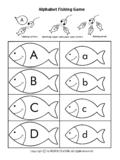
Transcription of Shark Attack Game - Teach-ICT.com
1 Step by Step Guide to Making a Game in Scratch 1. Creating a Background Click on the Stage . In the central column click on the Background tab. Click the edit button. Shark Attack Game This guide has been design to help you create a simple game. Follow these step-by-step instructions to create an interactive game complete with scoring system. Complete the extension tasks to increase the difficulty. Stage Tab Button Step by Step Guide to Making a Game in Scratch Once you have clicked the edit button the Paint Editor will appear (this is very similar to paint).
2 Use the toolbar to create a suitable underwater background. Then click on. 2. Making a Animated and Interactive Shark Once the background has been created click on the folder button. Then choose the animals folder select Shark 1-a and click ok. Fill Colour Paint Brush Sizes/Styles Click when finished button Shark 1-a Step by Step Guide to Making a Game in Scratch While on Shark 1-a click on the costumes tab. Then import and select Shark 1-b and click ok. If you have done this correctly you will have one sprite but that one sprite will have two costumes.
3 Tab button 1-b Sprite x1 Costumes x2 Step by Step Guide to Making a Game in Scratch You now need to give your Shark sprite a script to follow. Click on the scripts tab. You can drag the pieces of script into the script area as seen below Give your Shark the following script. Remember to click the double headed arrow button or the Shark will go upside down. tab Script area Pieces of script Types of script Double headed arrow Create the following script Step by Step Guide to Making a Game in Scratch 3. Inserting an Edible Fish To insert a fish, click on the folder button.
4 Choose a suitable fish, and click ok. You can then you the tool bar to resize the fish. Use the script pieces, as shown above. You will need to create your own variable. Look below for an example. button a fish ok will make the fish smaller when you click it sure this is set to your Shark . Eg. Sprite 1 is how many points you will get for that fish (see below for this step) double headed arrow. Step by Step Guide to Making a Game in Scratch When inserting the orange variable command, you will need to create the variable yourself.
5 The variable name will appear on the scoring system, there something like Eaten or Caught would be suitable. on Variable 2. Click make a variable the variable a name sure for all sprites in checked Step by Step Guide to Making a Game in Scratch 4. Duplicating Fish You can the right click on a fish with a script and duplicate. This will save you re-doing the code every time. Be aware when duplicating the fish, sometimes they duplicate on top of each other. You might also consider change the number in the step part of the code this will make the fish swim quicker or slower depending on the number.
6 Click Step by Step Guide to Making a Game in Scratch Extension Tasks To make your game harder there are several things you can do. 1. Adding an Octopus This mean that if the octopus is eaten the points will set to zero. You can also make the octopus more around randomly, by pointing in a set direction. This code will make the octopus move randomly around the screen bouncing off the walls. If you eat the octopus your points will set to zero. an octopus point in direction to set to 0 Point in direction 12 degrees.
7 This will make the octopus bounce Step by Step Guide to Making a Game in Scratch 1. Adding Bonus Point Fish Here you can deign a special bonus fish worth 10 points. This script will make the fish move up and down and give 10 points. By clicking on the costume you can change this colour of the fish. point in direction 10 costumes and edit the fish s appearance Step by Step Guide to Making a Game in Scratch This view shows the game. The arrows show the directions the octopus and fish are set to move. Now you have created your first game you can apply the same ideas and principles to create other games .
8 This can be done using different backgrounds and characters with different scripts. You could even create and customise your own characters! Follows mouse Horizontal Vertical 12 degrees and will bounce off walls 10 Bonus points Score system