Transcription of STEP BY STEP GUIDE: NEW E-SERVICES PRIMARY CO- …
1 STEP BY STEP GUIDE: NEW E-SERVICES PRIMARY CO- operative . REGISTRATION. LR 1. STEP BY STEP GUIDE: NEW CO-OPERATIVES REGISTRATIONS. This document describes the event of a new Co- operative registration with CIPC on the on the online system. In order to use this step by step guide, you should have registered a customer code. NOTE: Kindly consult the step by step guide for Customer Registration for assistance in registering a customer code. THE FOLLOWING APPLY FOR CO- operative REGISTRATION. Minimum 5 natural persons 2 juristic persons or a combination of any 5 persons. Minimum of 2 directors Members fee must be equal for all the members of the Co- operative . Directors must not share the same contact details such as E-mail address and cellular phone number.
2 LEGAL REQUIREMENTS. All Co-operatives must reserve a name before lodging a new Co- operative registration. PRIMARY CO- operative MUST SUBMIT THE FOLLOWING: Completed, printed and signed system generated Co-op1 Form. Pages of the system generated constitution signed by all founding members. The (Confirmation Notice of Name reservation) must be attached for an approved name. Certified ID copies for South African citizens and passport copies for non RSA citizens for all the founding members must be uploaded during the capturing process JURISTIC PERSON. Any entity registerd at CIPC and must be in business. One of the directors of the Company, Close Corporation or Trust must be the representative of Juristic Person for the Co- operative . LR 2. IMPORTANT NOTICE.
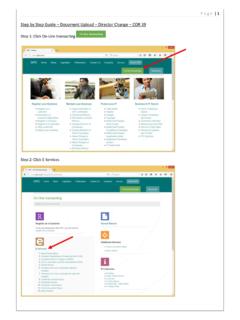
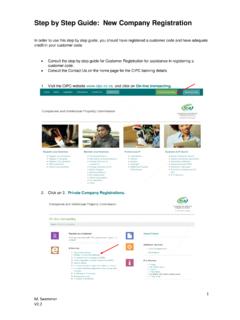
3 1. The scanned documents must be in PDF format. 2. Documents must be legible and only submitted once. 3. The application must be finalised within 5 calendar days from date of lodgement. Failure of which will result in the application being rejected. 4. Co-operatives must keep a copy of their constitution and registration documents. 5. If you did not receive feedback via email, and the service turnaround times have lapsed, visit the CIPC website, click on Enquiries on the home page and log an enquiry on the system. LR 3. 1. Visit the CIPC website and click on On-line transacting 2. Click on New eservices and thereafter login. LR 4. 3. Enter the Username (Email address) and Password and click on Login. 4. The landing page of E-SERVICES will be displayed.
4 Click on Services, then co-operatives thereafter click on Start New Co- operative Application LR 5. 5. A screen will display a pop up message for you to confirm you want to Start New Co- operative application. Click on OK. 6. If you have not applied for a name for the Co- operative yet, you need to apply first by clicking next on To create a new name reservation, please click here. 7. If you applied for a name reservation already, select the following: (a) Form of Co- operative (b) Type of Co- operative Select the Type of co- operative . Agricultural PRIMARY co- operative Financial services PRIMARY co- operative Housing PRIMARY co- operative Non-specific PRIMARY co- operative Social PRIMARY co- operative Worker PRIMARY co- operative LR 6. (c) Objectives: Click on the + sign next to objectives A screen will display and ask if you want to add your own objectives.
5 Option 1: Click yes if you want to add your own objectives and capture the objectives under your co- operative objectives Option 2: Click No if you want to choose from the drop box. Click in the boxes. Thereafter click on add selected objectives and save & close. LR 7. A screen will display all the objectives. You may add more objectives by clicking on the add objectives + sign or to continue click on next. LR 8. 8. The Co- operative Contact Details screen will display. Complete the required fields and click on next (a) Co- operative email address (b) Co- operative Cell phone number (c) Co- operative telephone number (d) Physical address (e) Business address (f) Postal Address 9. The Co- operative Financial Details screen will display. Complete the required fields and click on next.
6 (a) Minimum number of Directors (b) Maximum number of Directors (c) Co- operative Financial year end (d) Date of interested persons meeting (e) Membership Fees (i) Co- operative Annual membership fee (ii) Initial Co- operative membership entrance fee (f) Membership shares (i) Authorized number of shares for Co- operative (ii) Minimum number of shares a member must have (iii) Nominal value of co- operative member shares. LR 9. 10. A screen will display member details. You may either add a natural person or juristic person. To add a Natural Person, click on the + Add Natural Person. LR 10. 11.(1) You may either add an existing customer of CIPC or non existing customer. To add a Non Existing customer, click on No and complete the required fields. Thereafter click on next.
7 (a) Is the member a citizen of South Africa (b) Is the member a director of the Co- operative (c) Is this a founding member of the Co- operative (d) Member first name (e) Member Surname (f) Date of Birth (g) Click on add document and upload certify id copy or passport (h) Member origin (i) Country of origin (ii) Id Number or passport number (i) Member Contract Details (i) Email address (ii) Cellphone number (iii) Telephone number (j) Member Description (i) Gender (ii) Demographic (iii) Does this member have a disability Attach the ID or Ppassport LR 11. Add the physical address and click on Next. If the postal address is the same as physical address click on yes, alternatively click on No and add the postal address. To add another natural member click on save & add Another Natural Member 11.
8 (2) To add an existing customer click on Yes. Add the ID number / Passport number and email address. Click on search for customer. LR 12. The customer details will display. Click Yes or No if the Customer is a director / member. Thereafter click on next. The physical address information will display. Click on Next. Thereafter the postal address will reflect. If the postal address is the same as the physical address click on Yes or No and thereafter on Save and add another Natural Person LR 13. 12.(1) To add a Juristic Member click on +Add Juristic member. If the Juristic member is a Trust click in the block and add information. Attach the Trust documentation. Capture the Physical /Business and Postal Address. Thereafter click on Add Juristic Member and the representative screen will display.
9 LR 14. 12.(2) Add the representative details and click on save and add representative / director. LR 15. 12.(3) To add a Company or Close Corporation as a member, add the registration number and all the information of the entity will display. Click on Add Juristic representative. The next screenshot will reflect all the members / directors of the Company / Close Corporation Click on the member/director name and thereafter on +Add Coop Representative as Director. LR 16. Add the representative cellphone number and email address and click on Save & Add Representative / Director. LR 17. 13. To add an Auditor click on + Add Auditor. A list of Auditors will display. Click on the Auditors name and add. Thereafter click on Next. LR 18. 14. The next screen will display all the members captured.
10 You may remove a member, click on the member and click on the x remove natural member. You may save & close the application and continue at a later stage or continue by clicking on next. LR 19. 15. A screen will display the following: If all information have been captured a correct mark ( ) will display next to each category. If a cross reflects next to a category, kindly revisit the category and complete the capturing. (a)Co-operatives details and objectives . (b)Co-operatives contact details . (c) Co-operatives financial details . (d)Co- operative members x You may click on save & close and continue the application at a later stage or click on submit 16. After you click on submit a screen will display all your name reservations approved under your customer code.