Transcription of Tips - United States Navy
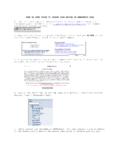
1 5 How to use navy Career Tools - for the Command Career Counselor2014, AugustTipshighlighting:DD 2648, 2958 UploadUse the following tips to upload a completed Preseparation Counseling Checklist, DD 2648, and Service Member Career Readiness Standards/Individual Transition Plan Checklist, DD 2958, Obtain access to the DMDC TAP website: Contact OPNAV N17 -Mr. Tom Albert (901) 874-4254 -Mr. David Greene (901) 874-6545 Obtain current version brought to you by OPNAV N1 FIT and N17of DD 2648 and DD 2958. Log in to DMDC TAP at , using CAC and CAC-enabled computer. On the Transition Checklist PDF Upload page, find hyperlinks to the correct forms. IMPORTANT: The PDF Upload feature will accept only forms downloaded from the website. -Scanned forms or any other forms (even with a JAN 2011 version date) will NOT be accepted in the PDF Complete forms off-line. IMPORTANT: These digital forms must be completed electronically.
2 -DO NOT use pencil or pen, with the exception of required signatures. -DO NOT use scanned forms or any forms other than those downloaded from the website. Ensure DD 2648 Blocks 1-6 are completed. To prevent receiving Error - Email Helpdesk message on DD 2958: -Block 1 for Name , ensure no period after middle initial. -Block 3 for DoD ID Number (EDI) , ensure no additional spaces after DoD ID #. -Blocks 24a, 25a, 26a for Name , ensure values conform to the listed punctuation format (include comma between last and first name). Save to an accessible directory/location on your Upload completed DD 2648 and DD 2958. Select Transition Checklist PDF Upload . Click the button A pop-up window opens and points to file directories on the user s computer. Identify the desired file to upload. Select the completed PDF file and press Open . -Repeat this step to add additional files (25 max).
3 Once files are in the upload queue, the Upload button will appear. Select the button to upload files. A confirmation pop-up notifies the user of the upload results, such as how many of the selected files were successfully uploaded to the database. Acknowledge the confirmation pop-up. The PDF File Upload table at the bottom of the page updates with all the successfully uploaded files. -NOTE: The two form status fields will be blank until record level validation is completed. Select the Refresh button to update the PDF File Upload table for validation results. Each record will be validated per the standard validation rules for that form and, once completed, will be updated in the Ensure a copy of DD 2648 and DD 2958 is maintained in command files for two If forms are downloaded from the TAP website, completed electronically and uploaded using the PDF Upload feature, and you still receive the Error - Email Helpdesk message, contact the TAP Helpdesk at -Describe all steps taken, but do not include the completed DD form.
4 -The Helpdesk will reply with directions for sending the form via encrypted email.