Transcription of Total Apparel Management System (TAMS) …
1 Total Apparel Management System (TAMS) employee user guide TAMS employee user guide HealthShareNSW - 1 - Contents Overview .. 2 Getting Started .. 2 Ordering Types .. 4 Fair Wear and Tear .. 4 Regular .. 5 Personal Purchase .. 5 Renewal .. 6 Placing Your Order .. 7 Dual 8 Previous 9 Returning Orders .. 9 Tracking Uniform Deliveries .. 10 Troubleshooting .. 10 My LHD is Different to My Initial Login .. 10 My Initial Login is No Longer Active .. 11 Regular Allocation is Missing .. 11 Renewal Allocation Missing .. 12 TAMS employee user guide HealthShareNSW - 2 - Overview The Total Apparel Management System (TAMS) allows employees and Managers to place and approve uniform orders online. Getting Started To access TAMS use the following link: or type it into your internet browser The first time you login select First Login Enter your employee Number and Last Name.
2 Enter the following information: 1. Create password (Alpha Numeric with at least 1 Upper Case eg. HealthShare1) 2. Personal security questions 3. Work facility 4. Order approval Do you approve uniform orders for employees under your supervision? 5. Select your direct Manager (the person who will (if required) approve your uniform order) 6. Profile information email / notification information / maternity / allergy or Community Health Nurse garments required 7. Your phone number (at least one contact number is required) 8. Your home address 9. Select Save Once your data is saved a side panel menu will appear to the left of your screen. Note: All mandatory fields are marked with a * (asterisk) throughout the System . TAMS employee user guide HealthShareNSW - 3 - 1. Click on Measurement module 2. Shirt waist for females is the same as your waist measurement (unless you are pregnant) 3.
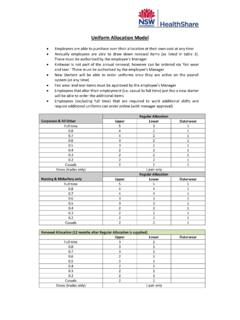
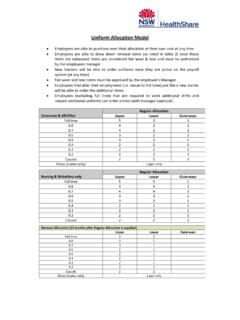
3 Only enter your shoe size if you are entitled to shoes or plan on purchasing shoes as a personal purchase item 4. If you require assistance in taking your measurements select the Measuring Instructions module 5. To view your individual uniform allocation click Your Allocation 6. To view your individual uniform allocation quantities click Garment Allocation To select your garments and order your uniform click on the PLACE ORDER tab 1 Enter your measurements in the table provided: 2 3 4 5 6 TAMS employee user guide HealthShareNSW - 4 - Ordering Types Fair Wear and Tear The Fair wear and tear module is only available once you have exhausted your Regular Allocation. For example, if you are a full time Nursing & Midwifery employee you are allocated 5 upper garments and 5 lower garments. If you have only drawn down 3 of your 5 garments, the fair wear and tear option will not be available until all 5 garments have been allocated.
4 All fair wear and tear orders require online Manager approval. Once you have logged in to the System ensure your measurements are still correct, then select the Place Order module on the left pane and click on Fair Wear and Tear. On the order screen you will be required to input your quantities against the styles and click on NEXT at the bottom of the screen. Prior to the order being processed you are required to then choose a REASON from the drop down box. TAMS employee user guide HealthShareNSW - 5 - Regular Regular allocation is the initial uniform kit; please refer to the Allocation Model for advice on the quantities of garments you can order under your regular allocation. You will need to follow the standard login procedures, create your profile and select the Place Order module on the left pane and click on Regular. Please refer to section 9 in troubleshooting section if your regular allocation is missing.
5 Personal Purchase The personal purchase module is available for anyone working within NSW Health to order uniforms; this can be used if you would like to purchase additional or if you would like to purchase uniforms for work. You will need to follow the standard login procedures, create your profile and select the Place Order module on the left pane and click on Personal Purchase. TAMS employee user guide HealthShareNSW - 6 - Renewal Uniform allocations are provided annually and are available after the 12 month anniversary of your respective LHD go live date for TAMS (Refer to table of go live dates below). You will need to follow the standard login procedures, update your profile, select the Place Order module on the left pane and click Renewal. Once you are in your profile ensure you update your profile page and measurements with any changes that may have occurred.
6 Some employees have new email addresses, so please ensure you update these so that the System can continue to work effectively. All renewal allocations require manager approval; therefore please ensure that you have a manager selected in your profile. Renewal Allocation Go Live Schedule LHD Renewal Allocations (Available from dates) Central Coast Local Health District 02 September 2014 Far West Local Health District 20 May 2014 HealthShare 01 February 2014 Hunter New England Local Health District 01 July 2014 Illawarra Shoalhaven local Health District 13 May 2014 Justice Health 29 April 2014 Mid North Coast Local Health District 06 May 2014 Murrumbidgee Local Health District 13 May 2014 Nepean Blue Mountains Local Health District 08 April 2014 North Sydney Local Health District 13 May 2014 Northern NSW Local Health District 06 May 2014 South Eastern Sydney Local Health District 08 April 2014 South West Sydney Local Health District 22 April 2014 Southern Local Health District 02 September 2014 Sydney Local Health District 01 February 2014 Sydney Children s Hospital Network 08 April 2014 Western Local Health District 01 February 2014 Western Sydney Local Health District 02 September 2014
7 TAMS employee user guide HealthShareNSW - 7 - Placing Your Order Step 1 Placing your order Select the Place Order link on the left hand pane of your profile. Select the Allocation Group of your uniform order. (Eg: Regular, Renewal, Fair Wear and Tear, Maternity or Personal Purchase) All uniform items available for your work stream are displayed. Select the photo to enlarge the image. Fill in the Quantity field for each garment you intend to order, scroll down the page and select "Next". Step 2 Reviewing your recommended sizes To view an alternate size, select the yellow box. The System will provide you with 2 options. 1. A relaxed/looser fit 2. A tighter fit Note: that all trousers are shown as R = Regular length, S = Short Length, L = Long Length Based on the measurements saved in your profile the System will recommend the best fit garments.
8 These garments are indicated with icon. If an item has been ordered previously, the last size selected will be indicated with a . This is your recommended size Your measurements are highlighted in blue Click Select to change to that size. Ensure you check the corresponding measurements if you are going up or down a size TAMS employee user guide HealthShareNSW - 8 - Step 3 If your uniform order needs Manager approval and you have selected your Manager in your profile your Manager s name will appear as shown below. If you require an alternative Manager to approve your order (due to him/her being on extended leave) you can select this manager at this stage. Dual roles Employees paid from STAFFLINK will have multiple assignments under one employee number. Follow the standard login procedures and select the Profile Selection module on the left pane.
9 Select your desired assignment profile from the drop down box. Your personal details such as phone, email address and notifications will carry over to this profile. Click Select Manager to choose an alternate Manager Your home address is the default delivery address Select Submit to complete the order TAMS employee user guide HealthShareNSW - 9 - Previous Orders Go to the Previous Orders module on the left hand pane of your profile. To edit (change of quantity, size or style etc) or to resubmit one of your previous orders (to a different Manager) select the order number. Click the Edit button at the bottom of the screen to edit the order. This will take you to steps 2 and 3 of the Ordering process. Edit and resubmit your order as you require and select Submit. To cancel an order click on the Previous Orders module and select the order number that you wish to cancel.
10 Click on the Cancel Order button at the bottom of the screen. An order cannot be edited or cancelled if it: 1. Has been shipped 2. Is in the process of being shipped 3. It contains made-to-measure / special garments Any orders pending approval after 35 working days from submitting the order will be deleted and you will be required to resubmit this order. Returning Orders Garments will be sent in a reusable satchel with a Returns/Exchange form and returns address sticky label. To return / exchange items: 1. Call ADA Systems customer service on 1800 601 390 to obtain a return authorisation number 2. Fill out the Returns / Exchange form and ensure you write the return authorisation number provided by ADA on the returns form 3. Attach the returns address sticky label on the satchel 4. Include the returns form with your garments being returned 5.