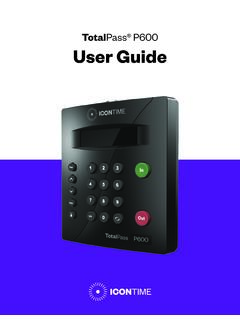
Transcription of TotalPass® P400 User Guide - Icon Time
1 TotalPass P400. User Guide Copyright 2020 IconTime. All rights reserved. Reproduction of this document in whole or in part is strictly prohibited. This document may contain typographical or copy errors. TotalPass, IconTime, the IconTime logo, and all other IconTime product names mentioned in this document are registered trademarks of IconTime. IconTime 9000 SW Gemini Drive, Bldg. 8. Beaverton, OR 97008. Contact Support: 1-800-847-2232 #1. Contact Sales: 1-800-847-2232 #3. Table of Contents Chapter 1: Getting Familiar with your Time Everything you need to get your time clock up and running.
2 7. System Available TotalPass Connection / Setup ..9. Logging Support and Troubleshooting ..10. Integration with Payroll ..10. Register your Time Navigating the Time Clock Home Lists Reports Payroll Files Settings Help Chapter 2: Setting your Time Clock Setting your Pay 13. Setting your Overtime 14. Setting your Punch 14. Setting your Device 16. Setting your Alert Preferences (Requires Upgrade)..17. Alert 18. Creating Custom 18. Chapter 3: Setting Up your Employee Make Employees Customizing the Columns ..20. Time Remaining Before Adding 21.
3 Employee 21. Employee Settings .. 21. Entry 21. Lunch Time 22. Delete Employee's 22. 2020 IconTime. All rights reserved. Page 3. Chapter 4: Clocking In and 23. Time Clock Keypad Functions .. 23. Punching In and 23. Keypad PIN 24. Proximity Badge 24. Web Punch 24. Tracking Paid Breaks .. 24. To transfer out of the break department and back to work:.. 24. Chapter 5: Generating 25. Reports 25. Adding a 25. Adding Non-Work Hours (Holiday and Non-Worked)..26. Editing a 27. Using Batch 27. Viewing Additional Reporting 27. Using the Attendance 28.
4 Using the Timecard Chapter 6: Sending to Create Payroll Export QuickBooks Export Payroll 31. Configuring 32. QuickBooks Online 32. Chapter 7: Alternate Employee Entry Using Proximity Assigning Proximity Badges to an Punching In/Out Using Proximity Badges ..34. Web Punch Entry (Web Punch License purchase required).. 35. Locking the Time Clock Terminal Setting Up your Employees for Web Punching In/Out Using Web Punch .. 35. Clocking In/Out using GPS Location IP Address 37. Setting Authorized IP Addresses by 37. Running Reports with Web Chapter 8: Maintaining your Time 39.
5 Creating a Data Data Backup from the Software Data Backup to a USB Flash Restore Time Clock Data 2020 IconTime. All rights reserved. Page 4. Restore a Time Clock Data Backup from the Software Restore a Time Clock Data Backup from a USB Flash Removing Data from your Time 41. Updating your Time 41. Updating your Time Clock from the Software 41. Updating your Time Clock Using a USB Flash Resetting your Time Clock Changing your Time Clock Software Interface Resetting the Software Interface Password ..43. Resetting the Supervisor Mode Security Code.
6 44. Chapter 9: Time Clock Terminal Supervisor Mode ..45. Log Into Supervisor Parent Clock Supervisor Mode View IP Network LAN Wi-Fi Assign Set View Serial #..46. View Version #.. 47. Download 47. Restore Backup .. 47. Enable 47. Reset 47. Erase All 47. Download Log .. 47. Chapter 10: Connecting to the Clock ..48. Wi-Fi Connecting Using the Clock Interface ..48. Connecting Using a WPS Connecting Using a WPS with Connect to the Wireless Network ..50. Connecting Using the Software Interface ..50. Ethernet Connection ..50. Chapter 11: Software Upgrades.
7 52. Enabling Software 52. Employee Capacity 52. 2020 IconTime. All rights reserved. Page 5. Benefit Tracking Benefit Tracking and Accruals ..53. Enhanced Overtime 53. Revision Enhanced Overtime 53. Non-Worked Hours and Benefit Time (Vacation, Sick, Personal).. 53. Customizing Benefit Accrual Accrual Summary Revision Zones ..55. Email Alerts Upgrade ..56. Outgoing Email Settings (SMTP Server)..56. Common SMTP Server Chapter 12: Configure for Remote 59. System Step 1: Set Up the TotalPass on the Local Network ..59. Step 2: Router Assign a Static IP Address to the Time Clock.
8 60. Set Up Port Forwarding on the Step 3: Connect to your TotalPass Clock over the 61. Remote Connection Frequently Asked Troubleshooting Remote Connection Standard Remote Connection Setup Connect Clocks Remotely with Multi-clock Warranty 65. FCC Part 67. 2020 IconTime. All rights reserved. Page 6. Chapter 1: Getting Familiar with your Time Clock Everything you need to get your time clock up and running: Connecting your time clock and logging in for the first time How to get help Navigating through the software Welcome Thank you for choosing IconTime.
9 We appreciate your business. Our mission is to provide our customers with quality products and excellent customer service. We pride ourselves on being innovators in the time and attendance industry, developing products that are easy to install, simple to operate, and reliable. The TotalPass P400 system offers breakthrough web-enabled technology that brings the simplici- ty of embedded software to your time and attendance system, without requiring Internet access. This Guide will help you set up the clock and use the many features to automate time and attendance, streamline your payroll process, and generate reports that provide insight into labor costs.
10 2020 IconTime. All rights reserved. Page 7. System Requirements For Network Access to the Time Clock Any Web browser on PC, Mac, tablet, or smartphone An available Ethernet port or wireless network Remote Internet access also requires Internet and port forwarding to port 9844 or port 80. For Direct Connection to the Time Clock Use any Web browser on a PC or Mac where the time clock is directly connected to the computer. USB port on Windows PC or Ethernet port on Windows PC or Mac Payroll Export Utilities Paychex Flex, SurePayroll, Paychex Preview, Paycom, Paylocity, ADP Workforce Now, and QuickBooks Online exports are compatible with all operating systems.