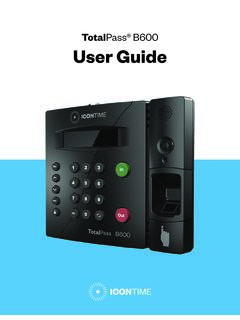
Transcription of TotalPass® P600 User Guide - Icon Time
1 User GuideTotalPass P600 Copyright 2020 IconTime. All rights of this document in whole or in part is strictly prohibited. This document may contain typographical or copy errors. TotalPass, IconTime, the IconTime logo, and all other IconTime product names mentioned in this document are registered trademarks of SW Gemini Drive, Bldg. 8 Beaverton, OR 97008 Contact Support: 1-800-847-2232 #1 Contact Sales: 1-800-847-2232 # 2020 IconTime. All rights reserved. Page 3 Table of ContentsChapter 1: Getting Familiar with Your Time Clock ..9 Everything you need to get your time clock up and running.
2 9 System Requirements ..10 Features ..10 Available TotalPass Upgrades ..11 Connection / Setup ..11 Logging In ..11 Support and Troubleshooting ..11 Integration with Payroll ..11 Register your Time Clock ..12 Navigating the Time Clock Software ..12 Home Page ..12 Lists Menu ..13 Reports Menu ..13 Payroll Menu ..13 Files Menu ..13 Settings Menu ..13 Help Menu ..13 Chapter 2: Setting Your Time Clock Preferences ..14 Setting Your Pay Preferences ..14 Setting Employee Input Preferences ..15 Setting Your Overtime Preferences ..15 Enhanced Overtime Preferences ..16 Setting Your Punch Preferences.
3 17 Setting Employee Input Preferences ..18 Setting Your Device Preferences ..19 Email/Backup Settings ..20 What is an SMTP Server?..20 Outgoing Email Settings (SMTP SERVER) ..21 Common SMTP Server Settings ..22 Setting Your Alert Preferences ..23 Alert Setup ..23 Creating Custom Fields ..24 Chapter 3: Setting Up Your Employees ..25 Employee List ..25 Make Employees the Columns ..25 2020 IconTime. All rights reserved. Page 4 Time Remaining Before Overtime ..25 Adding Employees ..26 Employee Information ..26 Employee Settings ..26 Entry Method ..27 Lunch Time Deduction ..27 Web Punch Time Clock Settings.
4 28 Create Payroll Export Settings ..28 Non-Work Hours and Benefit Time (Vacation, Sick, Personal) ..29 Customizing Benefit Accrual Rules ..29 Using Accrued Benefit Hours (Vacation, Sick, Personal) ..29 Delete Employee s Punches ..30 Chapter 4: Clocking In and Out ..31 Time Clock Keypad Functions ..31 Punching In and Out ..31 Keypad PIN Entry ..32 Proximity Badge Punch Entry ..32 Tracking Paid Breaks ..32To transfer into the break department: ..32To transfer out of the break department and back to work: ..32 Department Change (Punch In and Out Transfer) ..32To transfer into another department.
5 32 Entering Tips, Job Numbers, or Piece Counts ..33To collect employee input data on the IN punch: ..33To collect employee input data on the OUT punch: ..33 Chapter 5: Department and Supervisors ..34 Department ..34 Customize Your Department ..34 Customize Revision Zones ..34 Assigning /Changing Departments ..35 Removing a Department ..35 Chapter 6: Generating Reports ..36 Supervisors ..36 Setting Supervisor Employees to a Supervisor ..36 Supervisor Login ..37 Reports Overview ..37 2020 IconTime. All rights reserved. Page 5 Adding a Non-Work Hours (Holiday and Non-Worked) ..38 Editing a Punch.
6 39 Using Batch Additional Reporting Details ..40 Using the Attendance Report ..41 Using the Timecard Report ..41 Using the Individual Timecard Report ..42 Using the Department Report ..42 Using the Timecards By Department Report ..43 Create Custom Reports ..43 Generating Reports on Custom Field Values - Labor Distribution ..43 Chapter 7: Sending to Payroll ..45 Create Payroll Export File ..45 QuickBooks Export Payroll Payroll ..48 QuickBooks Online Configuration ..48 Chapter 8: Alternate Employee Entry Options ..50 Using Proximity Badges ..50 Assigning Proximity Badges to an Employee.
7 50 Punching In/Out Using Proximity Badges ..50 Using Web Punch Entry ..51 Locking the Time Clock Terminal Keypad ..51 Setting Up Your Employees for Web Punch ..51 Punching In/Out Using Web Punch ..51 Clocking In/Out using GPS Location Tracking ..52IP Address Authorized IP Addresses Globally ..52 Running Reports with Web Punch ..53 Chapter 9: Maintaining Your Time Clock ..55 Creating a Data Backup ..55 Data Backup from the Software Interface ..55 Setting Up Scheduled Automatic Backups ..55 Data Backup to a USB Flash Drive ..56 Restore Time Clock Data Backup ..56 Restore a Time Clock Data Backup from the Software Interface.
8 57 Restore a Time Clock Data Backup from a USB Flash Drive ..57 Removing Data from Your Time Clock ..57 Updating Your Time Clock ..58 2020 IconTime. All rights reserved. Page 6 Updating Your Time Clock from the Software Interface ..58 Updating Your Time Clock Using a USB Flash Drive ..58 Auto-Update ..58 Resetting Your Time Clock Passwords ..60 Changing Your Time Clock Software Interface Password ..60 Resetting the Software Interface Password ..60 Resetting the Supervisor Mode Security Code ..60 Chapter 10: Time Clock Terminal Supervisor Mode ..61 Log Into Supervisor Mode ..61 Parent Clock Supervisor Mode Settings.
9 61 View IP Address ..61 Network Settings ..61 LAN Settings ..61Wi-Fi Settings ..61 View Networks ..62 WPS Setup ..62 Assign Badges ..62 Set Serial # ..62 View Version # ..62 Download Backup ..62 Restore Backup ..63 Enable Password ..63 Erase All Memory ..63 Convert to Child ..63 Download Log ..63 Additional Child Clock Supervisor Mode Parent IP ..63 Force Connect ..63 Force Full Sync ..63 Show Sync Status ..63 Convert to Parent ..64 Chapter 11: Connecting to the Clock ..65Wi-Fi Connection ..65 Connecting Using the Clock Interface ..65 Connecting Using a WPS Button ..66 Connecting Using a WPS with PIN.
10 66 Connect to the Wireless Network ..66 2020 IconTime. All rights reserved. Page 7 Connecting Using the Software Interface ..67 Ethernet Connection ..67 Chapter 12: Benefit Tracking and Email Alerts ..68 Benefit Tracking ..68 Benefit Tracking and Accruals ..68 Enhanced Overtime Preferences ..68 Revision Overtime Preferences ..68 Non-Worked Hours and Benefit Time (Vacation, Sick, Personal) ..68 Customizing Benefit Accrual Rules ..69 Accrual Summary Report ..70 Revision Zones ..70 Email Alerts ..71 Outgoing Email Settings (SMTP Server) ..71 Common SMTP Server Settings ..73 Chapter 13: Software Upgrades.