Transcription of USB Driver Installation Guide - Icom
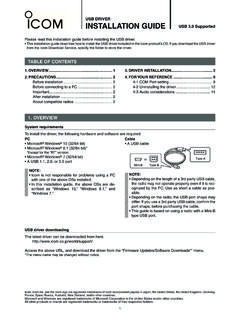
1 System requirementsA PC which supports the following OS (Operating Sys-tem) is required; Microsoft Windows Vista Microsoft Windows XP Microsoft Windows 2000 NOTE: The USB Driver is not supported for Microsoft Windows XP (64 bit). icom is not responsible for whole performance of the PC that supports above OS. In this Installation Guide , the above OSs are de-scribed as Windows Vista, Windows XP and Windows 2000. Before Installation : When installing the software, log on as the admin-istrator. Make sure no other applications are requirements USB cable (A-B type/purchase separately)A typeB type PC (with USB or ) Installed audio playerNOTE: PC software (purchase separately) may be re-quired.
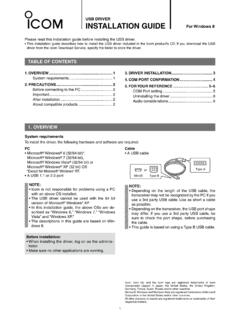
2 (p. 15) The transceiver connection may not be recog-nized by the PC depending on the length of the USB cable. Using as short a USB cable as pos-sible is OVERVIEWUSB DRIVERINSTALLATION GUIDET hank you for using the icom Download read this Installation Guide before installing the USB Driver into your PC that is connected to the USB (Universal Serial Bus) port (B type) of the transciever with the USB cable (purchase separately). icom , icom Inc. and the icom logo are registered trademarks of icom Incorporated (Japan) in the United States, the United Kingdom, Germany, France, Spain, Russia and/or other , Windows and Windows Vista are registered trademarks of Microsoft Corporation in the United States and/or other other products or brands are registered trademarks or trademarks of their respective OF CONTENTS1.
3 OVERVIEW ..1 System requirements ..1 Item requirements ..12. PRECAUTIONS ..2 Before connecting to the PC ..2 Important ..2 After Installation ..23. PREPARING ..2 Before installing the USB Driver ..24. Driver Installation ..3 10 Windows Vista ..3 Windows XP ..5 Windows 2000 ..85. COM PORT CONFIRMATION* ..11 Windows Vista ..11 Windows XP ..116. Driver UNINSTALLATION* ..12 Windows Vista ..12 Windows XP ..127. FOR YOUR REFERENCE ..13 15 COM Port setting ..13 About audio ..15*For Windows 2000: Refer to the instructions of Windows installing the USB driverIcom HP gives the USB Driver download installing the USB Driver , download the com-pressed : icom is not responsible for any damage or lack of data resulting from the use of the USB Driver .
4 In this Installation Guide , the USB Driver software ver. is used for description. ( Folder name: CD-301501-001 )3. PREPARINGB efore connecting to the PCThe process of connecting the USB cable (purchase separately) between the transceiver and a PC may differ according to your the Driver Installation on pgs. 3 to 10 for details. After the Driver Installation is completed, the USB cable can be connected regardless of the OS. The USB Driver Installation is required for each unit, because of the COM port number Audio from the USB port may cut out or audio con-trol with the PC software may get late because of the PC performance (including OS, environment, etc.)
5 Audio from the USB port may cut out when the CPU load increases. The audio device settings of OS may be changed when the transceiver is connected to the PC. icom is not responsible for proper operation when connecting the transceiver and the PC through an USB Installation USB Driver uninstallation If the USB Driver uninstallation is performed, the connected unit (when the USB Driver is installed) cannot be used. USB Driver re- Installation The USB Driver Installation is required for each unit, because of the COM port number PRECAUTIONSThis number may differ depending on the software Vista4.
6 Driver INSTALLATIONThe displayed dialogue boxes, indications or oper-ations may differ slightly from the following instruc-tions according to your system conditions or Make sure that the transceiver is not connected to the Start up Windows. Quit all other application if Double-click the WinVista folder. The folder constr uction: CD-301501-001 Driver WinVista Double clickr Double-click the to start up the USB Driver clickt A program needs your permission to continue dia-logue box appears as below. Click [Continue].
7 Clicky Verify the Installation location, then click [Install].Clicku Windows starts scanning for the system, then starts installing the USB After the Installation is completed, click [OK]. Restarting the PC is : NEVER connect the transceiver to the PC with the USB cable (purchase separately) until the USB Driver Installation has been completed. The USB Driver for Windows Vista does not support the automatic recognition system. Continues to the next page4o After restarting the PC, connect the transceiver to the PC with the USB cable as shown below.
8 Be sure to connect the USB cable correctly and not up-side cableTransceiver(Rear panel)PCTo USB portTo USB portType AType BACCKEY12 METERREMOTE!0 Turn the transceiver power ON. Installing device Driver software appears as below.!1 After the dialogue appears as below, USB Driver Installation has been Vista (Continued)4. Driver INSTALLATION5 The displayed dialogue boxes, indications or oper-ations may differ slightly from the following instruc-tions according to your system conditions or Make sure that the transceiver is not connected to the Start up Windows.
9 Quit all other application if Connect the transceiver to the PC with the USB cable as shown below. Be sure to connect the USB cable correctly and not up-side cableTransceiver(Rear panel)PCTo USB portTo USB portType AType BACCKEY12 METERREMOTEr Turn the transceiver power ON. Found New Hardware appears as The Welcome to the Found New Hardware Wizard will come up as below. Select No, not this time, then click [Next>].ClickSelecty Select Install from a list or specific location (Advanced), then click [Next>].ClickSelectu Select Search for the best Driver in these locations.
10 Then select Include this location in the search, and click [Browse].ClickSelectSelectWindows XP4. Driver Installation (Continued)NOTE:BE SURE to connect the transceiver to the PC with the USB cable (purchase separately) before installing the USB Driver . Continues to the next page6 Windows XP (Continued)4. Driver INSTALLATIONi Select the Win folder, then click [OK]. The folder constr uction: CD-301501-001 Driver Win ClickSelecto Click [Next>].Click!0 The Wizard starts searching for the Driver and shows the dialogue below during search.!