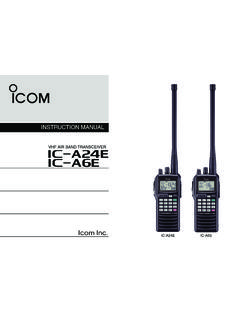
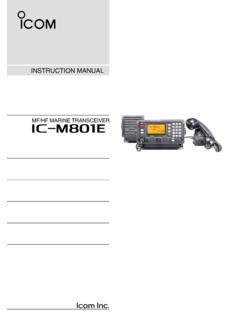
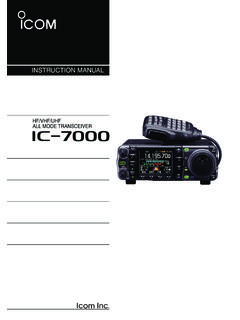
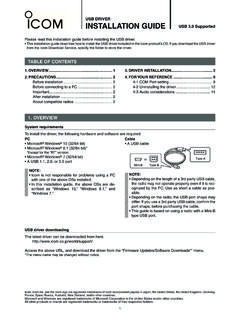
Transcription of USB Driver Installation Guide - Icom
1 PC Microsoft Windows 8 (32/64 bit)*, Microsoft Windows 7 (32/64 bit), Microsoft Windows Vista (32/64 bit) or Microsoft Windows XP (32 bit) OS *Except for Microsoft Windows RT. A USB or portNOTE: icom is not responsible for problems using a PC with an above OS installed. The USB Driver cannot be used with the 64 bit version of Microsoft Windows XP. In this Installation Guide , the above OSs are de-scribed as Windows 8, Windows 7, Windows Vista and Windows XP. The descriptions in this Guide are based on Win-dows Installation : When installing the Driver , log on as the adminis-trator.
2 Make sure no other applications are A USB cableType AMini-BType BorNOTE: Depending on the length of the USB cable, the transceiver may not be recognized by the PC if you use a 3rd party USB cable. Use as short a cable as possible. Depending on the transceiver, the USB port shape may differ. If you use a 3rd party USB cable, be sure to check the port shape, before purchasing the cable. This Guide is based on using a Type B USB OVERVIEWUSB DRIVERINSTALLATION GUIDEP lease read this Installation Guide before installing the USB Driver .
3 This Installation Guide describes how to install the USB Driver included in the icom product s CD. If you download the USB Driver from the icom Download Service, specify the folder to store the , icom Inc. and the icom logo are registered trademarks of icom Incorporated (Japan) in Japan, the United States, the United Kingdom, Germany, France, Spain, Russia and/or other , Windows and Windows Vista are registered trademarks of Microsoft Corporation in the United States and/or other other products or brands are registered trademarks or trademarks of their respective OF CONTENTS1.
4 OVERVIEW ..1 System requirements ..12. PRECAUTIONS ..2 Before connecting to the PC ..2 Important ..2 After Installation ..2 About compatible products ..23. Driver Installation ..34. COM PORT CONFIRMATION ..45. FOR YOUR REFERENCE ..5 6 COM Port setting ..5 Uninstalling the Driver ..6 Audio considerations ..6 System requirementsTo install the Driver , the following hardware and software are required:For Windows 82 Before connecting to the PCThe USB Driver is not supported by the automatic recognition system, so NEVER connect the USB cable between the transceiver and the PC until AFTER the USB Driver has been Driver Installation on page 3 for details.
5 Once the Driver is installed, a PC software can be used by just connecting the USB Depending on your PC performance (OS, environ-ment, and so on), the USB audio may be interrupted, or a control by the PC software may get delayed. If the CPU has a heavy load, the USB audio is easily interrupted. The settings of the installed audio player may be changed after connecting the transceiver to the PC. icom is not responsible for improper operation when connecting the transceiver and the PC through a USB Installation Uninstalling the USB Driver You cannot uninstall the USB Driver for each individ-ual unit.
6 After uninstalling the USB Driver , none of the transceivers that require this Driver can be operated with the PC. When another transceiver is connected The COM port number is automatically added after turning ON the transceiver s compatible productsThe products that require this Driver are shown on the icom website ( ).2. PRECAUTIONS3 This description is based on Windows Driver INSTALLATIONThe displayed dialogue boxes, indications or oper-ations may differ slightly from the following instruc-tions, depending on your system version and Make sure that the transceiver and PC are not Start Windows.
7 Quit all other applications if any are Double-click the in the Driver folder to open the USB Driver When the User Account Control dialogue box ap-pears, click [Yes].Clickt Verify the Installation location, then click [Install].Clicky Windows starts installing the After the Installation has completed, click [OK].Clicki Connect the USB cable between the transceiver and the PC, as shown below. Be sure to check the USB cable connector cableTransceiver(Rear panel)PCTo the USB portTo a USB portType AType BACCKEY12 METERREMOTEo The Installation icons appear on the taskbar shown below, then Windows starts installing the Driver .
8 The USB audio Driver is also automatically installed.!0 After the Driver Installation has completed, the Installation icons on your system version and settings, you may be prompted to restart the PC. In this case, follow the instructions on the : NEVER connect the USB cable between the transceiver and the PC until AFTER the USB Driver has been installed. This USB Driver is not supported by the automatic recognition COM PORT CONFIRMATIONq Click the folder icon on the Right-click Computer, and then click Properties.
9 Right-clickClicke Click [Device Manager]. Device Manager Double-click Ports (COM&LPT) on the Device Manager When the Driver is completely installed, Silicon Labs CP210x USB to UART Bridge (COMM) is screen shows the USB serial COM port number 4. The COM port number is displayed instead of M . If the transceiver has two COM ports, two COM port numbers are displayed. Depending on the PC environment, the COM port number may differ. If ! or is displayed on the Device Manager screen, the Driver may not be properly installed.
10 In such a case, first uninstall the USB Driver , then reinstall the Driver Installation has been completed, confirm the port connection and port description is based on Windows FOR YOUR REFERENCECOM Port settingTo change the COM Port number setting, connect the transceiver to the PC and then turn ON the transceiver power after the Driver Installation has been description is based on Windows Click the folder icon on the Right-click Computer, and then click Properties. Right-clickClicke Click [Device Manager]. Device Manager Right-click Silicon Labs CP210x USB to UART Bridge (COMM) and then click Properties.