Transcription of Use Microsoft Edge to Collaborate – Microsoft Edge Help
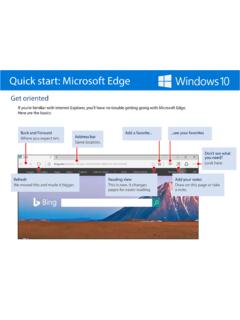
1 Use Microsoft Edge to collaborateProject your webpage to quickly Collaborate during a meeting, take notes on it that everyone can see, and then share them in an app or send them in email. Here s start guide for info workers 1. Open Microsoft Edge It s on the left side of the Enter an address3. Select Make a Web Note It s in the upper right. Use Microsoft Edge to collaborateThe new toolbar appears at the top of the page. Pick a writing tool over hereSave and share what you ve done over hereMuch more than just a red it s what s set by default. Select the Pen to change the color and Highlighter next to the Pen works the same way Use Microsoft Edge to collaborateUse a pen or finger on a touch screen, or even use a mouse as we did here: Don t have a touch screen?
2 Have a lot to say? Type a commentSelect Add a typed note and tap or click where you want the comment to appear. Use Microsoft Edge to collaborateWhen you re done editing, share the whole thing , save everything , or clip just a piece and paste it in an app or a mistake? Erase just a part or everything at onceSelect the Eraser and start removing a single line at a time with your finger, stylus, or mouse. Or select the Eraser again, select Clear all ink, and get rid of everything at with this one Clip with this button Share using this button More about this on the next Use Microsoft Edge to collaborateThe sharing options available to you depend on what s available on your work PC. You ll see the list of apps here Use Microsoft Edge to collaborateYou don t need to close the windowSelect Exit to stop writing on a page and close the Web Notes Exit is on the right