Example: dental hygienist
User Manual - D-Link
D-Link DWA-131 User Manual 4 Section 1 - Product Overview Introduction The DWA-131 Wireless N Nano USB Adapter is a convenient wireless connectivity solution for desktop or notebook PCs. Instead of stringing Ethernet cables to your PC or dismantling your desktop computer case, the DWA-131 can enable 802.11n wireless
Tags:
Information
Domain:
Source:
Link to this page:
Documents from same domain

DGS-1100 Series EasySmart Switch User Manual B1 v1
support.dlink.comPress the Reset button for 1to 5 seconds to reboot the Switch. Press the Reset button for 6to10 seconds to reset the Switch back to the default settings. The LED will light up solid amber for 2 seconds. When pressing the Reset button for longer than 10 seconds, the device will enter loader mode and the LED will light up solid green for 2 seconds.
User Manual - D-Link
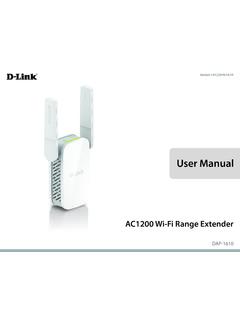
support.dlink.comDec 19, 2019 · D-Link DAP-1610 User Manual 2 Section 1 - Product Overview Network Requirements • A wireless router with an active Internet connection. • IEEE 802.11ac, 802.11n, 802.11g, 802.11b, or 802.11a

User Manual - D-Link
support.dlink.comSep 15, 2020 · D-Link DCS-8525LH User Manual 14 Section 3 - mydlink Camera Presets Save and quickly access up to 5 different camera views. The button is your Home Point. To set other viewpoints, tap the button, then tap the live view screen and use the arrows to set your view preset. Long press on the button to save a snapshot of that location.

User Manual - D-Link
support.dlink.comH.264 Codec for Smooth, Space-Efficient Video This camera supports use of the H.264 video codec, which gives you high-quality video with reduced bandwidth requirements. This means that you can enjoy smoother, more reliable video streaming over the Internet, and less disk space is required to save recordings.
User Manual - D-Link
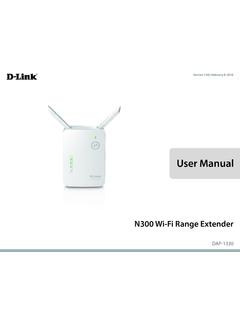
support.dlink.comMar 08, 2021 · The DAP-1330 N300 Wi-Fi Range Extender lets you easily extend a secure wireless network with a press of a button. Connect the DAP-1330 to a router via Wi-Fi or Ethernet and share your high-speed Internet access in more places throughout your home or small office. High-speed Wireless Performance With Wireless 802.11n Technology

User Manual - D-Link Technical Support
support.dlink.com1 Reset Button Press and hold the reset button on the side of DAP-1720 for 10 seconds to restore the factory default settings. 2 Power Switch Use the power switch to power off the DAP-1720 when it will not be in use for an extended period of time. The factory default is ON. 1 2
User Manual - D-Link
support.dlink.comThis device is an Energy Related Product (ErP) with High Network Availability (HiNA), and automatically switches to a power-saving Network Standby mode within 1 minute of no packets being transmitted. If it is not needed during certain periods of time, it can be unplugged to save energy. Network Standby: 3.54 watts

Quick Install Guide - D-Link
support.dlink.comDAP-1325 N300 Wi-Fi Range Extender Wi-Fi Configuration Card Quick Install Guide If any of the above items are missing, please contact your reseller. • Make sure the area that you want to plug the extender into has a strong connection to your router. Use a wireless laptop, tablet, or mobile phone in that area to test the connection to verify.
DIR-842 - D-Link
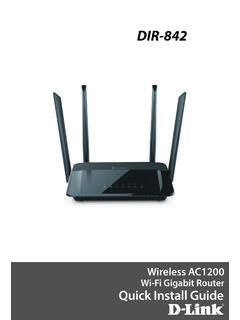
support.dlink.com2. Select the Wi-Fi Network name you assigned in the wizard and connect. Note: If you did not run the setup wizard or you reset the router to its default settings, refer to the Wi-Fi Configuration Card included for the default Wi-Fi Network Name and Wi-Fi Password. You can also connect wireless devices to the DIR-842 router using WPS: 1.

Quick Install Guide - D-Link
support.dlink.comQuick Install Guide If any of the above items are missing, please contact your reseller. • Make sure the area that you want to plug the extender into has a solid connection to your router. Use a wireless laptop, tablet, or mobile phone in that area to test the connection to verify.
Related documents
PHOTOSHOP 7 BASIC USER MANUAL
tolweb.orgAug 14, 2002 · Photoshop 7 Basic: User Manual 8 Practice Steps: 1. Open Test.psd 2. Menu > File > Save for Web 3. Save a GIF that is 100k or smaller with the name Work01.gif in the workshop folder on the desktop. 4. Next save a jpeg of 75 k or smaller as Work01.jpg in workshop folder on desktop 5. Now go to workshop folder and check that files are in folder ...
Portable Series User Manual - Seagate.com
www.seagate.comThe User’s Manual contains detailed information about features and instructions on using your Portable Series External Hard Drive. Using this Manual Carefully read and understand the “Handling Precautions” section before using the product. ... USB cable to the desktop/laptop computer as shown in Figures 3 and 4:

DediProg SF Software User Manual
www.dediprog.comFour software icons will appear on your desktop after installation. Icon “DediProg Engineering” is the engineering GUI, “DediProg Production” is the production GUI, “DpCmd” is the command line interface and “DediProg Help” is the user manual. 3.1 Environment Preparation 3.1.1 Connect the programmer to the PC through an USB cable.

ASUS GPU Tweak II User Manual
dlcdnets.asus.comApr 26, 2017 · user manual for details on installing its driver. 2. Locate the ASUS GPU TweakII driver folder and double-click the setup.exe file to start the installation. 3. Follow the onscreen instructions to finish the installation.
DE1-SoC User Manual www.terasic
www.intel.comDE1-SoC User Manual 9 www.terasic.com April 21, 2016 2.2 oBBllocckk DDiaggrraamm hooff -tthee rDDEE11-SSooCC BBooaardd Figure 2-3 is the block diagram of the board. All the connections are established through the

User ManUal - T-Mobile
www.t-mobile.comUser Interface screen appears. Access Using USB Cable 1. Connect your Mobile Hotspot to the PC with USB cable. 2. Power on your device. 3. The OS detects and recognizes new hardware and finishes the installation automatically. After successful installation, the web connection icon will appear on your desktop.

User’s Manual - Apricorn
apricorn.comAdding a New User PIN There are two ways to establish a User PIN: Admin-generated while in Admin Mode, and User-generated while Padlock DT is ADMIN-GENERATED USER PIN 1.Enter the Admin Mode by holding + 0 for five seconds; With RED LED blinking, enter the Admin PIN and press the UNLOCK button. The BLUE LED will glow solidly. 2.