Transcription of VirtualDJ DJC MP3 e2 - Hercules - Support website
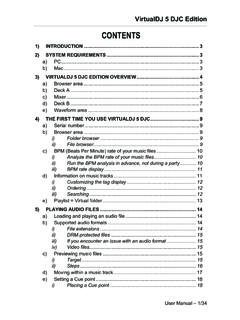
1 ITALIANO DEUTSCH ESPA OL NEDERLANDS english FRAN AIS VirtualDJ DJC MP3 e2 User Manual 1/41 CONTENTS 1) 3 2) SYSTEM 3 a) 3. 9. 9. 9101111111213131414141515171717171717171 81819b) 3 3) VirtualDJ DJC MP3 E2 4 a) Browser area: folders area + files 4 b) Deck 5 c) 6 d) Deck 8 e) Waveform 8 4) FIRST USE OF VirtualDJ DJC MP3 a) Serial b) Browser i) Folders ii) Files c) BPM (Beats Per Minute) rate of your music i) Analyze your music files BPM ii) Run the BPM analysis in advance, not during a party!.. iii) BPM rate d) Information about the music i) Customizing the tag ii) Sorting the music iii) 5) PLAYING AN AUDIO a) Loading and playing an audio b) Supported audio i) File ii) DRM protected iii) If you encounter an issue with an audio iv) Video c) Previewing a i) ii) iii) d) Moving within a music VirtualDJ DJC MP3 e2 e) Setting a Cue 19 i) Placing a Cue 20202121212324272929363639ii) Changing the position of the Cue iii) Going to the Cue iv) Deleting a Cue 6) BEAT MATCHING MUSIC a) Sync button on DJ Control MP3 e2 (= Beatmatch).
2 B) Pitch fader (and Master Tempo).. i) Pitch 24 ii) Master 25 iii) Pitch 26 iv) Action of the pitch fader in c) Pitch Bend buttons ( Pitch Bend and Pitch Bend + ).. 29 i) Using Pitch ii) See the action of Pitch Bend in d) Jog 30 7) LOOPS AND 31 a) 31 i) 31 ii) Loop 31 iii) 32 b) 32 i) 33 ii) 34 iii) Flippin 35 iv) 35 8) SCRATCH, AUTOMIX, a) 36 i) Scratch 36 ii) 36 iii) Jog wheels b) 37 c) 37 i) 37 ii) 38 iii) Commands on each User Manual 2/41 ITALIANO DEUTSCH ESPA OL NEDERLANDS english FRAN AIS VirtualDJ DJC MP3 e2 User Manual 3/41 1) INTRODUCTION VirtualDJ DJC MP3 e2 is a dedicated version of VirtualDJ , developed by Atomix Productions, tailored for Hercules DJ Control MP3 e2. Atomix Productions and its suppliers retain all intellectual property rights to the software. Welcome to VirtualDJ DJC MP3 e2 This powerful DJ mixing software is adapted to your Hercules DJ Control MP3 e2, offering instant access to key DJing key functions and deep integration of the software with the hardware in the Windows XP , Windows Vista , Windows 7 and Mac OS environments.
3 This dedicated version of VirtualDJ requires Hercules DJ Control MP3 e2 to be installed and connected to the computer s USB port (or to a hub connected to the computer s USB port); so, before running VirtualDJ DJC MP3 e2, Hercules DJ Control MP3 e2 must be installed and connected to your computer s USB port (or connected to the computer via a USB hub). In Windows XP, Vista and 7: if you see the Hercules DJ Control MP3 e2 icon in your taskbar with no red cross, the controller is connected and detected, If you see the DJ Control MP3 e2 icon in your taskbar with a red cross, your controller is not detected on any of your PC s USB ports, so running VirtualDJ DJC MP3 e2 Edition is not possible as long as the red cross has not disappeared. 2) SYSTEM REQUIREMENTS a) PC Desktop/laptop PC with Intel Pentium III/Athlon 1 GHz processor or higher 512MB RAM Operating system: Microsoft Windows XP , Vista or 7 USB or USB powered USB port (or USB hub) Hercules DJ Control MP3 e2 Headphones or amplified stereo speakers CD-ROM or DVD-ROM drive 16-bit, 1024x768 video resolution Microphone, Internet connection + 100MB free hard disk space b) Mac Desktop/laptop Mac with G4/G5 or Intel Core Duo processor or higher 1GB RAM Operating system.
4 Mac OS (Tiger) or Mac OS (Leopard) USB bus-powered port (or USB hub) (please note that a Mac keyboard s USB port is not powered) Hercules DJ Control MP3 e2 Headphones or amplified stereo speakers VirtualDJ DJC MP3 e2 CD-ROM or DVD-ROM drive 16-bit, 1024x768 video resolu tion Microphone, Internet connection + 100MB free hard disk space ) VirtualDJ DJC MP3 E2 OVERVIEW3 The VirtualDJ DJC MP3 e2 interface can be split into 5 areas: Browser area: folders + files areas Deck A Mixer Deck B Waveform a) Browser area: folders area + files area les you will load onto a deck and mix. The browser lDJ), his area to select the music eck of the player. In this area, you can browse through your computer or network drive to select the audio fiarea consists of 2 subsections: the folders browser on the left: use this area to select a folder on your computer, an audio CD, a network drive, an iTunes folder or a Virtual folder (a playlist in Virtua the files browser on the right: use ttrack you want to load on each dUser Manual 4/41 ITALIANO DEUTSCH ESPA OL NEDERLANDS english FRAN AIS VirtualDJ DJC MP3 e2 User Manual 5/41 b) Deck A This is the virtual deck on the left.
5 You can: load music files on this deck, move within the track, play the music file loaded on this deck, add a bookmark to a position (called a Cue point), change the pitch (the playback speed), view the BPM, pitch variation, elapsed and remaining time. VirtualDJ DJC MP3 e2 01 Music tag: Artist name on top Song name on second line 02 Pitch slider: down = speed up / up = slow down 03 Virtual vinyl record: scratch on the virtual record with your mouse / drag and drop music onto the virtual record with your mouse 04 Pitch slider setting: minus = slower / square = default pitch / plus = faster 05 Time counter: elapsed time on top / remaining time on bottom 06 File form overview (red mark on top and bottom = cue point) 07 BPM counter ( = Beats Per Minute) 8 Pitch variation counter (double click on it to change pitch scale) = sets the cue point position he cue point the deck with the other deck the cross fader, the gain on each deck, which deck you are previewing.
6 It also includes 4 buttons: Remix, Cues, EQ and Video to bring up 4 dedicated menus. 009 Cue button 10 Stop = stops the music and goes to t11 Play / Pause 12 Beatmatch = synchronize 13 Loop = enter loop mode c) Mixer The virtual mixer area, in the centre, lets you set: the volumes of both decks, User Manual 6/41 ITALIANO DEUTSCH ESPA OL NEDERLANDS english FRAN AIS VirtualDJ DJC MP3 e2 User Manual 7/41 01 Preview Deck A: when you click button 1 in the software, button 1 becomes green in the waveform display, and the waveform on deck B becomes red 02 Gain for deck A: rotary knob setting the gain on deck A and display showing the gain in dB (decibels) 03 Volume fader for deck A: up = louder / down = lower 04 Level view-meter for deck A 05 Sync deck A: sets on deck A the BPM of the music on deck B 06 Sync deck B: sets on deck B the BPM of the music on deck A 07 Level view-meter for deck B 08 Preview Deck B.
7 When you click button 2 in the software, button 2 becomes green, so deck B (= Deck 2) is the deck you are previewing. The waveform on deck B becomes green in the waveform display, and the waveform on deck A becomes red 09 Gain for deck B: rotary knob setting the gain on deck B and display showing the gain in dB (decibels) 10 Volume fader for deck B: up = louder / down = lower 11 Remix: brings up the remix menu (Loop / Fx / samples) 12 Cue: brings up the Cue points menu (up to 5 cue points per track) 13 EQ: 3-channel equalization 14 Video: mix video (in a small window) 15 Cross-fader becomes green, so deck A (= Deck 1) is the deck you are previewing. The waveform on deck A VirtualDJ DJC MP3 e2 d) Deck B This is the virtual deck on the right. You can: load music files on this deck, move within the track, play the music file loaded on this deck, add a bookmark to a position (called a Cue point), change the pitch (the playback speed), view the BPM, pitch variation, elapsed and remaining time.
8 E) Waveform area This area shows 2 waveforms (1 in green and 1 in red) for the 2 audio tracks loaded on decks A and B: the music track you hear on the headphones in green, and the other deck s track in red. User Manual 8/41 ITALIANO DEUTSCH ESPA OL NEDERLANDS english FRAN AIS VirtualDJ DJC MP3 e2 User Manual 9/41 01 Waveforms of 2 audio tracks (green waveform = track on the previewed deck / orange waveform = track on the other deck) 02 Beat marks: the green rectangles show the beat of the previewed track (green wave), and the red rectangles show the beat of the other track 03 Cue point: marked position in the track 4) FIRST USE OF VirtualDJ DJC MP3 E2 a) Serial number The first time you run VirtualDJ DJC MP3 e2, you are asked to enter a serial number. This serial number is found on the paper envelope of your installation CD. This serial number belongs to you: you cannot change it, and you must not share it with any other user of VirtualDJ DJC MP3 e2; otherwise, you won't be able to register on the VirtualDJ website , which will not let you access VirtualDJ service updates, plug-ins, or upgrades.
9 Keep both the CD envelope and the installation CD in a safe place, since both the serial number and the installation CD are required if you re-install your system, or change your computer. The serial number format is xxxx-xxxx-xxxxx/e2. b) Browser area When you run VirtualDJ DJC MP3 e2 for the first time, the bro ser area splays no music files. wdi VirtualDJ DJC MP3 e2 i) Folders area On the left of the browser area, you can see the list of the folders and disk units on your computer: the active folder has a blue background. You know you are in the folder area because the folder button in the centre of the DJ Control MP3e2 is lip up. Go to the Folders area by pushing the button with a folder symbol . Move within the Folders area to reach the folders you want by: - pushing the DJ Control MP3 e2 s buttons with Up and Down arrows to change the active folder, - expanding the active level by pushing the Folder button.
10 01 Active folder (virtual or real), highlighted 02 Other folders, not highlighted 03 Graphic slider to move through the list 04 Lock/unlock, to lock the Files area (if the lock is open, the folder area can expand and hide the files area). 05 Add Virtual Folder button: You can create a Virtual Folder (which is a playlist) by pushing the button with a + and a red folder symbol , on the top right of the folder area. User Manual 10/41 ITALIANO DEUTSCH ESPA OL NEDERLANDS english FRAN AIS VirtualDJ DJC MP3 e2 User Manual 11/41 ii) Files area Once you have reached the directory where your music files are stored: - you can leave the Folders area to reach the Files area by pushing the DJ ile browser by pushing the buttons with up or essed l deck, press the the file on the left deck, or press the Hercules DJ Control MP3 e2 s button labeled Load B to load the file on the right deck.