Transcription of Web Payroll System User Guide Table of Contents …
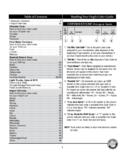
1 Web Payroll System user Guide Table of Contents Topic Page Employee Timesheets General Information 1. Vendor/Independent contractor Invoices and Reimbursement 1. Requests General Information Preparation for entering Payroll 3. Web-based System Getting Started 3. Main Menu Screen 6. Employee Timesheets How to enter 7. Employee Timesheets Getting your tracking number 13. Agency/Vendor or Independent Contractor Invoices How to enter 15. Consumer or Representative Reimbursement Request Screen 22. Viewing and Printing Consumer Statements 27. Tracking Status of your Submission 29. 0 Rev. February 20, 2012. Secure Web Timesheet user Guide Web Payroll System user Guide The Agency for Persons with Disabilities (APD) Consumer Directed Care Plus Program (CDC+). developed the following instructions to assist you in entering your timesheets, vendor or independent contractor invoices, and requests for reimbursements through the CDC+ Secure Web-based Payroll System .
2 Consumers and their authorized representatives are assigned secure usernames and passwords which must be used to access this System . If you have any questions, please call CDC+ Customer Service toll-free at 866-761-7043. Employee Timesheets General Information Paper timesheets for your employees showing time in and out each day must be completed weekly as you have always done. As always, they must be signed by both you and your employee after finishing work each week. This is the official documentation for Medicaid funding of your employees. Copies of all timesheets must be maintained in your file for five years. You may enter your employee's completed timesheet via the secure Payroll System beginning at 8. on the Monday following the previous work week, with the same deadline of 5 Eastern Time on the Tuesday following the end of the 2-week pay period. You can verify the dates of each pay period by reviewing the official CDC+ bi-weekly pay schedule provided to you every six months and available on the CDC+ website at When entering your employee's completed timesheet, you will select from drop-down menus the appropriate employee ID#, name, and the code for the service provided.
3 The drop-down menus will only list the employees and the service codes they are authorized to provide based on your approved purchasing plan for the time period selected. It is your choice to enter your employee's time each week or every other week for the entire 2- week pay period, but the paper timesheets must be completed by your employees each week. Vendor and Independent Contractor Invoices and Requests for Reimbursement General Information You must complete your paper Vendor/Independent Contractor Payment Forms and Consumer/. Representative Reimbursement Forms as you have always done. These forms, along with your providers' invoices and your written verification of service delivery, are your documentation for Medicaid funding. Copies of all payment and reimbursement forms, along with the associated invoices, must be maintained in your file for five years. As soon as you receive an invoice from your independent contractors and agencies/vendors AFTER their services have been provided during the month, you will either request payment for the invoice via the secure Payroll System or you will call the information in by telephone to the 1 Rev.
4 February 20, 2012. Secure Web Timesheet user Guide Customer Service Center. Payment requests made prior to Tuesday at 5 Eastern Time following the end of the regular bi-weekly pay period will pay out on the following bi-weekly Payroll . When entering your vendor or independent contractor invoices for payment, you will select from drop-down menus the appropriate vendor or independent contractor ID#, name, and the code for the service provided. The drop-down menus will only list the vendors or independent contractors and the service codes they are authorized to provide based on your approved purchasing plan for the time period selected. When entering your request for reimbursement, you will select the appropriate person (either the consumer or the representative) to be reimbursed and the appropriate service code for which the reimbursement is being requested. The drop-down menus will only list the service codes that are authorized for consumer/representative reimbursement based on your approved purchasing plan for the time period selected.
5 If at any time you do not see a provider or a service code that you believe should be in the drop- down menu, please call the CDC+ Customer Service Center and they will assist you with your Payroll entry. 2 Rev. February 20, 2012. Secure Web Timesheet user Guide Preparation for Entering Payroll System Instructions for Processing Timesheets, Invoices, and Requests for Reimbursement Before you call or go to the Web site to enter your information . Have all your employees' timesheets signed and fully completed with the column entitled Total Hrs. Worked completed for each service provided and each day worked AND the totals for each service provided at the bottom of the form. Have your Request for Vendor and Independent Contractor Payment forms fully completed with the original invoice attached to each. o If the original invoice does not have an invoice number printed on it, please make up a number and write that number on it.
6 (HINT: If your vendor or independent contractor does not put numbers on their invoices, make the number meaningful, such as the initials of the vendor and the date, and be consistent each month as you put that number on the invoice so you can always find it if called upon to do so in an audit.). o You will also need the invoice date. Have your Consumer/Representative Reimbursement Forms fully completed with the PAID. invoices or receipts attached to each. Web-based System Go to APD's Secure Web-based Payroll System at If you receive this warning, you must click on the appropriate link to adjust your security settings to allow scripting. 3 Rev. February 20, 2012. Secure Web Timesheet user Guide On this page is also a Warning. Since you (the consumer or the consumer's representative). are an authorized user , you will enter your assigned Username and Password for the Secure Web-based Payroll System . If you do not have an assigned Username and/or password, you will have to obtain one.
7 You will not be able to proceed without these credentials. o Note: The Username format for use by Consumers is ConsumerLastName+C+Consumer ID. For use by Representatives, the format is RepresentativeLastName+R+Representative ID. Each consumer will be issued a unique password. Each representative, of consumers who have selected a representative, will also be issued a unique password. The usernames and passwords should not be shared or given out. Enter Username Enter Password Select Login button after UserID and password have been entered. 4 Rev. February 20, 2012. Secure Web Timesheet user Guide Please note that employees, vendors, and family members who provide paid services to the consumer or who are listed on the approved purchasing plan as emergency backups are not authorized users of this Payroll System . The consumer (or consumer's representative, if one has been selected) is responsible for every Payroll item entered via the web.
8 This responsibility is serious, as web claims authorize use of Medicaid funds. If entries are made by non-authorized users, it could constitute Medicaid fraud for which the consumer (or consumer's representative, if one has been selected) would be responsible. (Please Note: This also applies to telephoned-in entries). 5 Rev. February 20, 2012. Secure Web Timesheet user Guide Main Menu Screen On the Main Menu, you can select the type of Payroll document you want to enter for payment ( : Timesheet, Invoice, Reimbursement.). If you will be entering an employee's weekly timesheet(s), click on Employee Weekly Timesheet. 6 Rev. February 20, 2012. Secure Web Timesheet user Guide Employee Timesheet Screen: How to Enter since you cannot see the title on the screen shot The Employee Timesheet screen will give you general instructions. Select the desired work week from the Work Week drop-down menu. NOTE: You can not submit timesheets greater than (6) six weeks thru the Web System , you must call customer service.
9 7 Rev. February 20, 2012. Secure Web Timesheet user Guide Select the employee for whom you are entering time in the Employee ID menu. o Note: The drop-down menus will only list the employees authorized to provide services based on your approved purchasing plan for the time period selected. o If you do not see an employee you believe is authorized to provide services during the selected work week, please contact Customer Service. 8 Rev. February 20, 2012. Secure Web Timesheet user Guide A list of Service Codes for which the employee is authorized to work (according to the authorized approved purchasing plan) will be available in the Service Code drop-down menu. Select the applicable Service Code for this employee. o If you do not see a Service Code you believe an employee is authorized to provide during the selected work week, please contact Customer Service. If you do not see the employee you wish to pay or a Service Code available for a type of work that the employee has performed, please contact Customer Service.
10 9 Rev. February 20, 2012. Secure Web Timesheet user Guide From the Plan Section menu, select the area of the purchasing plan in which the employee was budgeted and therefore from which the employee is to be paid. o The available options are R=Services, S=Savings and T=Short Term Expenditures.. o The codes R, S, and T are defined and used on the paper timesheet. From the EBU box, select whether or not the employee provided this service as an Emergency Back-Up provider. NOTE: The way each employee is entered on the paper purchasing plan plays an important part in getting the employee paid correctly and from the correct budget section of your purchasing plan. Therefore, you must always be sure you have a copy of your purchasing plan that has been approved by the local area office when you submit items for payment. The Purchasing Plan you wrote should be the plan that is ultimately submitted to and approved by the APD area office, but you cannot make that assumption.