Transcription of Windows 10 Quick Reference - customguide.com
1 Microsoft Windows 10 Quick Reference Card Start Menu Keyboard shortcuts Basic Commands Start Menu Copy a Folder/File Ctrl + C Cut a Folder/File Ctrl + X Paste a Folder/File Ctrl + V Cortana (speech) + C Cortana (text) + S Actions Center + A Task View + Tab Close App Alt + F4 Lock computer + L Print Ctrl + P File Explorer + E Run dialog box + R Settings Shortcuts Open Settings + I Devices pane + K Sharing pane + H Display options for + P second screen Quick Link menu + X Desktop shortcuts Desktop + D Maximize + Minimize/Restore + Switch between apps Alt + Tab Minimize all Windows + M Snap app to left + Snap app to right + New Desktop + Ctrl + D Close Current Desktop + Ctrl + F4
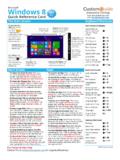
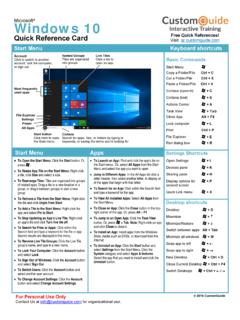
2 Switch Desktops + Ctrl + / Start MenuApps To Open the Start Menu: Click the Start button. Or,press . To Resize App Tile on the Start Menu: Right-clicka tile, click Size and select a size. To Rearrange Tiles: Tiles are organized into groupsof related apps. Drag a tile to a new location in agroup, or drag it between groups to start a newgroup. To Remove a Tile from the Start Menu: Right-clickthe tile and click Unpin from Start. To Add a Tile to the Start Menu: Right-click theapp and select Pin to Start.
3 To Stop Updating an App s Live Tile: Right-clickan app s tile and click Turn live tile off. To Search for Files or Apps: Click within theSearch field and type a keyword for the file or results are displayed in the menu. To Rename Live Tile Groups: Click the Live Tilegroup s name, and type in a new name. To Lock Your Computer: Click the Account buttonand select Lock. To Sign Out of Windows : Click the Account buttonand select Sign Out. To Switch Users: Click the Account button andselect another user account.
4 To Change Account Settings: Click the Accountbutton and select Change Account Settings. To Launch an App: Find and click the app s tile onthe Start menu. Or, select All Apps from the StartMenu and select the app you want to open. Jump to Different Apps: In the All Apps list click aletter header, then select another letter, to display allof the apps that begin with that letter. To Search for an App: Click within the Search fieldand type a keyword for the app. To View All Installed Apps: Select All Apps fromthe Start Menu.
5 To Close an App: Click the Close button in the top-right corner of the app. Or, press Alt + F4. To Jump to an Open App: Click the Task Viewbutton. Or, press + Tab. Note: Right-click an appand click Close to close it. To Install an App: Install apps from the WindowsStore, media such as DVDs, or download from theInternet. To Uninstall an App: Click the Start button andselect Settings from the Start Menu. Click theSystem category and select Apps & the app that you want to install and click theUninstall Click to switch to another account, lock the computer, or sign out Most frequently used apps Start button Click here to open the Start menu Live Tiles Click a tile to open an app All Apps Settings File Explorer Power Cortana Search for apps, files, or folders by typing in keywords, or saying the terms you re looking for Named Groups Tiles are organized into groups Free Quick References!
6 Visit: 2016 CustomGuide For Personal Use Only Contact Us at for organizational File Explorer To Peek at Open Windows : Point to a program icon on the taskbar. Point at the resulting thumbnail preview to peek at the window. To Minimize Other Windows : Press + Home. Or, click and shake a window's title bar quickly from side to side. To Compare Windows Side by Side: Click and drag a window's title bar to the right side of the screen, and select a window thumbnail for the left side of the screen.
7 Or, press + or + . To Maximize an Open Window: Click the window's Maximize window. Or, press + . To Switch Between Apps: Press Alt + Tab to move quickly between open programs and Windows on the desktop. Or, press + Tab to open Task View, and select a window thumbnail. To Access Settings: Click the Start button and select Settings from the Start menu. To Pin a Program to the Taskbar: Pin your favorite desktop apps to the taskbar so you can open them from within the desktop. Open the program you want to pin, right-click the program icon on the taskbar and select Pin this program to taskbar.
8 Settings and Personalization To Personalize your PC: Click the Start button, select Settings from the Start menu, and click the Personalization category from the Settings app. Change Background Choose built-in colors and pictures, or use your own. Select more than one picture to start a slide show. Change Colors Change window color and transparency. Change Lock screen: Change the image that appears when the screen is locked. Change Start: Change what apps appear on the Start Menu. Change Themes: Change Windows s color scheme.
9 Action Center To Display Notifications: Click the Notifications icon on the taskbar, or swipe in from the right side of the screen on a touchscreen, to open the Notification Center. Collapse Actions Center: Click Collapse to collapse the actions down to only the top row. The top row can be customized in the Settings app, so you can control which four actions are available when the list is collapsed. Available actions include: o All Settings: Opens the Settings app.
10 O Airplane Mode: Toggling on will turn off all radios. o Battery Saver: Toggles battery saver mode, dimming the screen and applying other settings to save power. o Bluetooth: Toggles Bluetooth radio on/off. o Brightness: Adjusts your screen s brightness between 100%, 75% 50%, and 25%. o Connect: Connects to wireless devices (ie. Bluetooth). o Location: Toggles location services on/off. o Note: Opens a new note in MS OneNote. o Quiet Hours: A Do Not Disturb mode which blocks notifications from appearing.