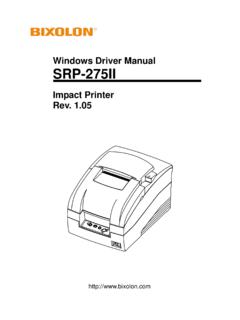
Transcription of Windows Driver Manual SRP-275 - Bixolon
1 Windows Driver Manual SRP-275 Impact Printer Rev. SRP-275 Rev. - 2 - Table of Contents 1. Manual Information .. 3 2. Operating System (OS) Environment .. 3 3. Windows Driver Preparation .. 3 4. Windows Driver Installation .. 4 4-1 Installing on Windows XP / Server 2003 .. 4 4-1-1 Via Serial Port or Parallel Port .. 4 4-1-2 Via USB Port .. 7 4-1-3 Via Ethernet Port .. 9 4-2 Installing on Windows VISTA / Server 2008 / 7 / 8 / Server 2012 / 10 .. 12 4-2-1 Via Serial Port or Parallel Port .. 12 4-2-2 Via USB Port .. 15 4-2-3 Via Ethernet Port .. 17 5. Windows Driver Settings .. 20 5-1 Paper .. 20 5-1-1 Paper Size .. 21 5-1-2 Paper Type .. 22 5-1-3 Copies.
2 23 5-1-4 Color .. 23 5-1-5 Orientation .. 23 5-1-6 Resolution .. 23 5-2 Document Settings .. 24 5-2-1 Send Commands .. 25 5-2-2 Cash 25 5-2-3 Line Feed .. 25 5-2-4 Paper Cut .. 25 6. Windows Driver Specifications .. 26 6-1 Fonts .. 26 6-2 Special 27 7. Use of Windows Driver .. 28 7-1 Use of Visual Basic .. 28 7-1-1 Windows Driver Selection .. 28 7-1-2 Text Printing .. 28 7-2 Use of WordPad .. 29 7-2-1 WordPad Environment Settings .. 29 7-2-2 Text Printing .. 29 SRP-275 Rev. - 3 - 1. Manual Information This Windows Driver Installation Manual provides information on installation, detailed specifications, and usage of the printer s Windows Driver according to PC operating system (OS).
3 We at Bixolon maintain ongoing efforts to enhance and upgrade the functions and quality of all our products. In following, product specifications and/or user Manual content may be changed without prior notice. 2. Operating System (OS) Environment The following operating systems are supported for usage. Microsoft Windows XP SP3 (32bit) Microsoft Windows XP SP1 or later (64bit) Microsoft Windows Server 2003 SP1 or later (32bit/64bit) Microsoft Windows VISTA (32bit/64bit) Microsoft Windows Server 2008 (32bit/64bit) Microsoft Windows Server 2008R2 (64bit) Microsoft Windows 7 (32bit/64bit) Microsoft Windows 8 (32bit/64bit) Microsoft Windows Server 2012 (64bit) Microsoft Windows 10 (32bit/64bit) 3.
4 Windows Driver Preparation The Windows Driver is included in the enclosed CD, and Latest file versions can be downloaded from the Bixolon website. ( ) SRP-275 Rev. - 4 - 4. Windows Driver Installation 4-1 Installing on Windows XP / Server 2003 4-1-1 Via Serial Port or Parallel Port 1) Double-click the Windows Driver installation file. 2) Click Next. 3) Select a COM or LPT port to be used, and then click Next. SRP-275 Rev. - 5 - 4) Click Yes to reboot the PC. 5) Open the printer properties window in the Windows OS. Control Panel Printers and Faxes. 6) In the Ports tab, click Configure Port. Skip this step if you selected a LPT port. 7) Match the communication settings to those of the printer.
5 The communication settings of the printer can be performed by conducting a self-test. Skip this step if you selected a LPT port. SRP-275 Rev. - 6 - 8) Click Print Test Page and check printing status. Proper installation of the Driver is indicated if the test page is printed normally. SRP-275 Rev. - 7 - 4-1-2 Via USB Port 1) Double-click the Windows Driver installation file. 2) Click Next. 3) Select USB and then click Next. SRP-275 Rev. - 8 - 4) Click OK. 5) Turn off the printer and then turn it on. The printer Driver will be installed automatically. 6) Open the printer properties window in the Windows OS. Control Panel Printers and Faxes.
6 7) Click Print Test Page and check printing status. Proper installation of the Driver is indicated if the test page is printed normally. SRP-275 Rev. - 9 - 4-1-3 Via Ethernet Port 1) Double-click the Windows Driver installation file. 2) Click Next. 3) Select Ethernet. 4) Enter the IP address and port number, and then click Next. SRP-275 Rev. - 10 - 5) Click Yes to reboot the PC. 6) Open the printer properties window in the Windows OS. Control Panel Printers and Faxes. 7) In the Ports tab, click Configure 8) Match the communication settings to those of the printer. SRP-275 Rev. - 11 - 9) Click Print Test Page and check printing status.
7 Proper installation of the Driver is indicated if the test page is printed normally. SRP-275 Rev. - 12 - 4-2 Installing on Windows VISTA / Server 2008 / 7 / 8 / Server 2012 / 10 4-2-1 Via Serial Port or Parallel Port 1) Double-click the Windows Driver installation file. 2) Click Next. 3) Select a COM or LPT port to be used, and then click Next. SRP-275 Rev. - 13 - 4) Click Yes to reboot the PC. 5) Open the printer properties window in the Windows OS. Control Panel Hardware and Sound Device and Printers. 6) In the Ports tab, click Configure Port. Skip this step if you selected a LPT port. 7) Match the communication settings to those of the printer.
8 The communication settings of the printer can be performed by conducting a self-test. Skip this step if you selected a LPT port. SRP-275 Rev. - 14 - 8) Click Print Test Page and check printing status. Proper installation of the Driver is indicated if the test page is printed normally. SRP-275 Rev. - 15 - 4-2-2 Via USB Port 1) Double-click the Windows Driver installation file. 2) Click Next. 3) Select USB and then click Next. SRP-275 Rev. - 16 - 4) Click OK. 5) Turn off the printer and then turn it on. The printer Driver will be installed automatically. 6) Open the printer properties window in the Windows OS. Control Panel Hardware and Sound Device and Printers.
9 7) Click Print Test Page and check printing status. Proper installation of the Driver is indicated if the test page is printed normally. SRP-275 Rev. - 17 - 4-2-3 Via Ethernet Port 1) Double-click the Windows Driver installation file. 2) Click Next. 3) Select Ethernet. 4) Enter the IP address and port number, and then click Next. SRP-275 Rev. - 18 - 5) Click Yes to reboot the PC. 6) Open the printer properties window in the Windows OS. Control Panel Hardware and Sound Device and Printers. 7) In the Ports tab, click Configure 8) Match the communication settings to those of the printer. SRP-275 Rev. - 19 - 9) Click Print Test Page and check printing status.
10 Proper installation of the Driver is indicated if the test page is printed normally. SRP-275 Rev. - 20 - 5. Windows Driver Settings The following functions can be configured after installing the Windows Driver . 5-1 Paper 1) Open the Printer Properties window for the corresponding OS. 2) In the General tab, click Preferences (Printing Preferences). 3) Click the Paper tab. SRP-275 Rev. - 21 - 5-1-1 Paper Size Paper size of 76 x 3276 mm is selected by default, and the following sizes can be selected. 76 297 mm 76 3276 mm If a custom paper size is required, click .. to add or update a custom paper size. Click Save after specifying the paper width/length and a paper name.