Transcription of Word 2010 Quick Reference - CustomGuide
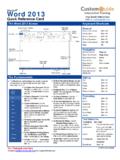
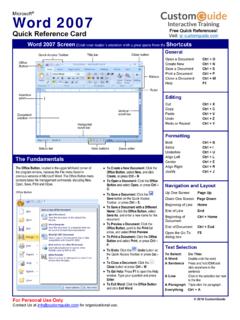
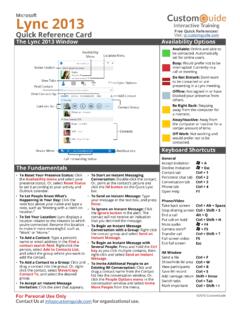
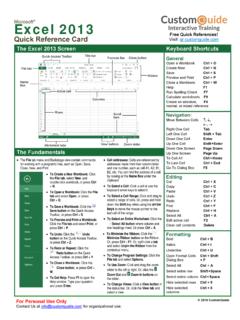
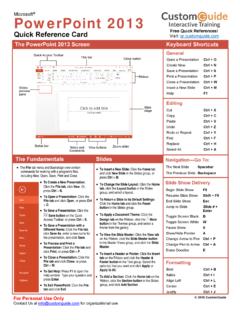
1 Microsoft Word 2010 Quick Reference Card The Word 2010 Screen Keyboard Shortcuts General Open a Document Ctrl + O Create New Ctrl + N Save a Document Ctrl + S Print a Document Ctrl + P Close a Document Ctrl + W Help F1 Navigation: Up One Screen Page Up Down One Screen Page Down Beginning of Line Home End of Line End Beginning of Ctrl + Home Document End of Document Ctrl + End Open the Go To F5 dialog box Editing Cut Ctrl + X Copy Ctrl + C Paste Ctrl + V Undo Ctrl + Z Redo or Repeat Ctrl + Y Formatting Bold Ctrl + B Italics Ctrl + I Underline Ctrl + U Align Left Ctrl + L Center Ctrl + E Align Right Ctrl + R Justify Ctrl + J Text Selection To Select: Do This: A Word Double-click the word A Sentence Press and hold Ctrl and click anywhere in the sentenceA Line Click in the selection bar next to the line A Paragraph Triple-click the paragraph Everything Ctrl + A The Fundamentals The File tab menu and Backstage view contain commandsfor working with a program s files, such as Open, Save,Close, New, and Print.
2 To Move Text with the Mouse: Selectthe text you want to move, drag the textto a new location, and release the mousebutton. To Replace Text: Click the Replacebutton in the Editing group on the Hometab. Or, press Ctrl + H. To Close a Document: Click theClose button, or press Ctrl + W. To Correct a Spelling Error: Right-clickthe error and select a correction from thecontextual menu. Or, press F7 to run theSpell Checker. To Use the Thesaurus: Right-click theword you want to look up and selectSynonyms from the contextual a word or select Thesaurus tosearch the Thesaurus. To Minimize the Ribbon: Click theMinimize Ribbon button on the , press Ctrl + F1. Or, double-click atab. Or, right-click a tab and selectMinimize the Ribbon from the contextualmenu. To Change Program Settings: Click theFile tab and click the Options button.
3 To Get Help: Press F1 to open the Helpwindow. Type your question and pressEnter. To Create a New Document: Click theFile tab, click the New tab, and click theCreate button. Or, press Ctrl + N. To Open a Document: Click the File taband click the Open button, or press Ctrl+ O. To Save a Document: Click theSave button on the Quick AccessToolbar, or press Ctrl + S. To Save a Document with a DifferentName: Click the File tab, click the SaveAs button, and enter a new name for thedocument. To Preview a Document: Click the Filetab and click the Print tab, or press Ctrl+ P. To Print a Document: Click the File taband click the Print tab, or press Ctrl + P. To View Advanced Printing Options:Click the File tab and click the Print from the options under Settings. To Undo: Click the Undo button onthe Quick Access Toolbar, or press Ctrl+ Z.
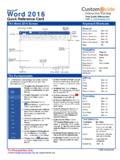
4 File tabQuick Access Toolbar Title barRulerZoom sliderRibbonView buttons Close buttonInsertion point Status bar Document window Vertical scroll bar Horizontal scroll bar Minimize Ribbon Free Quick References!Visit: 2016 CustomGuide For Personal Use Only Contact for organizational To Open the Navigation Pane: Click the Find button in the Editing group onthe Home tab. Or, press Ctrl + F. To Search for a Word or Phrase: Click the Search box, type the word orphrase, and press Enter. To Search for Graphics, Tables, Equations, or Comments: Click theMagnifying Glass and select an option from the list. Click the Search box,enter the information you are searching for, and press Enter. To View Search Results: Click the Browse the results from yourcurrent search tab of the Navigation Pane. To View a Document s Headings: Click the Browse the headings inyour document tab.
5 To View a Document s Pages: Click the Browse the pages in yourdocument tab. Styles To Apply a Style: Select the text to which you want to apply the style andselect the style you want to use from the Styles Gallery in the Styles group onthe Home tab. To Apply a Document Theme: Click the Themes button in the Themesgroup on the Page Layout tab of the Ribbon and select a theme. To View All Available Styles: Click the Dialog Box Launcher in the Stylesgroup on the Home tab. To Change a Style Set: Click the Change Styles button in the Styles groupon the Home tab and select Style Set from the menu. Select the Style Setyou wish to use. To Create a Style: Select the text that contains the formatting of the newstyle, right-click the text, and select Styles from the contextual menu. SelectSave Selection as a New Quick Style from the contextual menu, enter aname for the style, and click OK.
6 To Check Your Styles: Select the text you wish to check. Click the DialogBox Launcher in the Styles group on the Home tab of the Ribbon. Click the Style Inspector button in the Styles task pane. Formatting To Format Text: Use the commands in the Font group on the Home tab, orclick the Dialog Box Launcher in the Font group to open the Font dialog box. To Copy Formatting with the Format Painter: Select the text with theformatting you want to copy and click the Format Painter button in theClipboard group on the Home tab. Then, select the text you want to apply thecopied formatting to. To Indent a Paragraph: Click the Increase Indent button in theParagraph group on the Home tab. To Decrease an Indent: Click the Decrease Indent button in theParagraph group on the Home tab. To Create a Bulleted or Numbered List: Select the paragraphs you want tobullet or number and click the Bullets or Numbering button in theParagraph group on the Home tab.
7 To Change Page Orientation: Click the Page Layout tab on the Ribbon,click the Orientation button in the Page Setup group, and select an optionfrom the list. To Insert a Header or Footer: Click the Insert tab on the Ribbon and clickthe Header or Footer button in the Header & Footer group. To Insert a Manual Page Break: Click the Insert tab on the Ribbon and clickthe Page Break button in the Pages group. To Cut or Copy Text: Select the text you want to cut or copy and click the Cut or Copy button in the Clipboard group on the Home tab. To Paste Text: Place the insertion point where you want to paste and clickthe Paste button in the Clipboard group on the Home tab. To Preview an Item Before Pasting: Place the insertion point where youwant to paste, click the Paste button list arrow in the Clipboard group on theHome tab, and select a preview option to view the item.
8 To Insert a Comment: Select the text where you want to insert a commentand click the Review tab on the Ribbon. Click the New Comment button inthe Comments group. Type a comment, then click outside the comment textbox. To Delete a Comment: Select the comment, click the Review tab on theRibbon, and click the Delete Comment button in the Comments group. Drawing and Graphics To Insert a Clip Art Graphic: Click the Insert tab on the Ribbon and click theClip Art button in the Illustrations group. Type the name of what you relooking for in the Search for box and press Enter. To Insert a Picture: Click the Insert tab on the Ribbon and click the Picturebutton in the Illustrations group. Find and select the picture you want to insertand click Insert. To Insert a Screenshot: Click the Insert tab on the Ribbon and click theScreenshot button in the Illustrations group.
9 Select an available window fromthe list, or select the Screen Clipping option to take a screen clip. To Draw a Shape: Click the Insert tab on the Ribbon, click the Shapesbutton in the Shapes group, and select the shape you want to insert. Then,click where you want to draw the shape and drag until the shape reaches thedesired size. Hold down the Shift key while you drag to draw a perfectlyproportioned shape or straight line. To Insert WordArt: Click the Insert tab on the Ribbon, click the WordArtbutton in the Text group, and select a design from the WordArt Gallery. Clickthe text box and enter your text. If necessary, click the text box and drag it tothe desired position. To Insert SmartArt: Click the Insert tab on the Ribbon, click the SmartArtbutton in the Illustrations group, select a layout, and click OK.
10 To Adjust Text Wrapping: Double-click the object, click the Wrap Textbutton in the Arrange group on the Format tab, and select an option from thelist. To Resize an Object: Click the object to select it, click and drag one of itssizing handles ( ), and release the mouse button when the object reachesthe desired size. Hold down the Shift key while dragging to maintain theobject s proportions while resizing it. To Format an Object: Double-click the object and use the commands locatedon the Format tab. To Delete an Object: Select the object and press the Delete keyTables To Insert a Table: Click the Insert tab on the Ribbon, click the Table buttonin the Tables group, and select Insert Table from the menu. To Insert a Column or Row: Click the Layout tab under Table Tools on theRibbon and use the commands located in the Rows & Columns group.