Dragon Bluetooth Wireless Headset User Guide
2. Select the Dragon Bluetooth wireless headset from the Microphone pull-down menu. 3. Select the spelling model that best suits you from the Spelling pull-down menu, and then choose the Accent. 4. When you have verified your choices are correct, click the Create button.
Download Dragon Bluetooth Wireless Headset User Guide

Information
Domain:
Source:
Link to this page:
Documents from same domain

Dragon Installation and User Guide - Nuance …
supportcontent.nuance.comDictatingE-mailandCalendarcommands 124 CommandsforMicrosoftOutlookExpress,WindowsMail,andWindowsLiveMail 127 MicrosoftOutlook 129 WorkingwithMicrosoftOutlook 129

User’s Guide - Nuance Communications
supportcontent.nuance.comOmniPage 17 User’s Guide 3 C ONTENTS WELCOME 5 New features in OmniPage 17 7 INSTALLATION AND SETUP 11 System requirements 11 Installing OmniPage 12 Setting up your scanner with OmniPage 14

Dragon speech recognition Command cheat sheet …
supportcontent.nuance.comDragon speech recognition Nuance Dragon NaturallySpeaking 13 Command cheat sheet Control the microphone Go to sleep | Stop listening Wake up Microphone off

Quick Reference Guide - Nuance Communications
supportcontent.nuance.com5 edition, you can access different document management systems through the application: use them to store or archive your PDF documents. Export PDF Files
Quick Reference Guide - Nuance Communications
supportcontent.nuance.com2 This Guide shows screen pictures made with Windows® 7 unless other- wise stated. The appearance may vary under other Operating Systems.

3) THE DRAGON SIDEBAR CORRECTING ERRORS
supportcontent.nuance.comDRAGON 12 Quick Reference Card CONNECT YOUR MICROPHONE – important notes: • When you plug your microphone into your PC, an “audio event” window may open. If this happens, verify what is highlighted in that window before closing it.
Nuance Power PDF Release Notes
supportcontent.nuance.comPower PDF Advanced does not enable any connectors automatically. If you want connections to Dropbox and Evernote and any supported Document Management

eCopyShareScan - Nuance Communications
supportcontent.nuance.comforthefirsttime,itopensadialogofferingtheinstallationofthelicenserepresentedbythatlicensekeyenteredintothe installerWizardscreen.IfyouclickOKonthisdialog,theapplicationtriestodownloadthelicensefromtheNuance
Dragon Version 12.5 Release Notes - Nuance …
supportcontent.nuance.comDragon V12.5 Release Notes 3 Installation guidelines Use the following table to determine how you should proceed:

Quick Reference Guide - Nuance Communications
supportcontent.nuance.com6 Nuance PDF Create has a comprehensive HTML Help system. Access it through a hyperlink in the PDF Create Assistant or through the Nuance PDF menu in Microsoft Word, Excel, or PowerPoint.
Related documents

MOMENTUM True Wireless 2 - Sennheiser
assets.sennheiser.comtooth compliant devices. They are intended for wireless audio com - munication such as music playback and phone calls via Bluetooth wireless technology. It is considered improper use when the product is used for any appli - cation not named in the corresponding product documentation. Sennheiser does not accept liability for damage arising from ...
Pairing Bluetooth - d2e2oszluhwxlw.cloudfront.net
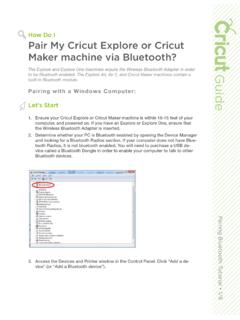
d2e2oszluhwxlw.cloudfront.netPairing Bluetooth Tutorial • 4/8 3. Open the Bluetooth® window. If Bluetooth service is turned off, click the button to turn it on. Select the Wireless Bluetooth® Adapter or Explore Air, Explore Air 2, or Cricut Maker Bluetooth module from the list of devices. (The name of your Wireless Bluetooth® Adapter is included in your packaging ...
MiniKeyboard Instructions - RS Components
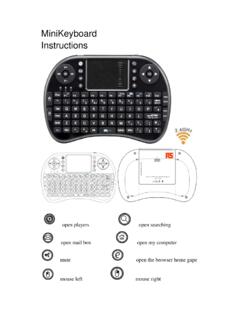
docs.rs-online.comAll wireless devices may be subject to interference, thus affecting . the performance of this product. Turn off this device in hospital . Please turn the device off in areas with “no wireless device” indication. Wireless devices may interfere withimplanted cardiac . pacemakers, hearing aids and other medical implant devices. Accessories

Jan Release Notes Intel® Wireless Bluetooth®
downloadmirror.intel.comIntel® Wireless Bluetooth® . . Package Version and Supported Operating Systems . . for: Microsoft Windows® and Microsoft Windows® Supported Products and Driver Versions Intel® Wireless Adapter Windows® 10 Windows® 11 Intel® Wi-Fi 6E AX411 22.100.1.1 Intel® Wi-Fi 6E AX211 Intel® Wi-Fi 6E AX210 Intel® Wi-Fi 6 AX201

Dell Wireless Mouse and Keyboard KM717
downloads.dell.comYou could connect a third device to your wireless mouse using Bluetooth. 1 Slide the connection-mode switch on your keyboard to select the third-Bluetooth connection. 2 In Windows Search, type Bluetooth. 3 From the list that appears, click Bluetooth Settings.

Dual Band Wireless AC-3160 Bluetooth Brief - Intel
www.intel.comDual Band Wireless-AC 3160 802.11ac, dual band, 1x1, Wi-Fi + Bluetooth® adapter lets you move at the speed of life with faster speeds (up to 433
Wireless Rechargeable Touchpad T650 - Logitech
www.logitech.comLogitech Wireless Rechargeable Touchpad T650 6 Navigate Swipe three fingers to navigate within Windows 8. Swipe up to return to Windows 8 Start. Swipe left or right for back and forward. Swipe down for the desktop. In Windows 7, when software is installed, swiping up launches the application switcher. Touchpad gestures Swipe from the left edge ...

Quick Start Guide - SleepPhones
www.sleepphones.comCheck the volume on your Bluetooth ® audio player. 2 Check the volume on the wireless Bluetooth® module located inside 3 the headband. Make sure that the wireless Bluetooth ® module is charged. 4 If your Bluetooth ® device is separated from your SleepPhones Wireless headphones for more than 5 minutes, the headphones will automatically