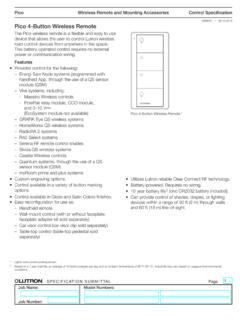
Pico 4-Button Wireless Remote Spec (369847)
Wireless Remote and Mounting Accessories SPECIFICATION SUBMITTAL Page Job Name: Job Number: Model Numbers: Pico Control Specification 369847j 1 09.19.2018 Pico 4-Button Wireless Remote The Pico wireless remote is a flexible and easy to use device that allows the user to control Lutron wireless load-control devices from anywhere in the space.
Download Pico 4-Button Wireless Remote Spec (369847)

Information
Domain:
Source:
Link to this page:
Documents from same domain
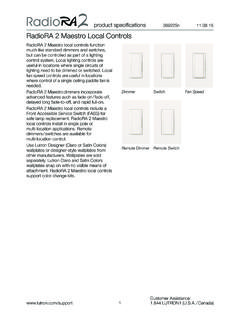
RadioRA 2 Maestro Local Controls SPEC (369225)
www.lutron.comproduct specifications 369225m 12.01.17 RadioRA 2 Maestro Local Controls 3 Customer Assistance: www.lutron.com/support 1.844.LUTRON1 (U.S.A. / …
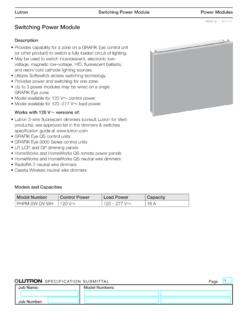
Switching Power Module SPEC (369357) - Lutron …
www.lutron.com369357g 1 09.14.17 g ® SPECIFICATIN SUMITTAL Page Lutron Switching Power Module Description •ovides capability for a zone on a GRAFIK Pr Eye control unit (or other product) to switch a fully loaded circuit of lighting.
Lutron® and Apple® HomeKit™ certified FAQ
www.lutron.com2. Name your home (ex. Jones Residence) 3. Enter the HomeKit Accessory Setup Code found on the bottom of your Lutron Smart Bridge or
Using DALI in HWQS - Lutron Electronics
www.lutron.comUsing DALI Ballasts in HWQS – Rev A Page 2 Overview Lighting fixtures that utilize DALI digitally addressable dimming ballasts can be controlled in a
lighting control solutions switching systems
www.lutron.comLutron switching systems — designed and manufactured to provide exceptional value Ease of use Lutron switching panels are easy to program and
CL Dimmers for Dimmable CFL & LED Bulbs
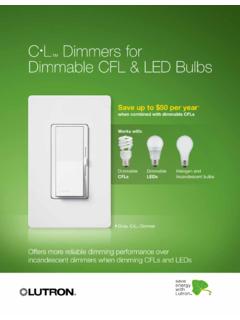
www.lutron.comOffers more reliable dimming performance over incandescent dimmers when dimming CFLs and LEDs C•L Dimmers for Dimmable CFL & LED Bulbs Save up to $50 per year

Hi-lume 1% 2-Wire LED Driver Forward-Phase …
www.lutron.com®SPECIFICA AL a Job Name: Job Number: Model Numbers: LED Dimming Driver Hi-lume 1% 2-Wire LTE (K-, KL- Case) Architectural Dimming 3691081a 3 01.04.18
Lutron Electronics Co., Inc. Trademark Style Guide
www.lutron.comThe Lutron Trademark style guide is a tool used to ensure that Lutron’s trademarks are being properly represented with regard to Lutron …
Technical white paper May 2014 - Lutron Electronics
www.lutron.com3 | Lutron When the unabsorbed blue light mixes with the other colors of light it creates what your eye perceives as “white” light The choice of blue LED and yellow phosphor, and the method of placing
Maestro 0-10 V Dimmer Sensor Spec 369833
www.lutron.comMaestro Maestro 0–10 V Dimmer Sensor Sensor 369833c 3 10.09.17 ® SPECIFICATION SBMITTAL Page ob Name: ob Nmber: odel Nmbers: Load …
Related documents
Start - URC Support
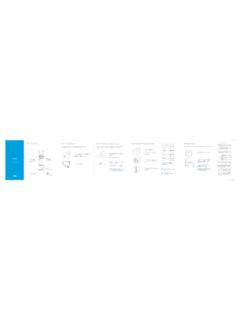
www.urcsupport.comProgram remote for Aim Anywhere or to control your TV or audio device. Pr ess an d h ol te S up bn ( t 3 seconds) until the Status LED changes from red to gr en. Press the CONTOUR button. Follow the on-screen instructions to enter the 3-digit code that appears. Once the code is correctly entered, your CONTOUR Remote is paired with the device. A B C

OWNER’S MANUAL Magic Remote - LG Electronics
www.lg.comusing the Wheel button. (up/down/left/right) Press the up, down, left or right button to scroll the menu. If you press buttons while the pointer is in use, the pointer will disappear from the screen and Magic Remote will operate like a general remote control. To display the pointer on the screen again, shake Magic Remote to the left and right.
Using Your TiVo Remote Control
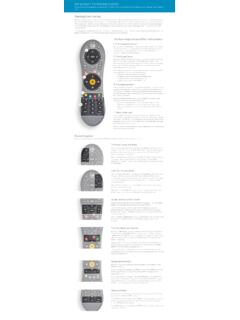
www.tivo.comAlso, the button at the top of the remote is the distinctively-shaped TiVo button. The bottom of the remote has a line of three buttons in a row. Feel for the large button in the shape of the TiVo logo and you’ll know you’re at the top. The TiVo button will take you to the TiVo TiVo Central – the starting point for the TiVo menu system.

KRONOS Remote Access Instructions v3 - UW Blogs Network
blogs.uw.edubutton. 3. You may confirm that you are connected by viewing an icon in your System Tray (right bottom corner) that looks like a golden colored lock. 4. If this icon does not appear in the system tray, click on the Start button that is displayed on the screen where it notates Client Application Sessions -Network Connect. 5.

Owner's Guide - Operation of Remote Control …
www.trane.comTEMP button TEMP Do not drop or throw the remote control; Do not let any liquid in the remote control. Note: Be Press sure that there are no obstructions between receiver and remote controller; Do not put the remote control directly in sunlight or any place where it is very hot. Each time you press this button, a mode is
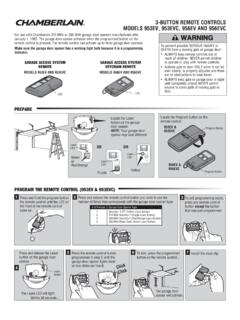
3-BUTTON REMOTE CONTROLS MODELS 953EV, 953EVC, …
pdf.lowes.combutton on the garage door opener. 3 To exit programming mode, press any remote control button except the button that was just programmed. Press the remote control button 7 Install the visor clip. programmed in step 2 until the garage door opener lights flash or two clicks are heard. To test, press the programmed button on the remote control ...
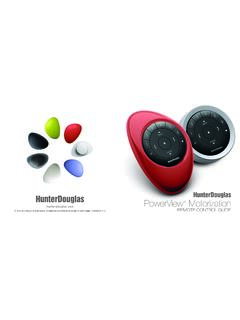
PowerView Remote Control Guide - Hunter Douglas
cdn.hunterdouglas.comPebble™ Remote and Surface Remote combine fashion with function for precise control of your Hunter Douglas window coverings. Artfully designed, PowerView remotes allow you to control natural light throughout your home with the press of a button. The following pages provide all the details on how to set up and operate both remote styles.
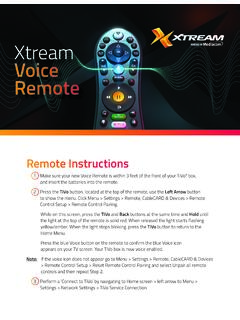
Xtream Voice Remote
mediacomcc.custhelp.comRemote Instructions 1 Make sure your new Voice Remote is within 3 feet of the front of your TiVo® box, and insert the batteries into the remote. 2 Press the TiVo button, located at the top of the remote, use the Left Arrow button to show the menu. Click Menu > Settings > Remote, CableCARD & Devices > Remote Control Setup > Remote Control Pairing.

Remote Control - DISH
www.dish.comYou will hear three beeps from the remote control, indicating it has paired with your DISH receiver AUX input SAT TV 4 Press the SAT button on the side of the remote control 3 Open the front panel of your DISH receiver, and press the SYS INFO button SYS INFO 2 Replace the back cover 54.0 PULL 1 Remove the back cover by pushing the latch

) All Off function key Channel Up and Down Recall key ...
www.kmart.com.auHold the remote in a straight line in front of your TV at a distance less than 1 meter.\r2\) Press and hold the TV device mode button and the power button on the remote control until the red light indicator lights up constantly.\r3\) Press the power button. \r4\) The TV device mode button will blink continuously in red, meaning that the remote ...