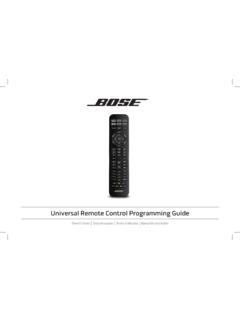
Universal Remote Control Programming Guide
Programming your remote to control your source 1. Power on your source. 2. save your settings.Locate the code for your source’s brand in the Universal Remote Device Codes book (provided). 3. On the remote control, press and hold the appropriate source button until all six source buttons glow, then release.
Download Universal Remote Control Programming Guide

Information
Domain:
Source:
Link to this page:
Documents from same domain
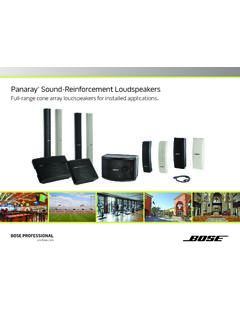
Panaray Sound-Reinforcement Loudspeakers
assets.bose.comPanaray ® Sound-Reinforcement Loudspeakers Full-range cone array loudspeakers for installed applications. 2 From the legendary Bose® 901 ® to the Professional 802 Bose first demonstrated the advantages of full-range cone driver arrays with the revolutionary 901 Direct/Reflecting® high-fidelity loudspeaker. Based on extensive …
SOUNDSPORT - Bose Corporation
assets.bose.com• ®Unlock the full potential of your SoundSport wireless headphones • Free app compatible with most Apple and Android™ systems • Easily connect and switch between multiple Bluetooth® devices with a single swipe
St. John the Evangelist Church: A Sound Restoration
assets.bose.comA major restoration at St. John the Evangelist Catholic Church in Delphos, Ohio, created an unexpected reverberation problem that lasted for more than seven years.
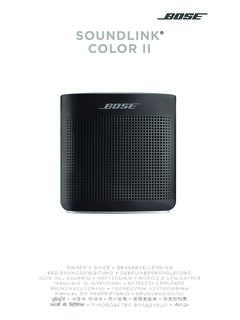
SOUNDLINK COLOR II - Bose Corporation
assets.bose.comBose Corporation hereby declares that this product is in compliance with the essential requirements and other relevant provisions of Directive 2014/53/EU and all other applicable EU directive requirements.
SOUNDLINK - Bose Corporation
assets.bose.comBose Corporation hereby declares that this product is in compliance with the essential requirements and other relevant provisions of Directive 2014/53/EU and all other applicable EU directive requirements.
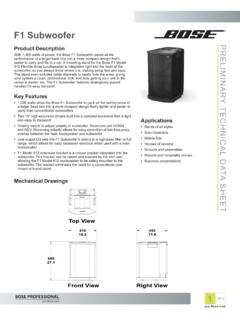
PRELIMINARY TECNICAL DATA SEET - Bose Corporation
assets.bose.com1 OF 3 PRELIMINARY TECNICAL DATA SEET proBosecom F1 Subwoofer Applications • Bands of all styles • Solo musicians • Mobile DJs • Houses of worship • Schools and universities • Resorts and hospitality venues • Business presentations Product Description With 1,000 watts of power, the Bose F1 Subwoofer packs all the
SoundSport Free Wireless - Bose
assets.bose.comWIRELESS. 2 - ENGLISH ITN SE INSINS Please read and keep all safety and use instructions. Important Safety Instructions ... • Do NOT submerge or expose the earbuds for extended period to water, or wear while participating in water sports, e.g., swimming, waterskiing, surfing, etc.
WAVE SOUNDTOUCH PEDESTAL - Bose
assets.bose.comSoundTouch pedestal: • Place the rear feet of the Wave music system into the recesses on top of the SoundTouch pedestal. • Make sure the Wave music system sits flat and the side edges of both parts are aligned. 3. Insert the SoundTouch pedestal’s cable into the Bose link connector. Connect the system to power
Gebruikershandleiding
assets.bose.comDUTCH - 3 WETT CHT UDCH ORMAT ... Apple, het Apple-logo, iPad, iPhone en iPod zijn handelsmerken van Apple Inc., gedeponeerd in de VS en andere landen. App Store is een servicemerk van Apple Inc. Het handelsmerk ‘iPhone’ …
Owner’s Guide - Bose
assets.bose.comPlug the power cord on the AC power supply into the DC connector on the back of the speaker. 3. Plug the AC power supply into a live AC (mains) outlet. The speaker emits a tone to confirm connection to AC power, and charging begins. On the front of the speaker, the battery status indicator blinks yellow to show the battery is charging.
Related documents
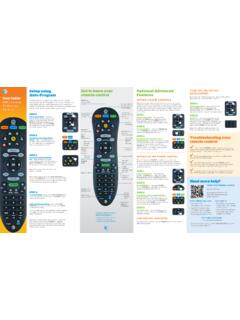
Get to know your Optional Advanced Auto-Program remote ...
www.att.comAudio device programming: Let go of the FASt ForWArD key when the device mutes. Press mute to unmute the device. Use the volume keys to verify that the remote control is controlling the volume. If it does not work properly, repeat this process. note: If TV programming is interrupted or inactive for more than 10 seconds, the PoWer key will flash
PowerView Remote Control Guide - Hunter Douglas
cdn.hunterdouglas.comReplacing batteries in the remote Replacing the batteries in the remote module will not cause the loss of any window covering programming, including GROUPS and FAVORITE. The remote uses two CR 2032 batteries. ™1. For the Pebble Remote, slide your thumb in the indentation, gently lift and remove the remote module from the Pebble.

CLICKER - Lowe's
pdf.lowes.comIf programming fails reverse DIP switches (OFF to ON and ON to OFF). ** 3 Position DIP Switch: For Chamberlain remotes DO NOT use the “0” position, use “+” or “-”. If you already have a 3-button remote, DIP switch #1 must be set to “-” if the large button is to open the door. It may be necessary to reprogram original remote ...

PowerView Remote Control Guide - Hunter Douglas
cdn2.hunterdouglas.comInserting the remote module into the PowerView ® Pebble (hand-held): 1. Center the Hunter Douglas logo on the remote module above the indentation on the bottom rim of the Pebble. 2. Align the ribs on the remote module with the grooves on the Pebble. 3. Gently push the remote module into the Pebble until it is snug. Ribs on remote to be aligned ...
Programming your remote - Telus
static.telus.comProgramming your remote 4-digit brand codes for TVs, DVD players, and amps Direct Code Programming TV Stand 6-8 feet away from the TV and ensure there is a line of sight between the remote and the digital box. Make sure the TV and digital box are on. There are 3 lights on the remote green for OPTIK, red for TV and yellow for AUX.
Remote Codes - Device codes for programming the Bell …
support.bell.caDEVICE CODES FOR PROGRAMMING THE REMOTE These tables contain the manufacturer codes for programming the remote to control your TV, VCR, DVD player, or audio amplifier. Every attempt has been made to include all codes. If your device brand is not listed or if the codes do not work, the remote may not control your device.

Clicker Remote Programming Instructions
www.gsoverheadsystems.comIf programming fails reverse DIP switches (OFF to ON and ON to OFF). **3 Position DIP Switch: For Chamberlain remotes DO NOT use the “0” position, use “+” or “-”. If you already have a 3-button remote, DIP switch #1 must be set to “-” if the large button is to open the door. It may be necessary to reprogram original remote ...

RVLock Keypad/Remote Programming and Syncing …
www.lancecamper.com-If remote programming did not work or if you have additional remotes to program, repeat steps 1 and 2. -Holding down the LEARN button for 10 seconds will remove all previously synced remotes from the handles memory. - You can have up to 10 remotes operating the same RVLock handle. Remote FOB’s have the ability to control multiple RVLock handles.