Transcription of QUICK START GUIDE - TradeStation
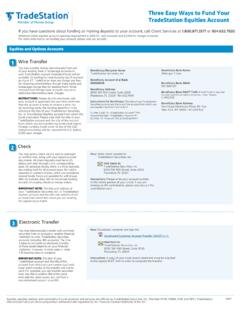
1 Follow these steps to launch your crypto trading and analysis: QUICK STARTGUIDETo get started trading crypto, you must apply and be approved for both a TradeStation Crypto account and a TradeStation Securities equities account, which you can do in one, seamless account opening process. After your TradeStation Securities equities account is open, you can fund it with USD. You can also deposit your Bitcoin, Bitcoin Cash, Ethereum, Litecoin, or USD Coin into your TradeStation Crypto account after it has been the TradeStation Accounts page and scroll down to the funding instructions for equities the My Account button near the top right of the TradeStation Crypto the tab for information on your preferred method of funding: Smart Transfer, Wire Transfer, Check Deposit, or Electronic Transfer (ACAT).
2 Select the Transfers the instructions provided to fund your the + New Deposit button to deposit cryptocurrency or the + New Withdrawal button to withdraw cryptocurrency. Fund Your Account With CashStep 11122332 Bookmark page 2 Once your accounts are opened, you can START trading crypto and easily check your balances directly in the TradeStation Crypto application. When you place a buy order with TradeStation Crypto for cash, you authorize TradeStation Securities to transfer the dollars required for the order into your TradeStation Crypto account.
3 Conversely, when selling crypto for cash, you authorize TradeStation Crypto to deposit the proceeds into your TradeStation Securities equities or Withdraw CryptocurrencyFor added security, all TradeStation Crypto clients are required to use two-factor authentication to access their accounts. On your first login, you will be prompted to set up your phone as your secondary authentication device. Once enabled, you will be prompted to use this device each time you log a Google Chrome InStep 2 Download the Auth0 guardian app from the App Store or Google the I ve already downloaded it link on the Login to TradeStation the Auth0 guardian app, and Allow guardian to take pictures and record the QR code that appears on the Login to TradeStation dialog into your Auth0 guardian recovery code generates.
4 On the Login to TradeStation dialog, check the box, I have safely recorded this code, and click the > arrow below the Login to TradeStation dialog displays Congratulations, you are all set, click TradeStation Crypto from your TradeStation Client Center home page or directly from Enter your TradeStation Client Center username and password, and click the Log in your first-time login, follow the instructions for the Auth0 guardian mobile app enrollment. You may have to switch between your phone and the computer to enroll:A notification will be sent to your phone.
5 Allow the authentication request. If you are unable to respond to the notification, then you can launch the Auth0 guardian app, tap TradeStation , and enter the six-digit code on the bottom of the your identity has been verified, TradeStation Crypto will log out of TradeStation Crypto, click Sign Out from the main application menu (top right).Click the Use Single Sign On page 2To change the layout of your trading workspace, click the Chart Grid View button. You can add up to four chart add symbols to the QUICK Symbol view, click the + button.
6 You can also use the Symbol Selector list to Buy and show an application (such as the Order Book or a chart), click the View Settings choose the symbol to load in a window, use the Symbol Selector menu or click a symbol in the QUICK Symbol view an aggregation of market data across several exchanges, use the Order display a graphical representation of the market over time, use the Price Chart. Click anywhere on the chart to display a cross-hair cursor marking the price and interval. Click and drag the cross-hair to move the display a QUICK graphical summary of supply and demand on the market which shows volumes at each price level, use the Depth switch between display modes, click either Day mode or Night Up Your Trade RoomStep 34 Bookmark page 2 TradeStep 4 Manage Your TradesStep 5To place a trade for the active symbol, click the Buy or Sell button on the QUICK Trade specify order parameters, including order type, quantity, duration, price, and expiration, use the Order Form.
7 To place a trade, click the Buy or Sell view information on your trades, select an order management tab:Orders - Shows the status of all open orders. Click the trash can to cancel an - Displays a log of recent order-related events, including submitted, rejected, and executed - Shows the orders and quotes for your Favorite symbols. Click the Buy or Sell button for an Order - Summarizes the prices and spread for the available page 2 Check out these resources to learn more about TradeStation Crypto and cryptocurrency markets, and find the support you & Support?
8 HelpSupportOnline Help: When you re logged into TradeStation Crypto, click the button on the bottom of the window for information on product Client Center: Manage your account using the TradeStation Client Center (log in with your TradeStation username and password). TradeStation Crypto Resources: Find answers to frequently asked questions about TradeStation us: Get in touch with our client support Knowledge Center: Learn the basics of the cryptocurrency INFORMATIONT radeStation Securities, Inc.
9 , TradeStation Crypto, Inc., and TradeStation Technologies, Inc. are each wholly owned subsidiaries of TradeStation Group, Inc., all operating, and providing products and services, under the TradeStation brand and trademark. You Can Trade, Inc. is also a wholly owned subsidiary of TradeStation Group, Inc., operating under its own brand and trademarks. When applying for, or purchasing, accounts, subscriptions, products and services, it is important that you know which company you will be dealing with.
10 Please click here for further important information explaining what this in cryptocurrencies involves significant risks. Please click here for TradeStation Crypto s risk disclosures on investment and trading in cryptocurrencies. TradeStation Companies 2000-Present. All rights