Transcription of How to update IOS? - storage-asset.msi.com
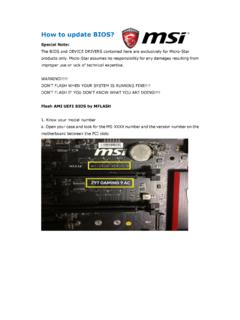
1 How to update BIOS? Special Note: M-Flash is exclusively for Micro-Star products only. If you have any question during updating BIOS, please contact MSI Service and Support to avoid any damage resulting from improper use or lack of technical expertise. 1. Boot up your system & press delete key to enter BIOS screen to check your current BIOS version. 2. Download the new BIOS version that matches the current BIOS version number. 3. Extract the BIOS-zip file that you have downloaded and paste it to your USB. storage device. Note: It is recommended to save the BIOS file to the root folder for easier access. 4. Press delete key to enter BIOS, select M-Flash.
2 You can find M-Flash Button in both BIOS EZ Mode and BIOS Advance Mode. BIOS EZ Mode BIOS Advanced Mode 5. After selecting M-Flash , a notification will appear telling you the system will automatically reboot and enter flash mode. Press Yes to continue. 6. Select USB storage device with the downloaded BIOS. 7. Select the BIOS which you want to update and press Enter to start updating. Note: You can double check the Current BIOS version and the Selected BIOS version at the bottom of the screen. Note: If you cannot see the BIOS in M-Flash, please double check if the downloaded BIOS is correct. 8. A notification will appear to confirm if you have selected the correct BIOS file.
3 Press Yes to start updating. Press No if you have noticed the BIOS file is not correct. 8. BIOS will start updating. Note: Please DO NOT shutdown or restart system until BIOS update process is completed. Please also note that Mouse and Keyboard would be locked during updating. 10. After BIOS update is finished, the system will automatically restart. Please press delete key to enter BIOS screen. You can make sure BIOS has been updated successfully in the BIOS screen.