Transcription of How to Set Up Microsoft Authenticator
1 Page 1 of 2 6/29/2021 How to Set Up Microsoft Authenticator for Health First Associates Multifactor authentication (MFA) is a widely used method to protect online accounts even if someone else knows your password by requiring a second way to verify your identity when logging in. This extra layer of security makes it difficult for your contacts, emails, customer information and any other data stored in your account to be hacked or accessed without authorization. Health First requires MFA to log in to the company network from any non-Health First location. We use the Microsoft Authenticator app for our MFA. Even if you normally work on-site and log in to the network directly, it s a good idea to have this set up so it is ready and working if you need it. Please read through all of these instructions before you get started so you will know what to expect.
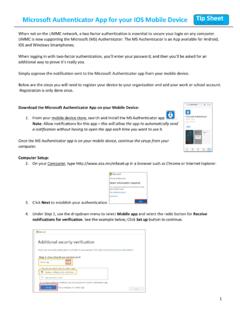
2 You will need your smart phone and a separate device, such as a laptop, computer or tablet with internet service. As an enhanced level of security, some of the steps must be completed within a limited amount of time, so it will help if you set aside a few minutes to do this when you will not be interrupted. A. Get the Authenticator app 1. On your iPhone, open your Apple App Store - or on your Android phone, open your Google Play Store . 2. Search for, download and install the Microsoft Authenticator app . (There is no cost for this app.) B. Set up the app 1. On your separate device, visit 2. Log in using your new email address and password. 3. In the Start by getting the app box, click Next. These next steps are time-sensitive and the process may time out if you don t complete it within 30 to 60 seconds. If it does time out, click Back until you get to Step 2 and try again.
3 1. On your phone, open the Authenticator app, agree to the Terms and agree to allow the app to use your camera, send notifications and anything else it requests. 2. On your phone app, click Scan a QR Code. If that option is not available, click the plus sign (+) to add an account you may need to click the ellipsis (..) first. Page 2 of 2 6/29/2021 3. On your separate device, click Next. It will display a QR Code. 4. Aim your phone s camera at the QR code. It will begin to register your phone. 5. When the app on your phone displays your email address, Continue. 6. When you see the message Let s try it out on your separate device, click Next to send a test notification to your phone. 7. Click the notification on your phone to open it and Approve. 8. Enter your passcode or use the fingerprint or facial recognition you normally use to open your phone.
4 9. Your separate device should display a check mark to indicate the process worked. C. Finish and Close 1. On your separate device, click Done and close the tab. 2. On your phone, close the app. Congratulations, now you re finished setting up Microsoft Authenticator . Need Help? If you need help, call Health First s IT Support Center at