Transcription of Xerox SMARTsend 3.0 Brochure
1 Xerox SMART send SMART send made fast and secure2 Use the power of scanning to transform the way you work. It s possible with S M A R Ts e n d software. Use SMART send and your multifunction device to scan paper documents into digital form and distribute them to multiple destinations to make more information accessible to more your productivity by unleashing the power of scanningWork processes made smarterSMART send software helps you simplify information management. Now sharing documents is easier than ever. Share hard copy information in seconds. Scan a document once, and SMART send will transform it to digital and send it to destinations you have preprogrammed in a workflow multiple email addresses, repositories, network folders, FTP folders, web URLs or remote printers. Use the Scan to Home button to send documents to your personal email, ECM systems or network folder.
2 Implement as a single scan workflow requiring network authentication or PIN entry, or as individual scan workflows for each walk-up user. With the Scan and Store capability, you can scan in double-sided and color documents, change scan resolutions and view larger thumbnails in a larger multifunction device UI. Additionally, you can print duplex and in color with the Browse and Print feature. When creating workflows for distribution, you have direct access to your global mail directory, so there s no need to type in email addresses. Powerful Optical Character Recognition (OCR) capabilities (available in Pro Version) ensure scanned documents are accurate at retaining page layout and formatting in a wide range of file formats. With SMART send Pro, you can specify the appropriate file format for each destination in your workflow, so if one destination requires PDFs or TIFFs and another Word or Excel files, it s no problem.
3 Use SMART send Pro to convert your scanned document into text searchable PDF, Word or Excel files and distribute them directly to DocuShare or several other supported repositories turning hard copy into readily available, indexed knowledge. SMART send supports OCR to MS Word 2007, MS Excel 2007 and WordPerfect 10 formats. SMART send enables you to set up automated email or printed delivery confirmations, so you can be assured your files are Create the workflow at your PC Using Workflow Wizards indicate document destinations, digital formats, how you want to publish it, Publish the workflow a. At the device: In the UI scroll down the list of stored workflows, select yours, scan document for distribution, push the start button!b. PaperWare cover sheet: Print a PaperWare cover sheet listing your workflow destinations, place it on top of your document, scan, and SMART send interprets and routes the document Enjoy the Power of SMART send In a single simple workflow you have distributed information to multiple destinations and multiple a free trial version of SMART send at the workflow Device Workflow PaperWare Workflow Scan to E-mail Scan to Repository Scan to FilePrint at Remote DeviceCreate the workflow3A smart network citizenSMART send software is incredibly IT friendly.
4 It takes the load off system administrators. Leverages network user profiles for security and easy access. There s no need to set up individual users, and if you want to limit access, you can do that too. Provides automatic device discovery so users can easily locate the most convenient multifunction device. Provides the ability to filter device lists based on location and device name, as well as ability to access a device Web UI for administrators. Gives you maximum security for your sensitive information with multiple security features, including secure encrypted end-to-end filing via HTTPS, secure device discovery and configuration via SNPMv3, integrated network authentication and password-protected private workflows. Tracks workflow usage the activity log ensures all workflows have an audit trail.
5 Allows automatic deletion of expired or outdated advancedSMART send software s leading-edge features are designed to optimize your network investment and take your business process into the future. Supports multiple Xerox products, including Xerox ColorQube , monochrome and color WorkCentre Pro systems as well as legacy Document Centre scan-enabled devices. Enables you to add indexing information (metadata) to documents, and then use that identifying data later to search for them, so finding your documents is easy. Delivers the following functionality through Web service SDK: Job Management (including programmatic job submission, cancellation)Platform Management Workflow Management Device Configuration Scan to Home Management Customers with Xerox multifunction printers enabled by EIP can easily scan and store hard copy information, such as expense forms or patient records, into a document repository, including Xerox DocuShare Microsoft SharePoint and Windows folders.
6 At your multifunction printer touch screen, you can select the Scan to Repository icon, which can be customized to meet your company s needs, for instance, "Scan to DocuShare." You can look through your online folders and archives to select the destination for your document. When you touch the Scan icon a thumbnail view of the document will appear on the screen, giving you visual confirmation that your information was scanned correctly. You can change the names of your documents by using the keyboard on the touch screen. When you select the Store button, you complete the process. At this point, you may choose to print a confirmation report that verifies job for Xerox SM A RTs e nd Key Features Web-based software application that automates the digital transformation, conversion and distribution of hard copy documents, making more information accessible to more people Scanning workflow creation via web browser wizards Send to multiple destinations with a single scan Add indexing information (metadata) to scanned documents Convert scanned documents into a variety of industry standard formats Vary the scanned image format by destination Scan to Home feature allows easy set up of scan destinations (email address, FTP site, ECM Systems or network folder)
7 For walk-up users Secure encrypted transmission of scanned data via HTTPS Private Workflows (with MFP Network Authentication) Delivery confirmations via email or printed at MFP scan sourceSMART send Pro Key Features Everything in SMART send, plus: Workflow initiation using PaperWare (scan cover sheets) enables scan destinations to be modified at the scan source Integrated Optical Character Recognition facilitates automatic digital archiving and easy document repurposingSystem SpecificationsFor best performance it is recommended that SMART send be installed on a dedicated server/computer. The minimum requirements are: CPU: GHz or faster Hard Drive 1 GB or more free disk space RAM: 512MB or more. 1 GB or more is recommended for all operating systems and is required for Windows Vista) Network Protocol: TCP/IP (also supports HTTP/HTTPS) Single network adapter (multiple adapters are not supported) The computer can not be a domain may also be installed on a shared print or file server with the above minimum specifications.
8 2009 Xerox Corporation. All rights reserved. Xerox and the sphere of connectivity design and Document Centre DocuShare , SMART send , WorkCentre and ColorQube are trademarks of Xerox Corporation in the United States and/or other countries. 09/09610P729914 AOperating Systems Supported Windows 2003 Server with enabled, all service packs and critical updates and Internet Information Services installed Windows 2008 Server Windows XP Professional Workstation SP2 Platform Vista Business EditionThe SMART send EIP applications are only supported on a Windows 2003 and 2008 servers not XP Pro or Vista Business may also be installed on the above operating systems in conjunction with VMware virtual infrastructure or Microsoft Virtual PC/Virtual Server. This may result in reduced performance (slower processing) based on the virtual Requirements The SMART send client interface is web browser-based and can be accessed through the following supported web browsers:Windows ClientsMicrosoft Internet Explorer version and higher Windows/Mac ClientsNetscape Navigator version and higher Mac OS X or laterMozilla version and later Mozilla FireFox version and higher Linux/Unix ClientsMozilla version and later Mozilla FireFox version and higher Supported Xerox Multifunction Devices* The following Xerox scan-enabled multifunction devices have been certified to work with SMART send.
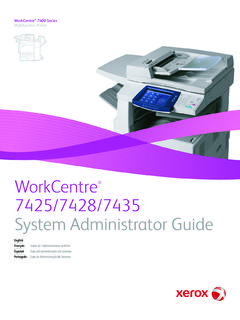
9 ColorQube 9201/9202/9203 Document Centre 240 ST, 255 ST, 265 ST Document Centre 425, 426, 430, 432, 440 Document Centre 460 ST, 470ST, 480ST, 490ST Document Centre 535, 545, 555 WorkCentre 232/238, 245/255, 265/275 WorkCentre 4150, 5030/5050, 7132 WorkCentre 5632/5638/5645/5655/5665/ 5675/5687 WorkCentre 7328/7336/7345, 7425/7428/7435 WorkCentre 7655/7665/7675 WorkCentre M20/M20i, M24 WorkCentre M118/M118i WorkCentre Pro 32, 35, 40, 45, 55, 65, 75, 90 WorkCentre Pro 123/128, 133, 165/175 WorkCentre Pro 232/238, 245/255, 265/275 WorkCentre Pro C2128/C2636/C3545 Xerox 3635, 4260, 6400, 7232 Xerox 4590/4595 Copier/Printer (with caveats)*Check for SMART send Fax or E-Mail enabled devices (through the use of SMART send Pro PaperWare coversheets), including.
10 WorkCentre Pro 685/785 WorkCentre M20i WorkCentre M118i WorkCentre M24 WorkCentre Pro and Document Centre Requirements Scan to File enabled T C P / I P lpr enabled DNS host name or static IP address assignedOutput Destination and Repositories Supported E m a i l F T P Microsoft Network Folder NetWare Folder (Novell NetWare version or ) Remote Printer Scan to URL (version ) Domino (version or ) DocuShare and Microsoft SharePoint Portal Server 2001, 2003 and 2007 Hummingbird DM (optional) Interwoven WorkSite (optional) Documentum (optional) Live Link Enterprise Server (optional)For more information, call 1-800-ASK- Xerox , or visit us online at