Transcription of SharePoint Foundation 2010 - CustomGuide
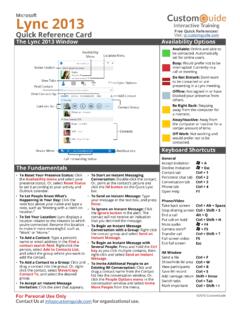
1 Microsoft SharePoint Foundation 2010 Quick Reference Card SharePoint Team Site Quick Launch Collaboration areas such as team sites, workspaces and blog sites. Important subsites may also appear in the Quick Launch. Includes libraries that contain related files, such as documents, wiki sites, and forms. Store shared information here, such as events on a calendar or project tasks. Participate in group discussions using discussion boards. Deleted information is stored here. View all sites, lists, and libraries in the site. Create a new survey, or respond to a survey and view its results. Picture libraries are the best way to store shared images.
2 Include commands and options specific to images. People and groups with permission to view or work with the site appear here. Permission Levels Full Control: All permissions are included. Users with this permission level have complete control over everything in the site. Site Owners are given this permission level by default. Design: Create many things, including lists and document libraries. Also edit pages and change the appearance of the site by applying themes or style sheets. Contribute: Add, edit, and delete items in existing lists and document libraries. Site Members are given this permission level by default. Read: Read-only access to the Web site.
3 View items and pages, open items and documents. Site Visitors are given this permission level by default. Limited Access: This is a special permission level that gives access to a specific list, item, or document, without giving them access to the entire site. The Fundamentals There are four main tools for navigation in aSharePoint site:Link Bar: This includes the tabs that appear alongthe top of the site. Subsites of the current siteusually appear as tabs on the link bar. To go to asite, click its tab on the Link Launch Bar: Navigate to items on thecurrent site, such as shared documents, andlibraries, such as picture and slide Navigation: Breadcrumb navigationdisplays links to where you have been, and wherethe current page fits in the hierarchy of sites anditems in the Up: Click this button to navigate back tothe Home page from any SharePoint subsite.
4 To Navigate in a SharePoint Site: SharePointsites work just like any other site on the Internet:click a hyperlink to view the page or item to which itis connected. To View All Content in the Current Site: Click theAll Site Content link at bottom top of the QuickLaunch Bar. To Search: Click in the Search box at the top of thepage. Type your search word or term and pressEnter. To Change Views: You can change how items aredisplayed in a library or list by changing views. Clickthe Library, List, or Calendar tab on the Ribbonand click the Current View list arrow in the ManageViews group. Select the view you want to use. To Sign Out: Click the Welcome (User) menu atthe top of the screen and select Sign Out.
5 To Sign In as a Different User: Click the Welcome(User) menu at the top of the screen and selectSign in as Different User. Enter the different userinformation in the dialog box. To Change User Settings: Click the Welcome(User) menu at the top of the screen and select MySettings. Click the Edit Item link on the toolbar andattach a file with updated user settings. To Get Help: Click the Help button in the topright corner of the SharePoint site page. Understanding Permissions: Each user that hasaccess to a site is assigned a permissions permissions level limits the amount of controlthe user has in the site. See the list on the right sideof the page for more information about the fivepermission levels in bar Ribbon tabs Search box Web Part Site Actions menu Quick Launch Bar This image displays the home page of the North Shore Travel team site as it appears to a user with Full Control (a member of the Site Owner group).
6 The Web page is composed of Web Parts, which can be customized and changed as necessary by users with the right permissions. Welcome user menu Navigate Up Edit Free Quick References!Visit: 2016 CustomGuide For Personal Use Only Contact for organizational Wikis Document Library vs. Document Workspace: These are the two primaryways to work with documents on a SharePoint site. A document library letsusers share, collaborate, collect, and manage files with others. A documentworkspace has tools to help a team develop and prepare one or moredocuments. To Open and Edit a Shared Document: Click Documents on the QuickLaunch bar and click the library containing the document you want to open oredit.
7 Click the document. In the dialog box that appears, click Read Only toopen the document, click Edit to edit the document. To Check Out a Document: Click Libraries on the Quick Launch bar andclick the library containing the document you want to check out. Point to thedocument you want to open. Click the list arrow that appears and selectCheck Out from the list. Click OK and click the document to open it. To Check In a Document: Make sure the document is not open in anotherprogram. Click Libraries on the Quick Launch bar and click the librarycontaining the document you want to check in. Point to the document, clickthe list arrow that appears, and select Check In from the list.
8 Complete theoptions that appear and click OK. Click Yes to confirm the check in. To Create a New Document: Navigate to the library or folder in which youwant to create a document. Click the Documents tab on the Ribbon and clickthe New Document button in the New group. Click OK. Click Save when youhave finished making changes to the document. Enter a name for the file inthe File name box and click Save. Click the Close button to close the Worddocument. To Create a New Folder: Navigate to the library or folder in which you wantto create a new folder. Click the Documents tab on the Ribbon and click theNew Folder button in the New group. Enter a folder name and click Save.
9 To Upload a Single Document: Navigate to the library or folder in which youwant to create a new folder. Click the Documents tab on the Ribbon and clickthe Upload Document button in the New group. Click the Browse button,select the document you want to upload, and click Open. Enter any versioncomments and click OK. Check in the document, if necessary. To Upload Multiple Documents: Navigate to the library or folder in whichyou want to create a new folder. Click the Documents tab on the Ribbon andclick the Upload Document button list arrow in the New group. SelectUpload Multiple Documents from the list. Open Windows Explorer andnavigate to the documents you want to upload.
10 Drag and drop files in theUpload Multiple Documents dialog box. When you are finished, click OK. Surveys and Discussions To Respond to a Survey: Click Surveys on the Quick Launch bar and openthe survey to which you want to respond. Click Respond to this Survey onthe toolbar and answer the survey questions. Click Finish when you aredone. To View Survey Responses: Click Surveys on the Quick Launch bar andopen the survey for which you want to see responses. Click the Show agraphical summary of responses or Show all responses link To Create a New Discussion Topic: Click Discussions on the QuickLaunch bar and open the discussion to which you want to contribute.