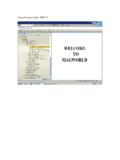
Transcription of Ontario Power Generation purchases Material and …
1 Create Invoice for Service Ontario Power Generation purchases " Material " and "Service". The process and screens to submit invoices for these categories differ slightly. How do you determine if the PO you are invoicing is a Materials or Services? Look at Line 1 of the PO. Start the invoicing process by opening the emailed purchase order . You must first click on Process order to launch Ariba, then log into Ariba to begin the process of invoice submission. 1) Invoice Number. Invoice #: Invoices must be in UPPER CASE and can only include letters and numbers. No special symbols, such as a dash, may be used. 2) The date on your actual invoice. Backdate if required. 3) Tax ID (HST Number for Canadian Suppliers) 4) Choose from the drop down the correct tax rate. 5) Click Add to Header, and then select Attachment . Select the file from your computer, then click Add Attachment.
2 An attachment is typically a copy of your invoice or evidence/backup that the service was completed. This attachment should contain sufficient detail to facilitate OPG approving the invoice. 6) Select the line you wish to invoice 7) Click Create 8) Enter a quantity of 1. 9) Enter the PRE-TAX value of the line. 10) Click Create 11) Click Next. **Where there is not enough remaining funds on the purchase order to support the invoice submission, the following error message will appear !The subtotal invoiced exceeds limit. Please contact the requestor at OPG to have the PO value increased. This will generate a new emailed PO with the updated value. 12) Click Submit






![Create Contract [Quantity contract]: ME31K](/cache/preview/5/9/3/9/3/3/b/b/thumb-593933bb0cd0c1bf2e396c1bd060f21b.jpg)