Transcription of Navigator Web Part - The Sharepoint Web Part …
1 Navigator Web part AMREIN ENGINEERING AG. Version March 2013. Description The & quot ; Navigator & quot ; Web part allows to display the Links of the specified Sharepoint List. It also can be used as a filter Web part to filter other web parts placed on the page. The Web part can be used with Windows WSS , MOSS 2007, Sharepoint 2010. and Sharepoint 2013. Prerequisites Before you attempt to install the solutions you need to make sure that you have the following installed on your server(s): Microsoft Office Sharepoint Server 2007, WSS , Sharepoint 2010 or Sharepoint 2013. Installation Manual Installation 1. download and unpack the file. The ZIP archive contains the and the files. 2. drop the into the GAC of your Sharepoint server (c:\windows\assembly). 3. add the following line to the & quot ;<SafeControls>& quot ; section of your file. Please make sure that the line is added as one single line (no line breaks): <SafeControl Assembly=& quot ;AELinksWebpart, Version= , Culture=neutral, PublicKeyToken=bc3e856a271a9960& quot ; Namespace=& quot ;AELinksWebpart& quot ; TypeName=& quot ;*& quot ; Safe=& quot ;True& quot ; />.
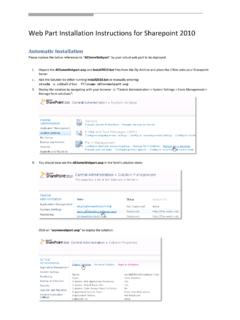
2 4. from the top site go to & quot ;Site Actions/Site Settings/Modify All Site Settings/Galleries/Web Parts& quot ;. 5. use the & quot ;Upload& quot ; menu option to upload the file. Automatic Installation 1. Unpack the and ( for Sharepoint 2010) files from the Zip Archive and place the 2 files onto your Sharepoint Server. 2. Add the Solution by either running or manually entering: stsadm -o addsolution -filename 3. Deploy the solution by navigating with your browser to Central Administration->Operations->Solution Management : 4. You should now see the in the farm's solution store: Click on to deploy the solution: 5. Proceed to activate the feature by navigating to the Site Actions/Site Settings page in your top-level site: Choose Site collection features to navigate to the Site Collection Features page: Activate the AE Links Web part feature Adding the Web part to a Page Navigate to a page where you would like to place the web part and choose & quot ;Site Actions/Edit Page& quot ;.
3 Add the web part to the appropriate zone. The web part is listed in the & quot ;Amrein Engineering& quot ; gallery section: License Activation You have the following 3 options to enter your License Key: 1. Enter the License Key into the corresponding License Key field in the web part configuration pane (See description above). 2. WSP Solution Deployment: Add the file (as supplied by AMREIN ENGINEERING after having purchased a license) to the Solution at the following location: c:\Program Files\Common Files\Microsoft Shared\Web Server Extensions\14\template\features\AELinksW ebpart 3. Manual Deployment: Add the License Key to your file (typically found at c:\inetpub\wwwroot\wss\virtualdirectorie s\80). <appSettings> section as follows: <appSettings>. <add key=& quot ;AENA& quot ; value=& quot ;AENA-x-xxxxx-xxxxx-xx-xx& quot ; />. </appSettings>. Replace the x characters with your actual key values.
4 Please note that this method requires you to manually add the key to each Sharepoint application.