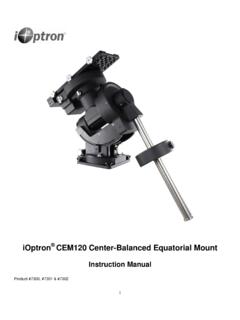
Transcription of Connect a CEM120 mount to a Computer V1 - ioptron.com
1 Connect a CEM120 mount to a Computer There are 4 ways to Connect a CEM120 mount to a Computer : RS232, USB, Wi Fi or LAN (Ethernet). You may need a cable and/or converter to make the connection work. Connect to a Windows Computer is via ASCOM Platform (please refer to for detailed info.) The software/firmware needed: Windows XP/ Vista/ 7 /8 /10 with .NET (dotNET) Framework installed; Latest ASCOM Platform. Download and install it from ; iOptron Commander and ASCOM Driver Installer or later. Download and install it from iOptron CEM120 product page; Latest mount firmware Connect via RS232 Plug 4 pin RJ9 plug into mount RS232 port. Connect the D shaped 9 pin RS232 plug to a Computer , either directly to a COM port or via a USB RS232 converter. Click on iOptron Commander . An iOptron Commander Connection Setting window will open: Select RS 232/USB Port with Auto Detection (or you can choose a port with the pull down button).
2 Click OK. A device selection window will show. Check mount Panel to bring up the iOptron Commander mount Panel. Now you can control the mount via iOptron Commander, or Connect your favorite planetarium software and select for software configuration. Connect via USB Plug USB B plug of a USB cable into the USB port on CEM120 base. Plug the USB A plug into any available USB port of the Computer . Follow the steps described in Connect via RS232 Connect via Wi Fi The mount Wi Fi SSID is in a form of HI LINK_XXXX. The default password is 12345678. To Connect it, power the mount first. Click on the Wi Fi sign located on left bottom corner to bring up Wi Fi network menu. Select the CEM120 Wi Fi network, here is HI LINK_9E49. Click and enter password to Connect to it. Click on iOptron Commander . Select Wi Fi/Ethernet and choose CEM120 Built in Wi Fi from pull down menu.
3 Click OK will bring up the device selection window. Connect via LAN Plug one end of a network cable into mount s LAN port. Plug another end of the cable into an available LAN port of your network router. Make sure that the Computer and the mount are in the same network. Power the mount on. Check the IP address of the mount either through network router (you need to know how to log into the router), or from your hand controller. To view the CEM120 IP address via hand controller, press MENU=>Settings=>Network Options=>Manual Refresh. After the hand controller display Connected, press BACK to exit. Then select Wired Status to check the IP address and Port number. In this example, it is IP: , PORT:8080. Click on iOptron Commander . Select Wi Fi/Ethernet and choose Custom from pull down menu. Enter IP address and Port (Socket) number. Click OK will bring up the device selection window.
4 For a Mac OS, it depends on if the planetarium software has the iOptron CEM120 drive embedded.