Transcription of The College of Direct Support Learner’s Guide
1 Pg. 1 The College of Direct Support Learner s GuideSTATE OF NEW JERSEYDEPARTMENT OF HUMAN SERVICESDIVISION OF DEVELOPMENTAL DISABILITIES Last updated 3/2013 Website: For Technical Assistance on using the College of Direct Support please contact your agency CDS Administrator. pg. 2 It s about the of supports that a well-trained workforce provides. It s about the of professionalism gained through the College of Direct Support state-of-the-art training . It s about the of Direct Support Professionals and the lives of people with developmental disabilities The NJ Partnership for Direct Support Professional Workforce Development The College of Direct Support offers online learning and education to provide the Direct Support Workforce with more opportunities to strengthen the knowledge and skills needed to Support people with disabilities.
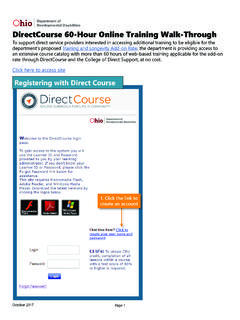
2 The goal is to provide a variety of opportunities to Support the careers of Direct Support professionals. pg. 3 NJPDSPWD CDS Login Page Be sure to have the correct address: (Google may yield another CDS site). If you do not see the New Jersey Partnership for Direct Support Professional Workforce Development logo (indicated on the right), then you are on the wrong web page. There is also a link to the New Jersey College of Direct Support Log in page on the DDD website: http; Once on the website scroll down until you see the New Jersey Partnership for Direct Support Professional Workforce Development logo.
3 The link will take you to the NJ Partnership website. pg. 4 User ID: First Initial, Last Name, Last 4 Digits of Person s Social Security number. Do not include spaces, hyphens, commas or any additional characters (ex. Joe Schmoe will be: jschmoe1234). ID s are not case sensitive. Password: default password is hello (you can change your password once you log into the system). Then click the Login button. The first time on you login to the site, you will be taken to the WebInservice Learning system Usage Agreement Page. You must click on the box at the bottom of the page I agree to the terms and conditions listed above and then click on Send My Response to get into the system.
4 System Requirements: The system is most compatible in Internet Explorer browser, however is can also run in Google Chrome, Firefox and Safari sufficiently. All of these are free and can be downloaded from the login page by clicking on the icons. The following is what is required in order for audio to run reliably in Windows 7. Flash version 10,0,45,2 or higher Check the version of Flash by going to the link below: The most recent version of Internet Explorer: us/ IE 8 (security set no higher than medium) Windows Media Player version 12.
5 Check the Windows Media Player by going to: US/windows7/products/features/windows media player 12 K Lite Codec pack is sometimes required if there are content audio/video issues when using Windows 7: (it s free; just download the version by clicking the Download button) pg. 5 Internet Compatibility Issues If you are using the College of Direct Support and are unable to get drop down menus when you click on the main menu bar, there may be a compatibility issue with your Internet Explorer, you may have a different version than the one required to use the system.
6 Try the following steps: On the top of your web page go to tools then click compatibility view settings a pop up window will appear then check the box that says display all websites in compatibility view then click the close button. The page should refresh automatically (if not, then click refresh) You should now be able to access the drop down menu pg. 6 CDS Personal Page Personal Page Each time you log in, your Personal Page opens. There is a series of Menu Tabs across the top of the page and a set of Quick Links down the left side of the page.
7 The quick links take you directly to the page they describe while the menu tabs offer you additional options. You can view and print a copy of your transcript at any time. Click on the My Transcript All Training View button. Remember to change the Status from Current to Current and Archive then click the Go button on the right before printing your transcript. Accessing E Learning (online training) Click on My E Learning Lessons view button to move directly to your assigned lesson plan (you can also click on E Learning then My E Learning Lessons to view your lessons).
8 Pg. 7 View of Lessons Assigned Once you click My ELearning Lessons View button, you will be brought to a page that looks similar to this. If your lessons do not show on the page, select All Assignments from the Available Filters drop down menu. The page will refresh and the lessons you were assigned will appear. You will need to take the pre test before entering into the lesson. 1. Click on the lesson you want to take. 2. A screen will appear with information on the lesson. 3. Click on the Take the Pre Test button at the bottom of the page.
9 4. A new page will appear with instructions for taking the test 5. Click on the Take Test button in the upper right hand corner pg. 8 Taking the Test This pre test is simply a way for you to have an understanding of your existing knowledge and know where you need to learn more. To take the test, select your answers. When you are done answering the questions click Submit Test . The test will be graded immediately and show your score. You can then click on Personal Page button in the upper right hand corner to get back to the E Learning information.
10 Once you are back to the homepage click the lesson associated with the test you completed. You will also be instructed to complete a test after you have completed the lesson. You must complete the test after completing the lesson in order for the test to be counted. You must receive a score of 80% or higher and you can take the test up to three times. pg. 9 Entering E-Learning This is an example of the first slide of a selected lesson. Navigate through the lesson at your own pace by using the page arrow buttons at the bottom of the page. Lesson Reviews or Objectives will appear in most lessons.